On this page
- What is Gemma 4, and why does it matter for Local AI
- The Four Models: A No-Nonsense Comparison
- Minimum Hardware Requirements by Device
- Running Gemma 4 on a Phone
- Running Gemma 4 on a Laptop
- Running Gemma 4 on a Desktop
- How to Set Up Gemma 4 on Your Machine
- Path 1: Ollama (Recommended for Most People)
- Path 2: LM Studio (Best GUI Experience)
- Path 3: Google AI Edge Gallery (Mobile)
- 7 Practical Things You Can Build Offline with Gemma 4
- 1. A Fully Private AI Chatbot
- 2. Offline Voice Transcription and Audio Notes
- 3. Local Coding Assistant in VS Code
- 4. Private Document Search and Summarizer (RAG System)
- 5. Image Analyzer and OCR Tool
- 6. Smart Home and IoT Voice Controller
- 7. Custom Fine-Tuned Model for Your Niche
- Which Model Should You Pick?
- Gemma 4 vs Llama 4 vs Phi-4: Which Is Best for Local Use?
- Frequently Asked Questions
- Does Gemma 4 work completely offline?
- Is Gemma 4 free?
- How does Gemma 4 compare to ChatGPT for everyday use?
- Can I use Gemma 4 for commercial products?
- How long does it take to generate a response?
- Will Gemma 4 slow down my computer?
- Can I run multiple models at the same time?
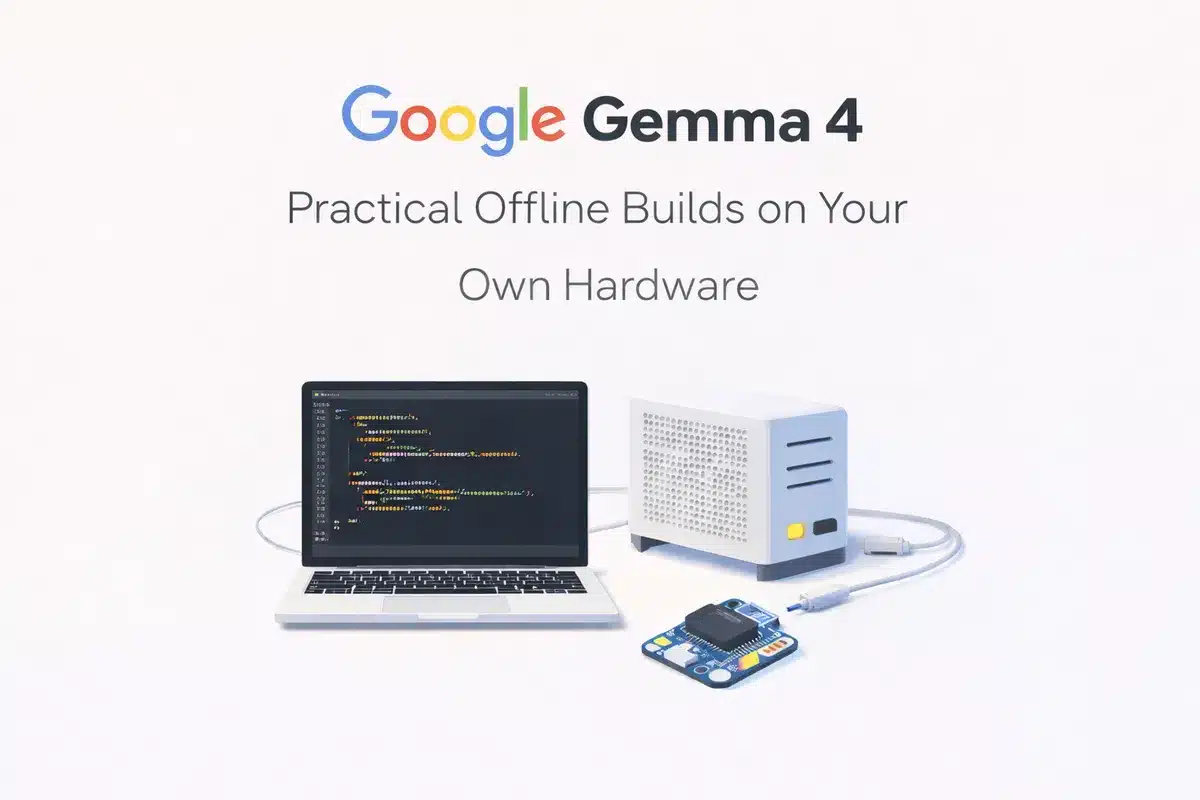
Google released Gemma 4 on April 2, 2026, and it changed the math on what “running AI locally” actually means. Unlike cloud-locked models that eat your wallet and your privacy, every Gemma 4 variant is designed to run on hardware you already own, from a mid-range Android phone to a desktop workstation.
This is not a benchmarks article. This is a practical guide. You will learn exactly which model fits your device, how to install it, and seven real projects you can build today without sending a single byte to the internet.
What is Gemma 4, and why does it matter for Local AI
Gemma 4 is a family of four open-weight AI models built on the same research behind Google’s Gemini 3. The entire family ships under the Apache 2.0 license, which means you can use it commercially, modify it, redistribute it, and fine-tune it without restrictions or usage caps.
What makes Gemma 4 different from previous open models is the range. Google did not release one model and hoped for the best. They released four models that target four different hardware tiers, from a phone in your pocket to a workstation under your desk.
Every model in the family is natively multimodal. The smaller models handle text, images, and audio. The larger models handle text, images, and video. You do not need to stitch together separate models for different input types; a single download covers them.
The practical takeaway: if your device has at least 4 GB of free RAM, there is a Gemma 4 model that will run on it.
The Four Models: A No-Nonsense Comparison
Before you download anything, you need to know which model fits your hardware and your use case. Here is the full breakdown.
| Spec | Gemma 4 E2B | Gemma 4 E4B | Gemma 4 26B (MoE) | Gemma 4 31B (Dense) |
|---|---|---|---|---|
| Total Parameters | 5.1 billion | 8 billion | 26 billion | 31 billion |
| Active Parameters | ~2.3 billion | ~4.5 billion | ~3.8 billion | ~30.7 billion |
| Architecture | Dense (PLE) | Dense (PLE) | Mixture of Experts | Dense |
| Context Window | 128K tokens | 128K tokens | 256K tokens | 256K tokens |
| Input Types | Text, Image, Audio | Text, Image, Audio | Text, Image, Video | Text, Image, Video |
| RAM Needed (4-bit) | ~4 GB | ~6 GB | ~16 GB | ~20 GB |
| Best For | Phones, IoT, Raspberry Pi | Laptops, tablets | Desktops with GPU | Power workstations |
A quick note on the “E” naming. The E stands for “Effective.” These models use Per-Layer Embeddings (PLE) to squeeze more performance out of fewer parameters. Think of it as Google’s way of making small models punch above their weight class.
The 26B MoE model deserves special attention. Even though it has 26 billion total parameters, only about 3.8 billion are active during any single inference step. That means it runs surprisingly fast on consumer hardware, often faster than the smaller E4B for text tasks, while delivering much higher quality output.
Minimum Hardware Requirements by Device
This section answers the most common question: “Can my device run this?” The answer depends on which model you pick and how much free memory your device actually has.
Running Gemma 4 on a Phone
Recommended model: Gemma 4 E2B
| Requirement | Minimum | Recommended |
|---|---|---|
| RAM | 6 GB total (Android/iOS) | 8 GB+ |
| Storage | ~3 GB free | 5 GB free |
| Chipset | Snapdragon 8 Gen 2 / A16 Bionic or newer | Snapdragon 8 Gen 3+ / A17 Pro+ |
| OS | Android 13+ / iOS 17+ | Latest version |
What this means in practice: Most flagship and upper mid-range phones from 2023 onward can run the E2B model. Phones like the Samsung Galaxy S23, Google Pixel 8, and iPhone 15 meet the requirements. Budget phones with 4 GB of RAM will struggle.
How to run it: Install the Google AI Edge Gallery app from the Play Store or App Store. It downloads and manages the model for you. No terminal commands, no configuration files. You open the app, pick Gemma 4 E2B, wait for the download, and start chatting.
For developers, the ML Kit GenAI Prompt API lets you integrate Gemma 4 directly into your Android app with a few lines of code.
Running Gemma 4 on a Laptop
Recommended model: Gemma 4 E4B (standard) or Gemma 4 26B MoE (if you have 16 GB+ RAM)
| Requirement | E4B (Standard) | 26B MoE (Power users) |
|---|---|---|
| RAM | 8 GB minimum | 16 GB minimum |
| Storage | ~5 GB free | ~16 GB free |
| Processor | Any modern x86-64 or Apple Silicon | Apple M1 Pro+ / Intel i7 12th gen+ |
| GPU | Not required (CPU works) | Dedicated GPU helps, not required |
| OS | macOS 13+, Windows 10+, Linux | Same |
Apple Silicon users get a major advantage. MacBooks with M1, M2, M3, or M4 chips use unified memory, which means the CPU and GPU share the same RAM pool. A MacBook Air with 16 GB of unified memory can comfortably run the 26B MoE model, something that would require a dedicated GPU on a Windows laptop.
Windows laptop users with 8 GB of RAM should stick with the E4B model. If your laptop has 16 GB and a discrete NVIDIA GPU (GTX 1660 or better), you can run the 26B MoE with good performance.
Running Gemma 4 on a Desktop
Recommended model: Gemma 4 26B MoE (balanced) or Gemma 4 31B Dense (maximum quality)
| Requirement | 26B MoE | 31B Dense |
|---|---|---|
| RAM | 16 GB system RAM | 32 GB system RAM |
| VRAM (GPU) | 8 GB+ recommended | 16 GB+ recommended |
| GPU | NVIDIA RTX 3060 / AMD RX 6700 XT | NVIDIA RTX 3090 / RTX 4080 |
| Storage | ~16 GB free | ~20 GB free |
| CPU | Any modern quad-core | Intel i7/Ryzen 7 or better |
CPU-only desktop users: You can run the 26B model without a GPU, but expect slower generation speeds (around 5-10 tokens per second on a modern CPU versus 30-50+ tokens per second with a decent GPU).
The sweet spot for most desktop users is the 26B MoE model on an NVIDIA RTX 3060 12 GB or RTX 4060. You get near-flagship quality, fast generation speed, and the model fits comfortably in your GPU’s memory with 4-bit quantization.
How to Set Up Gemma 4 on Your Machine
There are three main paths depending on your comfort level.
Path 1: Ollama (Recommended for Most People)
Ollama is the simplest way to download, manage, and run local AI models. It works on macOS, Windows, and Linux, and it handles quantization, memory management, and GPU offloading automatically.
Step 1: Download Ollama from ollama.com and install it.
Step 2: Open your terminal and pull the model you want.
# For laptops with 8 GB RAM
ollama pull gemma4:e4b

# For desktops with 16 GB+ RAM
ollama pull gemma4:26b

# For workstations with 32 GB+ RAM
ollama pull gemma4:31b
Step 3: Start chatting.
ollama run gemma4:e4bThat is it. You now have a fully offline AI running on your hardware. You can close your Wi-Fi and it will keep working.
Ollama also exposes a local API at http://localhost:11434 that is compatible with the OpenAI API format. This means virtually any tool or app that supports OpenAI can be pointed at your local Gemma 4 instance instead.
Path 2: LM Studio (Best GUI Experience)
If you prefer clicking over typing, LM Studio gives you a desktop app with a chat interface, model browser, and performance monitoring built in.
- Download LM Studio from lmstudio.ai.
- Search for “Gemma 4” in the model browser.
- Pick the quantization level that matches your RAM (Q4_K_M is a good default).
- Click “Load” and start chatting.
LM Studio also supports image input, so you can drag and drop photos into the chat for the multimodal features.
Path 3: Google AI Edge Gallery (Mobile)
For phones and tablets, use the official Google AI Edge Gallery app.
- Install from the Google Play Store or Apple App Store.
- Open the app and select Gemma 4 E2B.
- Wait for the model to download (around 2-3 GB).
- Start using it offline.
The app includes demos for text chat, image analysis, and audio input. It is the fastest way to experience local AI on a phone.
7 Practical Things You Can Build Offline with Gemma 4
Here is where it gets real. These are not theoretical projects. Each one can be built with free tools and your existing hardware.
1. A Fully Private AI Chatbot
Best model: E4B (laptop) or 26B MoE (desktop)
The simplest and most immediately useful project. You get a ChatGPT-style assistant that runs entirely on your machine. No data leaves your device, no monthly subscription, and no usage limits.
How to build it:
- Install Ollama and pull your preferred model.
- For a polished chat interface, install Open WebUI which connects to your local Ollama instance and gives you a browser-based chat UI with conversation history, system prompts, and model switching.
# Pull the model
ollama pull gemma4:26b

# Run Open WebUI (requires Docker)
docker run -d -p 3000:8080 --add-host=host.docker.internal:host-gateway \
  -v open-webui:/app/backend/data --name open-webui \
  ghcr.io/open-webui/open-webui:main
Open http://localhost:3000 in your browser, point it at your Ollama instance, and you have a private ChatGPT alternative running in your living room.
Why this matters: Every prompt you type into a cloud chatbot gets stored on someone else’s server. A local chatbot keeps your brainstorming sessions, personal questions, and sensitive work completely private.
2. Offline Voice Transcription and Audio Notes
Best model: E2B or E4B (both support native audio input)
The E2B and E4B models can process audio input directly, without needing a separate speech-to-text model. You can feed in voice recordings and get transcriptions, summaries, or answers.
Practical uses:
- Record a meeting on your phone and get a summary without uploading the audio anywhere.
- Dictate notes while hiking or commuting, then have Gemma 4 clean them up into structured text.
- Transcribe interviews or lectures offline on a laptop while traveling.
How to set it up:
- On mobile, the Google AI Edge Gallery app supports direct audio input with the E2B model.
- On desktop, you can use the Ollama API to send audio files programmatically via a Python script.
This replaces cloud services like Otter.ai or Google’s cloud transcription, except your audio never leaves your device.
3. Local Coding Assistant in VS Code
Best model: 26B MoE (best balance) or E4B (if RAM is limited)
You can turn Gemma 4 into a local GitHub Copilot alternative that works without internet.
How to build it:
- Install Ollama and pull
gemma4:26b. - Install the Continue extension in VS Code.
- Configure Continue to use your local Ollama endpoint (
http://localhost:11434).
Now you have code completion, inline explanations, refactoring suggestions, and debugging help, all running locally. The 26B model is particularly strong at code generation and can handle complex multi-file refactoring tasks.
What you can do with it:
- Generate boilerplate code for new projects.
- Explain unfamiliar code in a legacy codebase.
- Write unit tests by highlighting a function and asking for tests.
- Debug error messages by pasting stack traces.
- Refactor messy code into cleaner patterns.
The quality is genuinely competitive with cloud-based coding assistants for most everyday tasks. Where it falls short is on very large codebase-wide refactors that require understanding hundreds of files simultaneously.
4. Private Document Search and Summarizer (RAG System)
Best model: 26B MoE or 31B Dense
This is one of the most powerful offline setups you can build. A Retrieval-Augmented Generation (RAG) system lets you drop in a folder of PDFs, notes, or documents and ask questions about them in natural language.
How to build it:
- Install Ollama with
gemma4:26b. - Install a vector database like ChromaDB.
- Use a local embedding model (Ollama supports
nomic-embed-text). - Connect everything using a Python script or a framework like LangChain.
Simplified workflow:
# Pull models
ollama pull gemma4:26b
ollama pull nomic-embed-text
# Pseudocode for a basic RAG pipeline
from langchain_community.llms import Ollama
from langchain_community.vectorstores import Chroma
from langchain_community.embeddings import OllamaEmbeddings
# 1. Load and embed your documents
embeddings = OllamaEmbeddings(model="nomic-embed-text")
vectorstore = Chroma.from_documents(your_documents, embeddings)
# 2. Query with Gemma 4
llm = Ollama(model="gemma4:26b")
results = vectorstore.similarity_search("What were Q3 revenue numbers?")
answer = llm.invoke(f"Based on this context: {results}, answer: What were Q3 revenue numbers?")Practical uses:
- Search through years of personal notes instantly.
- Query legal contracts or medical records without uploading them to a cloud service.
- Build a company knowledge base that runs on a single office machine.
5. Image Analyzer and OCR Tool
Best model: E4B (quick analysis) or 26B MoE (detailed analysis)
All Gemma 4 models are multimodal, which means you can feed them images and ask questions about what they see.
What you can do:
- Extract text from photos: Take a picture of a receipt, whiteboard, or handwritten note and have Gemma 4 extract the text (OCR) without any cloud service.
- Describe images: Point the model at a photo and ask “What is in this image?” Useful for cataloging, accessibility tools, or organizing a photo library.
- Analyze charts and graphs: Feed in a screenshot of a dashboard or chart and ask Gemma 4 to explain the trends.
- Parse screenshots: Capture a UI screenshot and ask the model to describe the layout or extract specific information.
How to use it:
In LM Studio or Open WebUI, simply drag and drop an image into the chat window alongside your question. Through the API, you can send base64-encoded images with your prompts.
6. Smart Home and IoT Voice Controller
Best model: E2B (on a Raspberry Pi) or E4B (on a home server)
Gemma 4 supports function calling natively. This means the model can understand a voice command, decide which action to take, and output a structured instruction that your smart home system can execute.
Example workflow:
- Run Gemma 4 E2B on a Raspberry Pi 5 (4 GB+ model).
- Connect a microphone for voice input.
- Define a set of “tools” (functions) that map to your smart home devices: lights, thermostat, locks, music.
- When you say “Turn off the living room lights and set the thermostat to 68,” Gemma 4 processes the audio, identifies the intent, and outputs a structured JSON response like:
[
  {"action": "set_light", "room": "living_room", "state": "off"},
  {"action": "set_thermostat", "temperature": 68}
]- A simple script picks up this JSON and sends the actual commands to your Home Assistant, Homebridge, or MQTT broker.
Why this beats cloud assistants: No microphone data gets sent to Google or Amazon. Your voice commands stay on your local network. The system works during internet outages. And you have full control over what the model can and cannot do.
7. Custom Fine-Tuned Model for Your Niche
Best model: E4B or 26B MoE (for fine-tuning)
If you have a specific use case, think customer support for your product, medical terminology for your clinic, or a writing assistant that matches your style, you can fine-tune Gemma 4 on your own data.
Tools:
- Unsloth: A library that makes fine-tuning 2-5x faster and uses 70% less memory than standard methods. It supports LoRA and QLoRA, which let you train without modifying the full model.
- Unsloth Studio: A browser-based UI for fine-tuning. No coding needed.
What you need:
- An NVIDIA GPU with 8 GB+ VRAM for the E4B model, or 16 GB+ for the 26B model.
- A small dataset (even 100-500 examples can make a noticeable difference).
- Your data in JSONL format (pairs of input prompts and ideal responses).
The basic process:
- Install Unsloth:
pip install unsloth - Load your base model in 4-bit precision.
- Configure LoRA adapters (start with rank 16).
- Train on your dataset (usually takes 30-60 minutes on a consumer GPU).
- Export to GGUF format.
- Load your custom model in Ollama.
# After exporting to GGUF
ollama create my-custom-model -f Modelfile
ollama run my-custom-model
Now you have a model that speaks your language, knows your product, or follows your style, running completely offline.
Which Model Should You Pick?
If the comparison table was too much information, here is the simplified decision:
- “I just want to try AI on my phone.” Use E2B via the AI Edge Gallery app.
- “I have a regular laptop with 8 GB RAM.” Use E4B via Ollama.
- “I have a MacBook with 16-24 GB unified memory.” Use 26B MoE via Ollama. This is the sweet spot for most Mac users.
- “I have a desktop with a gaming GPU (12 GB+ VRAM).” Use 26B MoE via Ollama. You will get excellent speed and quality.
- “I have a workstation with 24 GB+ VRAM.” Use 31B Dense for maximum quality in reasoning, coding, and complex analysis.
- “I want to build an always-on home assistant.” Use E2B on a Raspberry Pi 5.
When in doubt, start with the E4B. It runs on almost anything, and you can always upgrade to the 26B later.
Gemma 4 vs Llama 4 vs Phi-4: Which Is Best for Local Use?
These are the three most capable open models for local deployment in April 2026. Here is how they compare for offline, on-device use.
- Migrate leg
The bottom line: If you want one model family that covers everything from a phone to a workstation, Gemma 4 is currently the most versatile choice. Llama 4’s massive context window is unbeatable for processing very large documents, but its smallest model is too heavy for most consumer hardware. Phi-4 is excellent for tight resource constraints but lacks the multimodal breadth of Gemma 4.
Frequently Asked Questions
Does Gemma 4 work completely offline?
Yes. Once you download the model, it runs entirely on your device with zero internet connection. You can disable Wi-Fi, turn on airplane mode, and it keeps working. No API keys, no cloud calls, no telemetry.
Is Gemma 4 free?
Yes. Every model in the Gemma 4 family is released under the Apache 2.0 license. You can use it for personal projects, commercial products, research, and fine-tuning without paying Google or anyone else.
How does Gemma 4 compare to ChatGPT for everyday use?
For most everyday tasks like writing emails, answering questions, brainstorming, and summarizing text, the 26B MoE model delivers quality that is within striking distance of GPT-4 class models. You will notice differences on very complex multi-step reasoning tasks or creative writing with nuanced tone, but for practical daily use, many people find the local experience more than sufficient.
Can I use Gemma 4 for commercial products?
Yes. The Apache 2.0 license explicitly permits commercial use, modification, and redistribution. You can build products on top of Gemma 4, fine-tune it for your business, and deploy it to customers without licensing fees.
How long does it take to generate a response?
It depends on your hardware. Rough expectations for the 26B MoE model:
- Apple M2/M3 MacBook with 16 GB RAM: 15-25 tokens per second (comfortable reading speed).
- Desktop with RTX 4060: 30-50+ tokens per second (fast, fluid experience).
- CPU-only laptop: 5-10 tokens per second (usable, but you will notice the wait on long answers).
Will Gemma 4 slow down my computer?
While the model is generating a response, it will use a significant amount of RAM and CPU/GPU resources. On devices with the minimum recommended RAM, you may notice other apps slowing down during generation. On devices with comfortable headroom (e.g., 16 GB RAM for the E4B model), you will barely notice it running in the background.
Can I run multiple models at the same time?
Technically yes, if you have enough RAM. Ollama can serve multiple models, but each model needs its own memory allocation. Running E4B alongside a separate embedding model for RAG is common and works well on 16 GB+ systems.

Sumit
ContributorHi, I'm Sumit, Being an introvert I have always been obsessed with technology-computers and reading dozens of posts to learn, find answers out of my curiosity. I love to write as I explore more.