On this page
- Step 1: Diagnose Before You Fix
- How to Use Activity Monitor
- Step 2: Kill Startup and Background Bloat
- Remove Unnecessary Login Items
- Disable Background Activity
- Step 3: Free Up Storage the Right Way
- Use Apple’s Built-in Storage Tools
- Manual Cleanup Targets
- Why You Should NOT Use Third-Party Cleaners
- Step 4: Reduce Visual Effects for Instant Snappiness
- Reduce Transparency and Motion
- Optimize Dock Animations
- Use Desktop Stacks
- Step 5: Fix Your Browser Habits
- The Chrome Problem
- If You Stay on Chrome
- Tab Discipline
- Step 6: Terminal Tweaks for Power Users
- Disable Window Open/Close Animations
- Remove Dock Auto-hide Delay
- Disable Quick Look Animations
- Speed Up Mission Control Animation
- How to Revert Any Change
- Step 7: Run Disk Utility First Aid
- Step 8: Keep macOS Updated
- What Does NOT Speed Up Your Mac (Myths Busted)
- RAM Cleaner Apps
- Obsessive App Quitting
- SMC/NVRAM Resets on Apple Silicon
- Third-Party “System Optimizer” Software
- When It’s Time to Accept Your Hardware Limits
- Apple Silicon Macs Cannot Be Upgraded
- Signs It’s Genuinely Time for a New Mac
- Frequently Asked Questions
- Does restarting my Mac really help?
- Is 8GB of RAM enough in 2026?
- How often should I clear browser caches?
- Will a factory reset (erase and reinstall macOS) speed up my Mac?
- Does closing Finder windows help performance?
- Should I disable Spotlight indexing to speed things up?
- The Bottom Line
Let’s be honest. Most “speed up your Mac” guides online are recycled filler that either tell you to buy some sketchy cleaner app or repeat the same five obvious tips without explaining why they work.
This guide is different. Every suggestion here is grounded in how macOS actually manages resources, backed by Apple’s own support documentation and verified system behavior. If a tip doesn’t have a real technical reason behind it, it’s not in this article.
Whether your MacBook is a brand-new M4 that feels oddly sluggish or a trusty 2020 Air that’s starting to show its age, these are the fixes that will make a measurable difference.
Step 1: Diagnose Before You Fix
Before you change a single setting, find out what’s actually slowing your Mac down. Guessing wastes time. Activity Monitor tells you exactly where the problem is.
How to Use Activity Monitor
- Press Command + Space, type Activity Monitor, and hit Enter
- Click the CPU tab and sort by % CPU (click the column header)
- Click the Memory tab and look at the Memory Pressure graph at the bottom
Here’s what the Memory Pressure colors mean:
| Color | What It Means | Action Needed |
|---|---|---|
| Green | Your Mac has plenty of RAM available | No action needed |
| Yellow | Memory is under moderate pressure | Close some apps, monitor the situation |
| Red | Your Mac is actively using swap (SSD as overflow RAM) | Close heavy apps immediately, consider a restart |
If you see a process you don’t recognize consuming 80%+ CPU or massive amounts of RAM, select it and click the X button in the toolbar to quit it. If it won’t respond, use Force Quit.
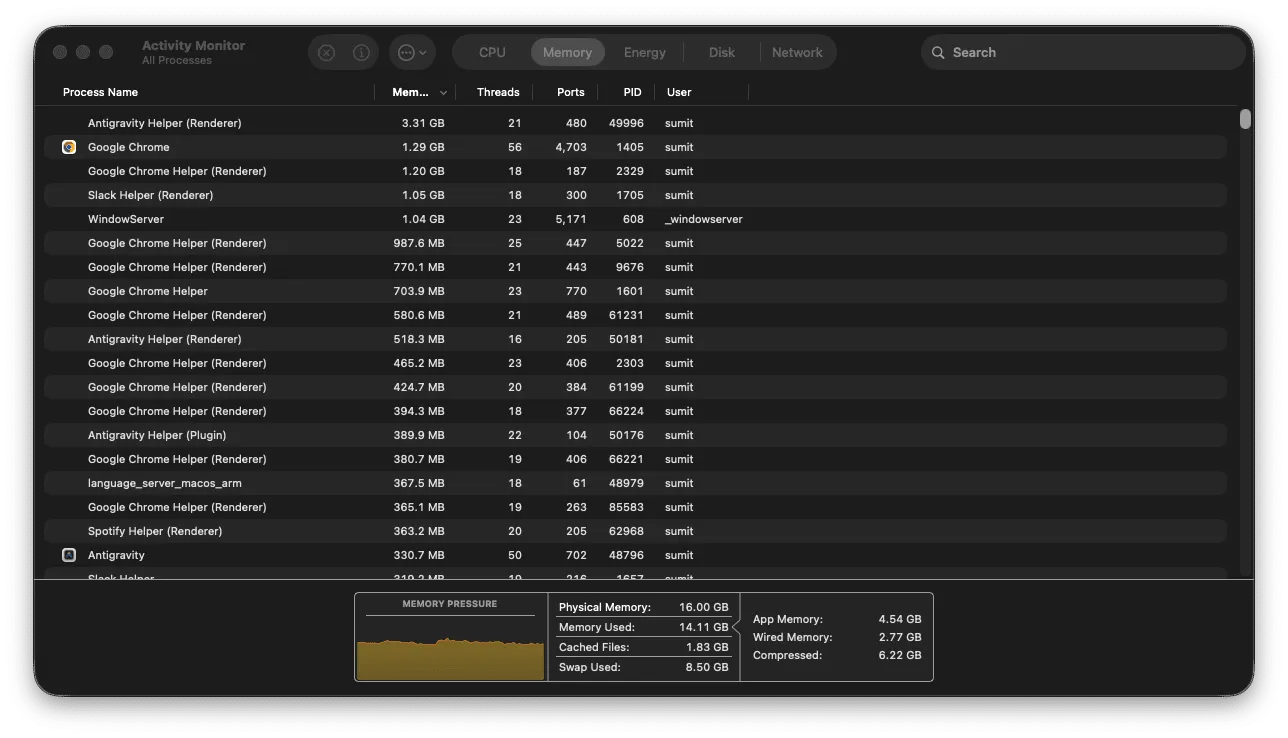
Pro tip: The Energy tab is equally useful on laptops. It shows which apps are draining your battery and, by extension, working your hardware harder than necessary.
Activity Monitor is documented in Apple’s official macOS User Guide as the primary tool for identifying performance issues. Use it before trying anything else. Apple Support – Activity Monitor
Step 2: Kill Startup and Background Bloat
Every app that launches at login eats into your available CPU and RAM before you’ve even opened a browser. Over time, apps silently add themselves to your login items without asking.
Remove Unnecessary Login Items
- Open System Settings > General > Login Items & Extensions
- Under Open at Login, review the list carefully
- Select any app you don’t need immediately at startup and click the minus (-) button to remove it
Disable Background Activity
On the same screen, scroll down to Allow in the Background. This is where apps get permission to run processes even when you’re not actively using them. Turn off anything that doesn’t need constant background access.
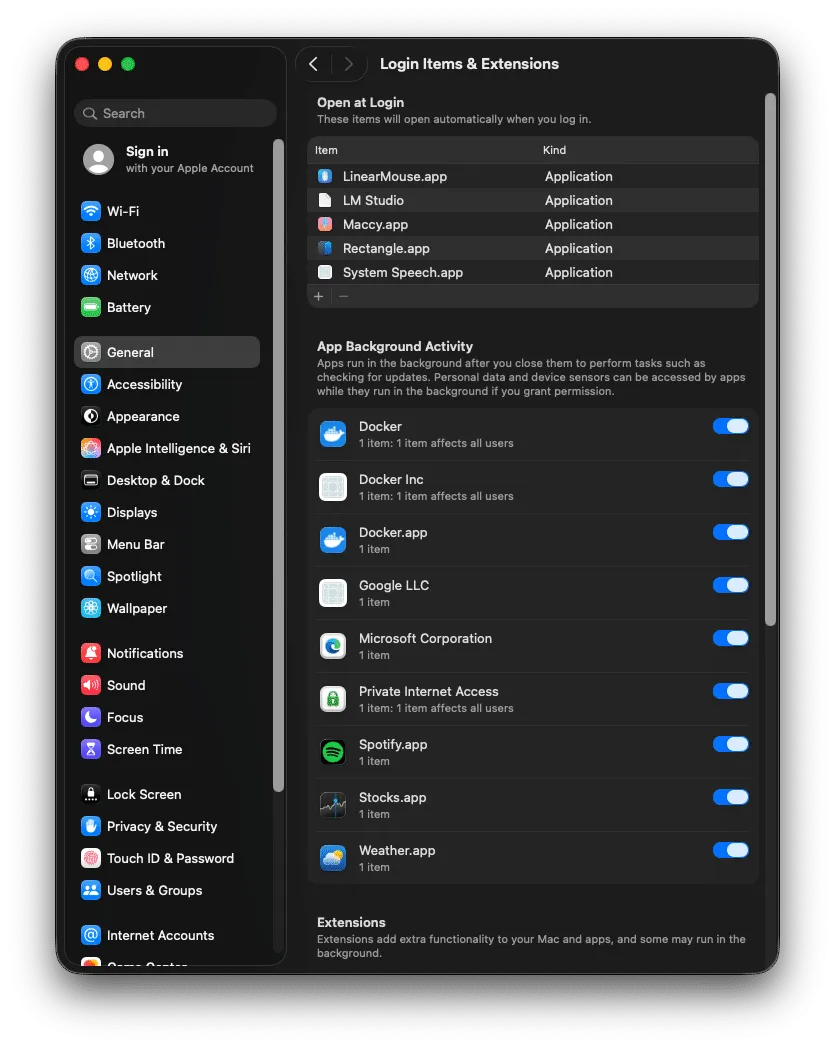
Common offenders include:
- Cloud sync agents you’ve stopped using (Dropbox, OneDrive, Google Drive; keep only the one you actually use)
- Creative suite helpers (Adobe Creative Cloud, Figma Agent)
- Messaging app helpers that pre-load for faster launch
- Software updater daemons for apps you rarely open
This single step often produces the most dramatic improvement, especially on Macs with 8GB of unified memory where every megabyte counts.
Apple documents login item management here: Apple Support – Login Items
Step 3: Free Up Storage the Right Way
This isn’t about being tidy. It’s about physics.
macOS uses your SSD for swap memory, a technique where the system writes data from RAM to disk when physical memory is full. If your SSD is nearly full, there’s nowhere to write swap files, and your Mac grinds to a halt.
The rule: keep at least 15-20% of your total SSD capacity free. On a 256GB drive, that means maintaining roughly 40-50GB of free space at all times.
Use Apple’s Built-in Storage Tools
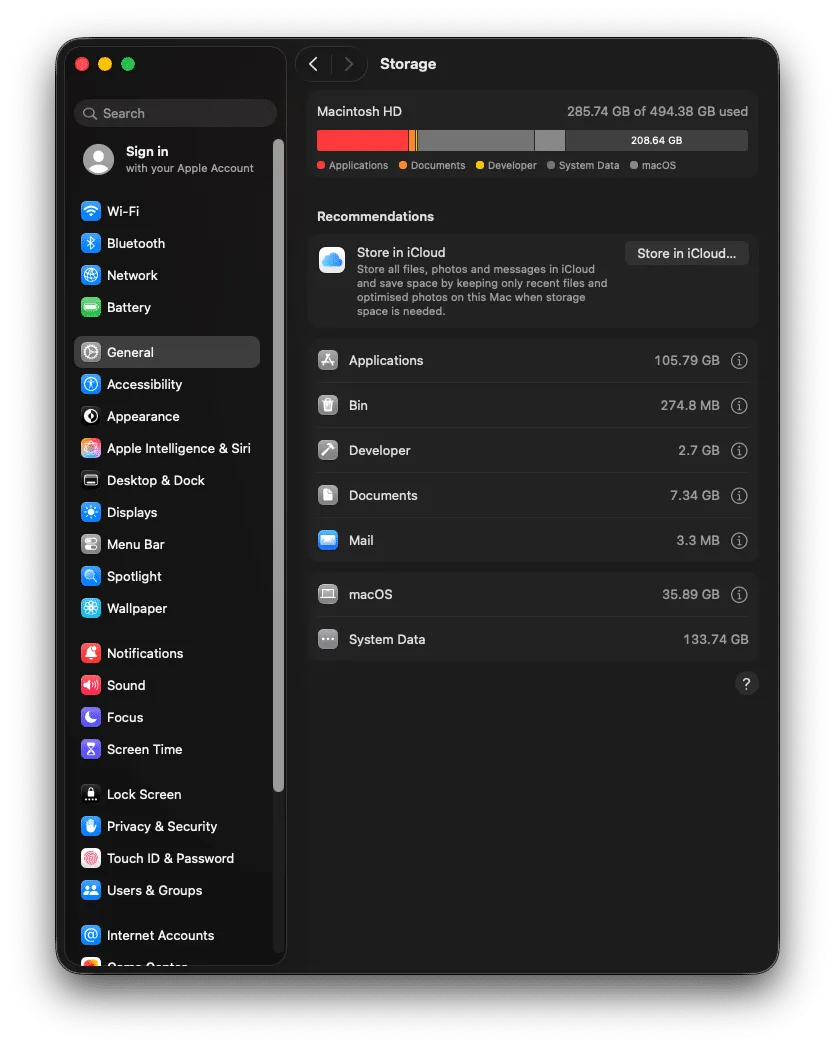
- Go to System Settings > General > Storage
- Wait for the bar to load (it scans your entire drive)
- Review the recommendations Apple provides
Apple offers several built-in optimizations:
- Store in iCloud: Moves older files to iCloud automatically, keeping only recent files local
- Optimize Storage: Automatically removes watched Apple TV movies and shows
- Empty Trash Automatically: Deletes items that have been in Trash for 30+ days
Manual Cleanup Targets
For the biggest immediate gains, check these locations:
- Downloads folder: This is almost always a goldmine of forgotten installers, ZIP files, and PDFs. Sort by size and date
- Applications folder: Drag unused apps to Trash. Don’t forget to empty Trash afterward
- ~/Library/Caches: Open Finder, press Command + Shift + G, type
~/Library/Caches. Delete contents of folders for apps you no longer use. Be conservative here; only clear what you recognize - Large media files: Old video projects, photo libraries from migrated phones, and GarageBand sound packs are common storage hogs
Why You Should NOT Use Third-Party Cleaners
This is important enough to call out explicitly. Apps like CleanMyMac, MacKeeper, and similar “system optimizer” tools are, at best, a paid interface for things macOS already does for free. At worst, they can:
- Delete files your system actually needs
- Install persistent background processes that consume resources themselves
- Trigger false “threat” warnings to scare you into paying for upgrades
Apple’s built-in tools are safer and specifically designed for your hardware. Stick with them.
Apple’s storage management documentation: Apple Support – Storage
Step 4: Reduce Visual Effects for Instant Snappiness
macOS ships with polished animations, transparency effects, and smooth transitions. They look great, but they consume GPU cycles on every single frame. Reducing them makes your Mac feel significantly faster, even if raw CPU performance hasn’t changed.
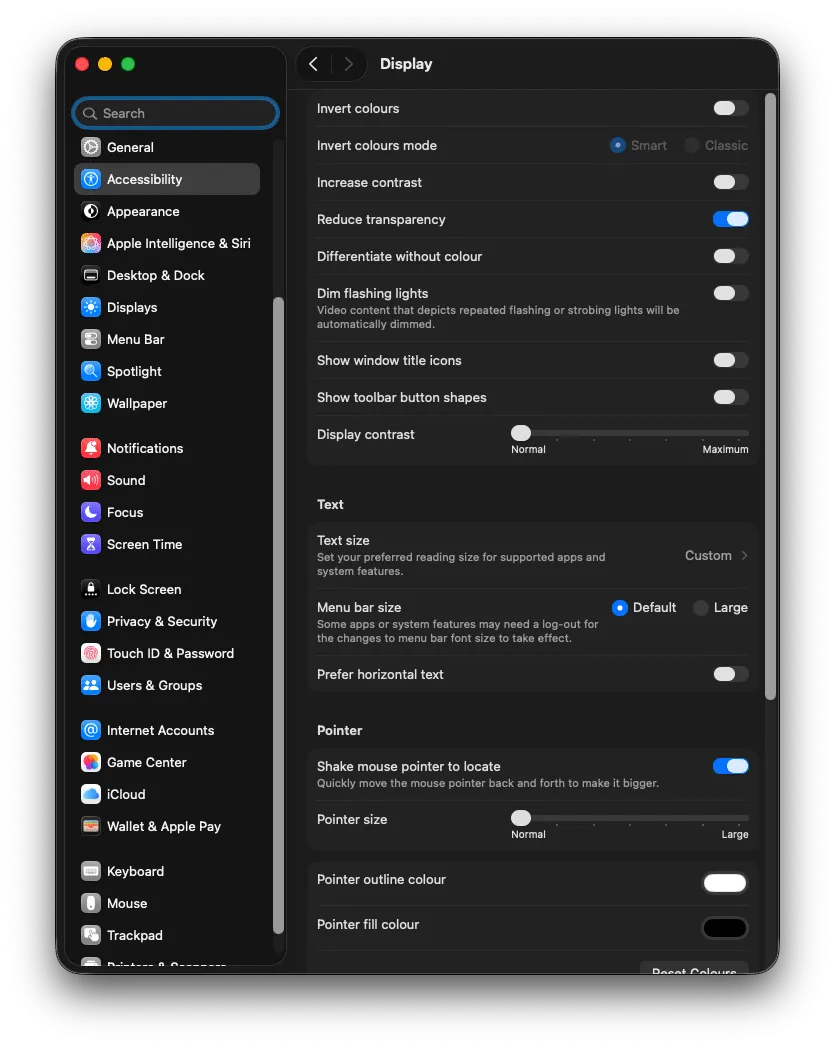
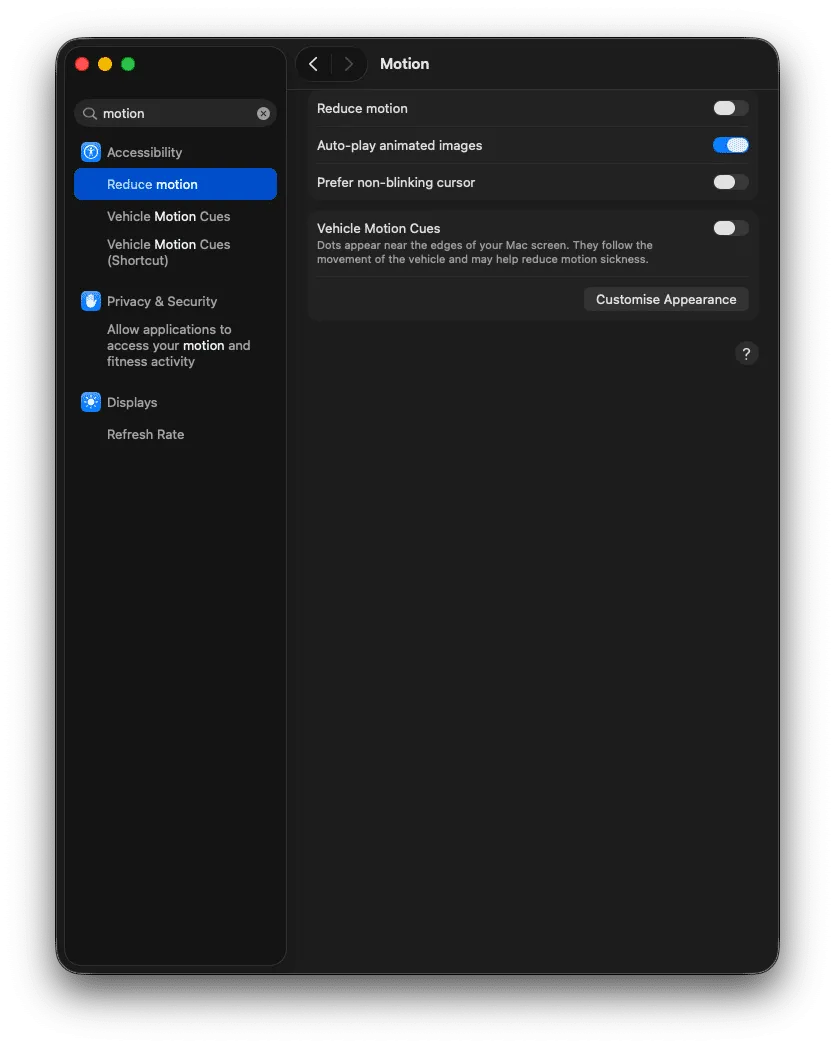
Reduce Transparency and Motion
- Go to System Settings > Accessibility > Display
- Enable Reduce Transparency (removes the frosted-glass effect on sidebars, menus, and the Dock)
- Enable Reduce Motion (replaces slide and zoom animations with simple fade effects)
These two toggles alone can make an older MacBook feel like it gained a year of life.
Optimize Dock Animations
- Go to System Settings > Desktop & Dock
- Turn off Magnification (the zoom effect when you hover over Dock icons)
- Change Minimize windows using from Genie effect to Scale effect (Scale is computationally simpler)
- If you use auto-hide, the animation delay can feel sluggish. A Terminal fix for this is covered in Step 6
Use Desktop Stacks
If your desktop is covered in files, macOS treats every icon as an element in a live-rendered window. This actually costs resources.
Right-click your desktop and select Use Stacks. This groups files by type and dramatically reduces the number of individually rendered elements.
Step 5: Fix Your Browser Habits
Your browser is almost certainly the most resource-intensive app on your Mac. This is especially true if you use Google Chrome.
The Chrome Problem
Chrome runs each tab as a separate process. Open 20 tabs and you effectively have 20+ mini-applications competing for RAM and CPU. On a Mac with 8GB of unified memory, this alone can push you into swap territory.
Consider switching to Safari for daily browsing. Safari is engineered specifically for macOS and Apple Silicon. It shares memory more efficiently, uses less energy (your battery will thank you), and integrates tightly with system features like Keychain and Handoff.
This isn’t fanboyism; it’s architecture. Safari uses Apple’s WebKit engine, which is optimized at the framework level for the same hardware it runs on. Chrome uses Blink, which is designed to be cross-platform and carries overhead from that generality.
If You Stay on Chrome
- Install an extension like The Great Suspender or use Chrome’s built-in Memory Saver mode (Settings > Performance > Memory Saver) to suspend inactive tabs
- Periodically review and remove extensions you no longer use. Each extension runs its own background process
- Clear your cache occasionally: Chrome > Settings > Privacy and Security > Clear Browsing Data
Tab Discipline
This is uncomfortable advice, but it works: if you have more than 10-15 tabs open and you’re not actively referencing all of them, bookmark the ones you need for later and close the rest. Your Mac’s memory will thank you.
Step 6: Terminal Tweaks for Power Users
These commands don’t change your Mac’s actual processing power, but they eliminate animation delays baked into the UI, making everything feel noticeably more responsive.
Open Terminal (Command + Space, type Terminal) and paste these commands one at a time.

Disable Window Open/Close Animations
defaults write -g NSAutomaticWindowAnimationsEnabled -bool falseRemove Dock Auto-hide Delay
defaults write com.apple.dock autohide-delay -float 0
defaults write com.apple.dock autohide-time-modifier -float 0.4
killall Dock
This removes the slight pause before the Dock appears when you move your cursor to the edge of the screen. The second command speeds up the actual slide animation.
Disable Quick Look Animations
defaults write -g QLPanelAnimationDuration -float 0Speed Up Mission Control Animation
defaults write com.apple.dock expose-animation-duration -float 0.12
killall Dock
How to Revert Any Change
To undo any of these, use the defaults delete command followed by the same domain and key. For example:
defaults delete -g NSAutomaticWindowAnimationsEnabled
defaults delete com.apple.dock autohide-delay
killall Dock
Or, if you want to reset all Dock settings to factory defaults:
defaults delete com.apple.dock
killall Dock
These defaults write commands modify macOS user preferences stored in property list files. They are well-documented in Apple’s developer ecosystem and used widely by system administrators. Apple Developer – defaults man page
Step 7: Run Disk Utility First Aid
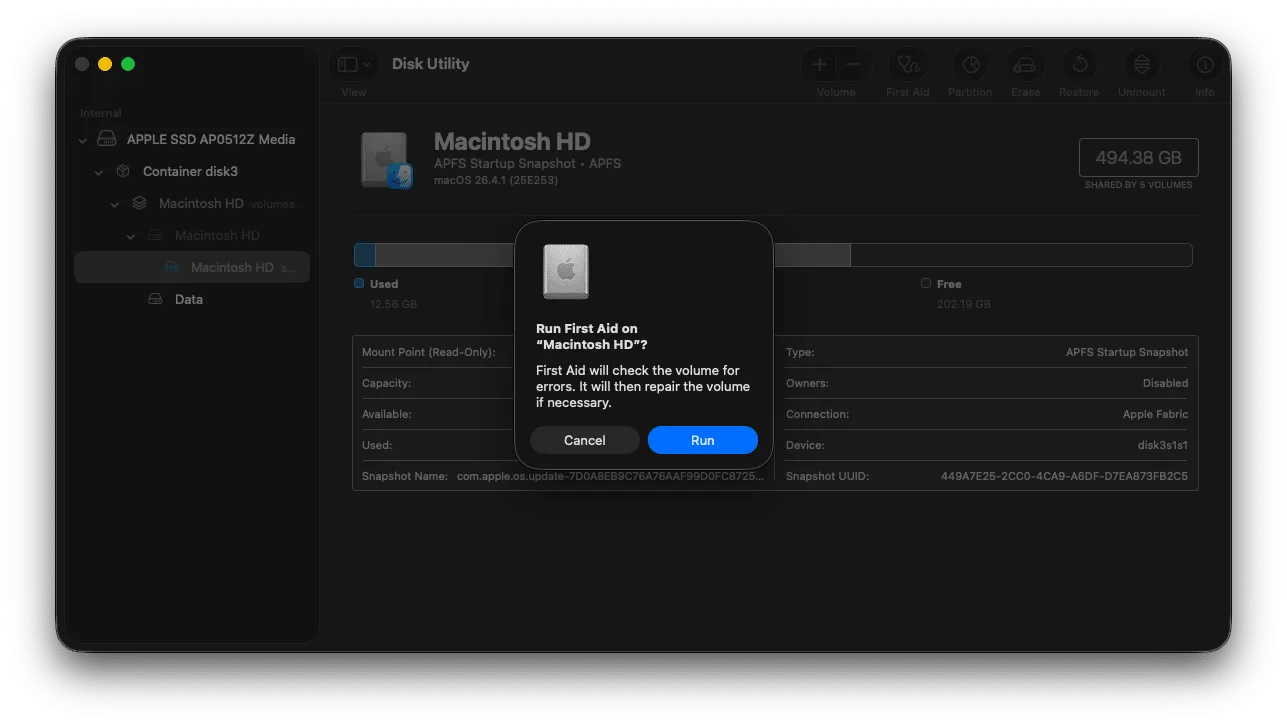
File system corruption can cause subtle but persistent performance issues. macOS includes a built-in repair tool that checks and fixes common disk errors.
- Open Disk Utility (Command + Space, type Disk Utility)
- Select your startup volume (usually called “Macintosh HD”) in the sidebar
- Click First Aid in the toolbar
- Click Run and let it complete
If First Aid reports errors it cannot repair while the system is running, restart in Recovery Mode:
- Apple Silicon: Shut down completely, then press and hold the power button until you see “Loading startup options”
- Intel Mac: Restart and hold Command + R immediately after the startup chime
From Recovery Mode, open Disk Utility and run First Aid again. It has deeper access to repair issues when the startup disk isn’t actively in use.
Apple’s Disk Utility documentation: Apple Support – Disk Utility
Step 8: Keep macOS Updated
This one gets pushback, but the data supports it. macOS updates contain performance optimizations, memory management improvements, and bug fixes that directly impact speed.
The “update made my Mac slow” phenomenon is almost always temporary. After a major macOS update, the system performs several resource-intensive background tasks:
- Spotlight re-indexing: Rebuilds the search index for your entire file system
- Photos analysis: Processes your photo library for face recognition and scene detection
- System cache rebuilding: Regenerates cached data optimized for the new OS version
These processes can make your Mac feel sluggish for 1-2 hours (longer if you have a large photo library or many files). The fix is simple: leave your Mac plugged in, let it finish, and restart once the activity settles down.
To check for updates: Go to System Settings > General > Software Update
Also update your third-party apps. Outdated apps running on a new macOS version can behave unpredictably and consume more resources than expected. Check the App Store > Updates tab and visit developer websites for non-App Store software.
What Does NOT Speed Up Your Mac (Myths Busted)
Just as important as knowing what works is knowing what doesn’t. These “tips” are recycled endlessly online but have no meaningful impact on modern macOS.
RAM Cleaner Apps
Apps that claim to “free up RAM” or “optimize memory” are working against macOS, not with it. macOS is designed to use all available RAM for caching frequently accessed data. “Unused RAM is wasted RAM” is a core principle of the operating system’s memory management.
When you run a RAM cleaner, it forces the system to dump cached data. The result? Your Mac has to reload that data from the SSD the next time it’s needed, which is slower than reading it from RAM. You’ve made things worse.
Obsessive App Quitting
You don’t need to quit every app you’re not actively using. macOS intelligently compresses and suspends background apps, reducing their memory footprint to near zero. Force-quitting an app and then reopening it later actually uses more resources than leaving it suspended, because the system has to cold-start the entire application again.
The exception: if Activity Monitor shows an app consuming excessive CPU or memory while idle, yes, quit that specific app. But routinely Command+Q-ing everything is unnecessary.
SMC/NVRAM Resets on Apple Silicon
If someone tells you to “reset the SMC” or “reset NVRAM” on your M1/M2/M3/M4 MacBook, they’re giving you outdated advice. Apple Silicon Macs automatically reset these parameters every time you shut down and restart. There is no manual reset procedure because none is needed.
For Intel Macs, these resets can occasionally help with hardware-related quirks (fan behavior, display issues), but they do not improve general performance.
Third-Party “System Optimizer” Software
As covered in the storage section, these tools are overwhelmingly unnecessary. macOS includes every optimization tool you need. The money you’d spend on a subscription to a cleaner app is better put toward iCloud storage for offloading files, or eventually toward your next Mac.
When It’s Time to Accept Your Hardware Limits
Sometimes the honest answer is that software tweaks can’t fix a hardware bottleneck.
Apple Silicon Macs Cannot Be Upgraded
On every Apple Silicon MacBook (M1 through M4 and beyond), the RAM and SSD are soldered directly to the logic board or integrated into the system-on-chip package. They cannot be removed, replaced, or expanded. This is a deliberate architectural choice by Apple to achieve the performance benefits of unified memory.
What you bought is what you have. If you ordered 8GB of RAM and 256GB of storage, no amount of optimization will give you 16GB of RAM.
The only supported expansion option is external storage. A Thunderbolt 4 or USB4 external SSD can offload large files and projects, freeing up internal storage for swap space. Look for drives with at least 1,000 MB/s read speeds to keep the experience smooth.
Apple’s Mac specifications and upgrade information: Apple Support – Mac Specs
Signs It’s Genuinely Time for a New Mac
- Memory Pressure in Activity Monitor is consistently red during your normal workflow
- You’ve performed every optimization in this guide and daily tasks still lag
- Your Mac is no longer receiving macOS updates (Apple typically supports Macs for 7-8 years)
- You’ve outgrown your RAM for the work you do (8GB is tight for video editing, 3D work, or heavy multitasking in 2026)
Frequently Asked Questions
Does restarting my Mac really help?
Yes, and it’s not a placebo. Restarting clears temporary caches, terminates hung background processes, flushes accumulated memory leaks from long-running apps, and (on Apple Silicon) automatically resets system management parameters. If your Mac has been running for weeks without a restart, this alone can make a noticeable difference.
Is 8GB of RAM enough in 2026?
For web browsing, document editing, email, and light photo work, 8GB is adequate. For anything involving video editing, running virtual machines, large Xcode projects, or keeping 30+ browser tabs open alongside creative apps, 16GB is the practical minimum. Apple’s memory compression is excellent, but it can only stretch 8GB so far.
How often should I clear browser caches?
There’s no strict schedule. If your browser feels sluggish or a website isn’t loading correctly, clearing the cache is a good troubleshooting step. Otherwise, once every few months is sufficient. Clearing too frequently means websites load slower because nothing is cached locally.
Will a factory reset (erase and reinstall macOS) speed up my Mac?
It can, but it’s a nuclear option. A clean install eliminates years of accumulated cruft, broken preferences, and leftover files from uninstalled apps. However, it also means reconfiguring everything from scratch. Try every other step in this guide first. If nothing helps and you suspect deep software corruption, a clean install via Recovery Mode is the definitive fix.
Does closing Finder windows help performance?
Minimally. However, if you have Finder windows open to directories containing thousands of files (like a massive Downloads folder), Finder has to render and index all of those items. Keeping those windows closed or organizing the files into subfolders reduces this overhead.
Should I disable Spotlight indexing to speed things up?
No. Spotlight indexing is a one-time (or post-update) process, not a continuous drain. Once the index is built, Spotlight uses negligible resources. Disabling it removes one of the most useful features of macOS for a performance gain that’s only noticeable during the initial indexing period.
The Bottom Line
Speeding up a MacBook isn’t about downloading magic software or performing rituals from a 2015 forum post. It comes down to three fundamentals:
- Know your bottleneck (use Activity Monitor)
- Remove what you don’t need (login items, background processes, storage clutter)
- Stop fighting the OS (let macOS manage RAM, skip the cleaner apps, keep the system updated)
Do these things and your Mac will run as fast as its hardware allows. No gimmicks required.

Sumit
ContributorHi, I'm Sumit, Being an introvert I have always been obsessed with technology-computers and reading dozens of posts to learn, find answers out of my curiosity. I love to write as I explore more.
Found this useful?