On this page
- All 9 Adobe Acrobat alternatives at a glance
- Free PDF editors for Windows, Mac and phones
- PDFgear: Best Free PDF Editor Overall
- Microsoft Edge: Best Built-in PDF Reader on Windows
- Preview: Best Free PDF Tool for Mac and iPhone
- PDF24 Creator: Best Free Offline PDF Toolbox for Windows
- Foxit PDF Reader: Best Free Reader for Forms and Signing
- Xodo: Best Free PDF App for Annotating on a Phone
- Free online and open source PDF tools
- iLovePDF: Best Free Web Tools for Quick PDF Jobs
- LibreOffice Draw: Best Open Source Option for Light Text Edits
- Okular: Best Free PDF Reader for Linux
- Which free PDF tool fits your job
- Who should still pay for Adobe Acrobat
The best free Adobe Acrobat alternative for most people is PDFgear: it edits text, fills forms, signs, merges and converts PDFs on Windows, Mac, Android and iPhone with no watermark and no sign-up. If you only need to read, fill and sign, the tools already on your device (Microsoft Edge on Windows, Preview on Mac and iPhone) are enough.
Acrobat Reader is still free, but it only goes so far. Editing text, combining files or converting to Word needs a paid plan. On Adobe's US pricing page, Acrobat Standard costs $14.99 a month on an annual plan ($24.99 month to month), and Acrobat Pro costs $19.99 a month on an annual plan ($29.99 month to month). Annual plans billed monthly charge a fee if you cancel after 14 days.
This list covers 9 free options for Windows, Mac, Linux, Android, iPhone and the web. For each one we note what is free, what costs money, and whether it adds a watermark, shows ads or needs an account. Every detail comes from the official website or app store listing.
All 9 Adobe Acrobat alternatives at a glance
Search by app, platform or price. Tap any name in the table to jump to its full entry below.
| App | Price | Platforms | Edit existing text | Watermark | Ads | Account needed |
|---|---|---|---|---|---|---|
| PDFgear | Free | Windows, Mac, Android, iPhone, web | Yes | No | No (Play listing) | No |
| Microsoft Edge | Free | Windows, Mac (browser) | No, add text only | No | No | No |
| Preview | Free | Mac, iPhone | No, markup only | No | No | No |
| PDF24 Creator | Free | Windows (app), any browser (online tools) | Add text (Edit PDF tool) | Not stated | Ads on the website | No |
| Foxit PDF Reader | Free, PDF Editor paid | Windows, Mac, Android, iPhone | No (needs PDF Editor) | No | Not stated | No |
| Xodo | Free app, Xodo Web from $7.99 a month | Android, iPhone, web | Paid tools | Not stated | No (Play listing) | Not stated |
| iLovePDF | Free web, Premium $5 a month yearly | Web (free), desktop and mobile (Premium) | Add text, 1 file per task | Not stated | Not stated | No for basic tasks |
| LibreOffice Draw | Free and open source | Windows, Mac, Linux | Simple text PDFs | No | No | No |
| Okular | Free and open source | Linux, Windows, Mac (nightly) | No, annotate only | No | No | No |
Free PDF editors for Windows, Mac and phones
1. PDFgear: Best Free PDF Editor Overall
- microsoft
- iPhone and iPad
- Android
Free editor, no watermark
PDFgear is the closest free match to paid Acrobat. Its site calls it completely free and says you can use it without signing up. The Android listing goes further: free use of all functions, with no trial watermark and no page count limit.
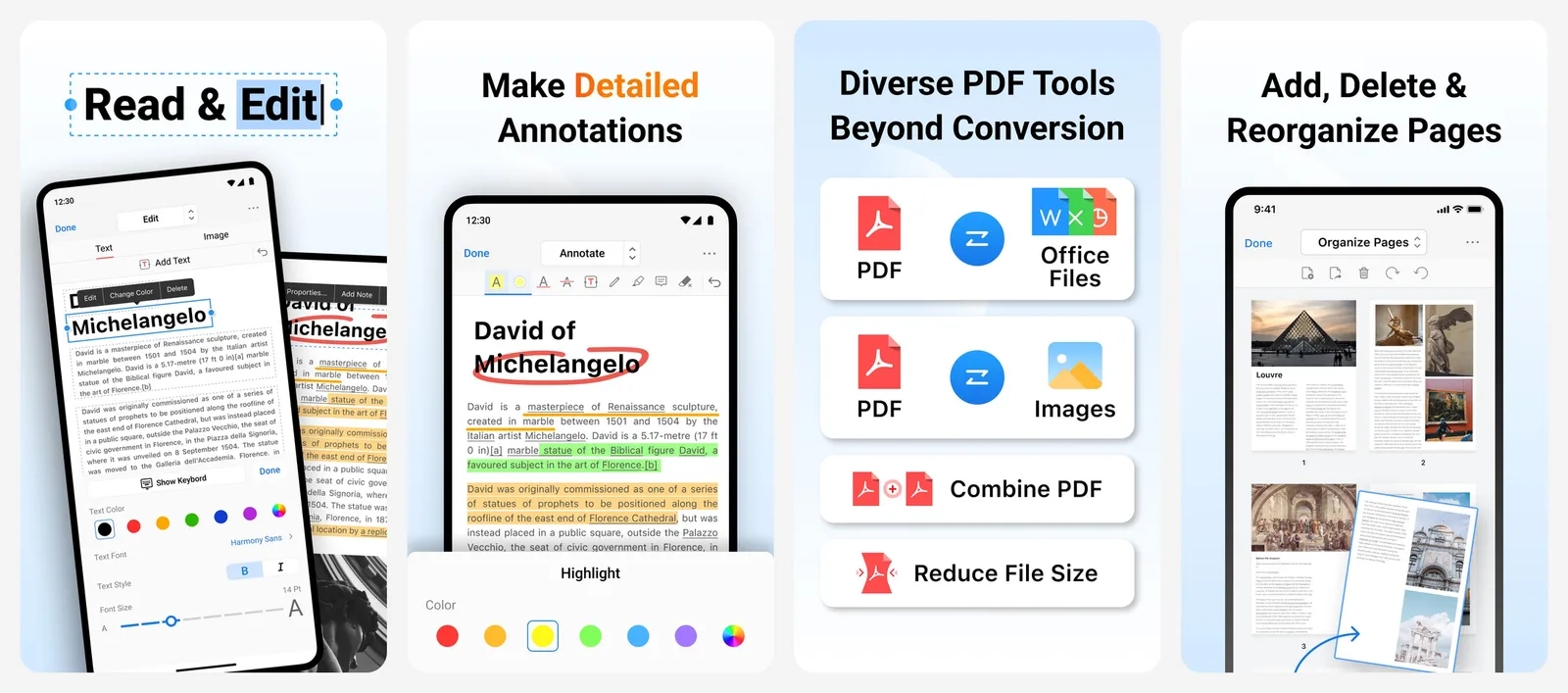
The phone apps edit existing text and images, highlight and draw, reorganise and split pages, compress files, and convert PDFs to and from Word, Excel, PowerPoint and images. PDFgear also bills itself as an AI-powered PDF tool, with a chat feature for asking questions about a PDF.
What you lose vs Acrobat: Adobe's cloud signing workflows and enterprise admin tools.
- Replaces
- Acrobat Standard and Pro editing
- Runs on
- Windows, Mac, Android, iPhone, web
- Licence
- Free, no sign-up, no trial watermark
- Skip if
- Your company requires an approved, audited vendor
- Price
- Free
2. Microsoft Edge: Best Built-in PDF Reader on Windows
- microsoft
Already on Windows
Edge is the default PDF app on Windows, so there is nothing to install. Microsoft says you can highlight, mark up and add text to a PDF, then save your changes. You can add text to blank areas, which covers most simple forms, and search the file or jump through its table of contents.
Edge can also translate selected text into more than 70 languages and summarise a PDF with Copilot. Microsoft notes that features vary by device, market and browser version.
What you lose vs Acrobat: real text editing, page tools, merging and conversion.
- Replaces
- Acrobat Reader for reading and markup
- Runs on
- Windows, Mac
- Licence
- Free, built into Windows
- Skip if
- You need to change existing text or merge files
- Price
- Free
3. Preview: Best Free PDF Tool for Mac and iPhone
- iPhone and iPad
Built into Apple devices
Preview on the Mac does more than most people expect. Apple's guide lists annotating, filling out and signing forms, combining PDFs, adding, deleting and moving pages, reducing file size and adding a password. Preview is also on iPhone now, where it can fill out PDF forms and add a signature or text box.
What it cannot do is change the existing text in a PDF. Apple's guide covers marking text up (highlight, underline, strike out), not rewriting it.
What you lose vs Acrobat: text editing, OCR and conversion to Word.
- Replaces
- Acrobat Reader, plus basic Acrobat page tools
- Runs on
- Mac, iPhone
- Licence
- Free, built into macOS and iOS
- Skip if
- You use Windows or Android
- Price
- Free
4. PDF24 Creator: Best Free Offline PDF Toolbox for Windows
Windows toolbox and web tools
PDF24 is a big set of PDF tools that its makers say is 100% free with no artificial limits. Ads on the website pay for it. The online tools run in any browser, and PDF24 Creator is a Windows app that works offline, so your files stay on your PC.
You get Edit PDF, Merge, Compress, Sign and OCR (which turns scanned pages into searchable text), plus dozens of converters. There is also a Chrome extension.
What you lose vs Acrobat: a polished, single-window editor. PDF24 is a collection of separate tools.
- Replaces
- Acrobat Pro tools such as OCR, merge and compress
- Runs on
- Windows (desktop app), any browser
- Licence
- Free, funded by ads on the website
- Skip if
- You are on Mac and want an offline app
- Price
- Free
5. Foxit PDF Reader: Best Free Reader for Forms and Signing
- microsoft
- iPhone and iPad
- Android
Free reader, paid editor
Foxit PDF Reader is a straight swap for Acrobat Reader. Foxit lists it as free on Windows, macOS, iOS and Android. It reads and prints PDFs, adds highlights, sticky notes and file attachments, fills standard and XFA forms, and signs documents by hand or with an eSignature. It can also verify digital signatures.
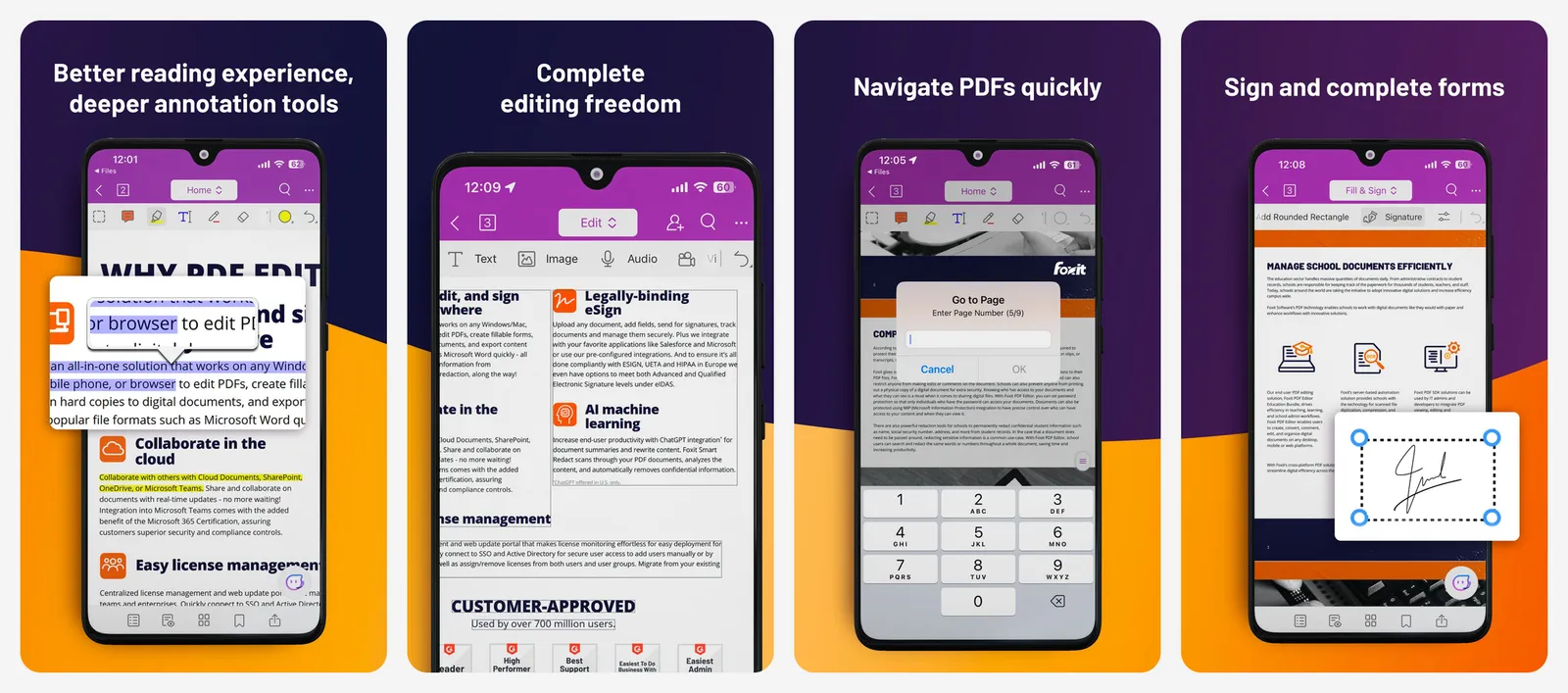
Editing, creating and converting PDFs sits in Foxit PDF Editor, a paid product with a 14-day free trial. On phones the app is listed as Foxit PDF Editor, with in-app purchases for the paid tools.
What you lose vs Acrobat: text editing and conversion unless you pay.
- Replaces
- Acrobat Reader
- Runs on
- Windows 10 and 11, macOS, Android, iPhone
- Licence
- Free reader; editing needs Foxit PDF Editor
- Skip if
- You mainly need to change text
- Price
- Free (PDF Editor is paid, 14-day trial)
6. Xodo: Best Free PDF App for Annotating on a Phone
- Android
- iPhone and iPad
Mobile reader and annotator
Xodo is a well-known PDF reader for phones and tablets. The app reads, highlights, draws, fills forms, scans paper into PDFs and signs documents. The Play listing shows no ads, with in-app purchases.
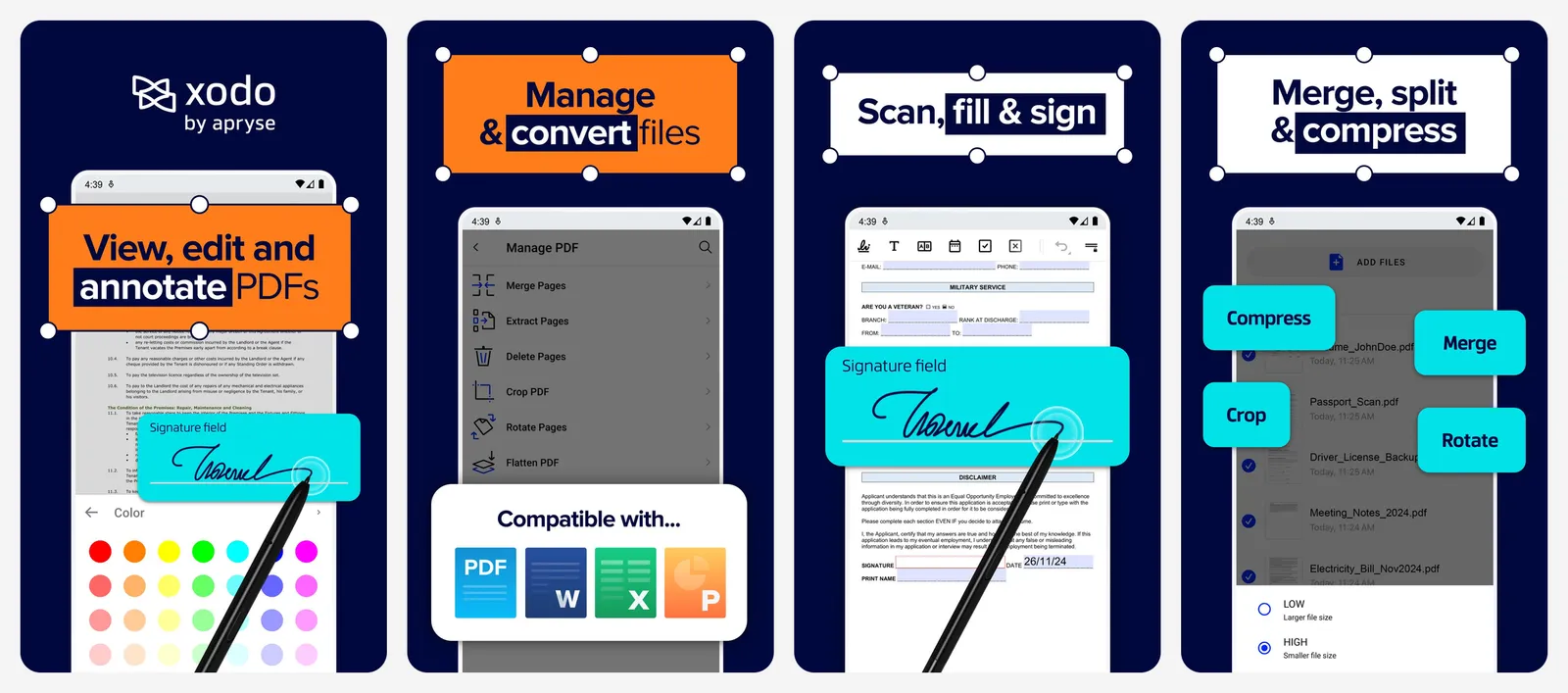
Xodo's own support page says viewing and annotating stay free for personal use. Bulk conversion, redaction, merging and the form builder are paid. Xodo's web tools give everyone 1 free action per day. After that, Xodo Web costs $7.99 a month or $95.88 a year.
What you lose vs Acrobat: most conversion and page tools unless you pay.
- Replaces
- Acrobat Reader mobile
- Runs on
- Android, iPhone, web
- Licence
- Free for viewing and annotating; advanced tools paid
- Skip if
- You want unlimited free online conversions
- Price
- Free app (Xodo Web $7.99 a month or $95.88 a year)
Free online and open source PDF tools
7. iLovePDF: Best Free Web Tools for Quick PDF Jobs
- Android
- iPhone and iPad
Browser-based PDF tools
iLovePDF is the fastest way to do one PDF job in a browser. The free plan covers the essential tools, with a cap on files and size per task. Merge takes up to 25 files (100 MB), compress takes 2 files (200 MB), and Edit PDF takes 1 file (100 MB).
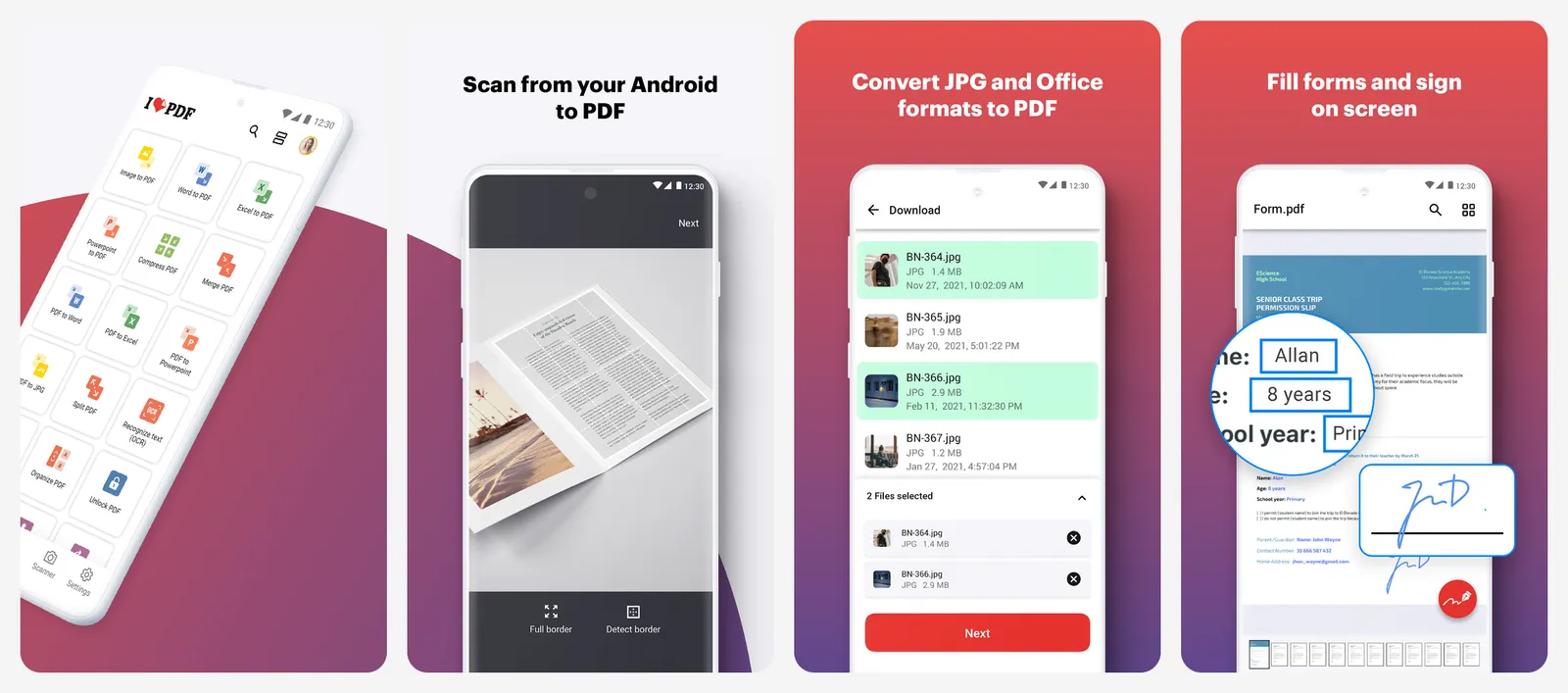
The pricing page lists the free plan as web only. Desktop and mobile apps, unlimited tasks and every tool come with Premium, which costs $5 a month billed yearly or $9 month to month.
What you lose vs Acrobat: offline use and big batches on the free plan.
- Replaces
- Acrobat merge, compress and convert
- Runs on
- Web (free); desktop and mobile with Premium
- Licence
- Free web tools with file limits per task
- Skip if
- You process large batches every day
- Price
- Free (Premium $5 a month yearly or $9 monthly)
8. LibreOffice Draw: Best Open Source Option for Light Text Edits
Open source suite
LibreOffice is a free, open source office suite, and its Draw app can open a PDF and turn the page contents into editable objects. You fix a line of text or swap an image, then export a new PDF with File, Export as PDF.
It works best on simple, text-based PDFs. Scanned pages are images, so there is no text to edit, and complex layouts can shift when Draw imports them. If you already use LibreOffice for documents, see our list of Microsoft Office alternatives.
What you lose vs Acrobat: reliable layout on complex files, OCR and form tools.
- Replaces
- Acrobat for small text fixes
- Runs on
- Windows, Mac, Linux
- Licence
- Free and open source
- Skip if
- Your PDF is a scan or has complex layout
- Price
- Free
9. Okular: Best Free PDF Reader for Linux
KDE document viewer
Okular is KDE's document viewer. It opens PDFs, EPUB books, comic archives, images and Markdown. You can add inline and pop-up notes, highlight and underline text, and add your own text. It can also verify digital signatures and sign PDFs.
On Linux it is in most distributions' app stores and on Flathub. On Windows, KDE recommends the Microsoft Store version. Mac builds exist only as untested nightly builds.
What you lose vs Acrobat: editing, page tools and conversion.
- Replaces
- Acrobat Reader on Linux
- Runs on
- Linux, Windows (Microsoft Store), Mac (untested nightly builds)
- Licence
- Free software, GPLv2+
- Skip if
- You need to edit or convert PDFs
- Price
- Free
Which free PDF tool fits your job
- Fill and sign a form: Edge on Windows, Preview on Mac and iPhone, or Foxit PDF Reader anywhere.
- Change text in a PDF: PDFgear first, then LibreOffice Draw for simple files. To only add text on top, PDF24 and iLovePDF both have a free Edit PDF tool.
- Merge or compress files: Preview on Mac, PDF24 on Windows, iLovePDF in any browser.
- Turn a scan into searchable text (OCR): PDF24.
- Work on a phone: PDFgear or Xodo.
Want more free swaps for paid software? See our list of free alternatives to paid apps and our picks for software you can buy once.
Who should still pay for Adobe Acrobat
What is the best free alternative to Adobe Acrobat?
How much does Adobe Acrobat cost?
Can I edit the text in a PDF for free?
How do I sign a PDF for free?
Is there a free PDF editor with no watermark?
Which free PDF tool works offline?

Sumit
ContributorHi, I'm Sumit, Being an introvert I have always been obsessed with technology-computers and reading dozens of posts to learn, find answers out of my curiosity. I love to write as I explore more.