On this page
- 8 ways to find and get back deleted apps
- Google Play: open the Not installed list
- Archived apps: tap the dimmed icon
- Hidden apps and private space: check Settings first
- F-Droid and GitHub apps: re-find them, then track them in Obtainium
- AppShelf: keep a list of every app and where it came from
- From a computer: reinstall through the Play website
- Samsung Galaxy Store and Xiaomi GetApps
- iPhone: Not on this iPhone in the App Store
- Uninstalled vs archived vs disabled
- Will my app data come back?
- Quick checklist
- FAQs
- How can I see recently uninstalled apps on Android?
- Uninstall app ki history kaise dekhe?
- Delete app wapas kaise laye?
- Uninstall kiya hua app kaise dekhe Samsung phone mein?
- Can I reinstall a paid app without paying again?
- What is the difference between archiving and uninstalling an app?
- Why can't I find an app in my Play Store library?
To find apps you uninstalled on Android, open the Google Play Store, tap your profile picture, go to Manage apps & device > Manage, and switch the filter from Installed to Not installed. That list shows every app installed with your Google account, and you can reinstall any of them, paid ones included, without paying again.
That covers most cases. This guide also explains the two situations where the Play list does not help: apps that were archived rather than uninstalled, and apps you got outside Google Play (F-Droid, GitHub, an APK from a website). Steps were checked against Google's and Apple's official help pages on November 7, 2026.
8 ways to find and get back deleted apps
Start with the first method: it covers most apps on most phones. The rest handle archived, hidden, sideloaded and non-Google-store apps.
1. Google Play: open the Not installed list
Every Android phone
Google Play remembers every app you install on an account, even after you remove it from the phone. Google calls this list your library, and it lives inside the Play Store app. These are the steps from Google's official "Reinstall & re-enable apps" help page:
- Open the Google Play Store app.
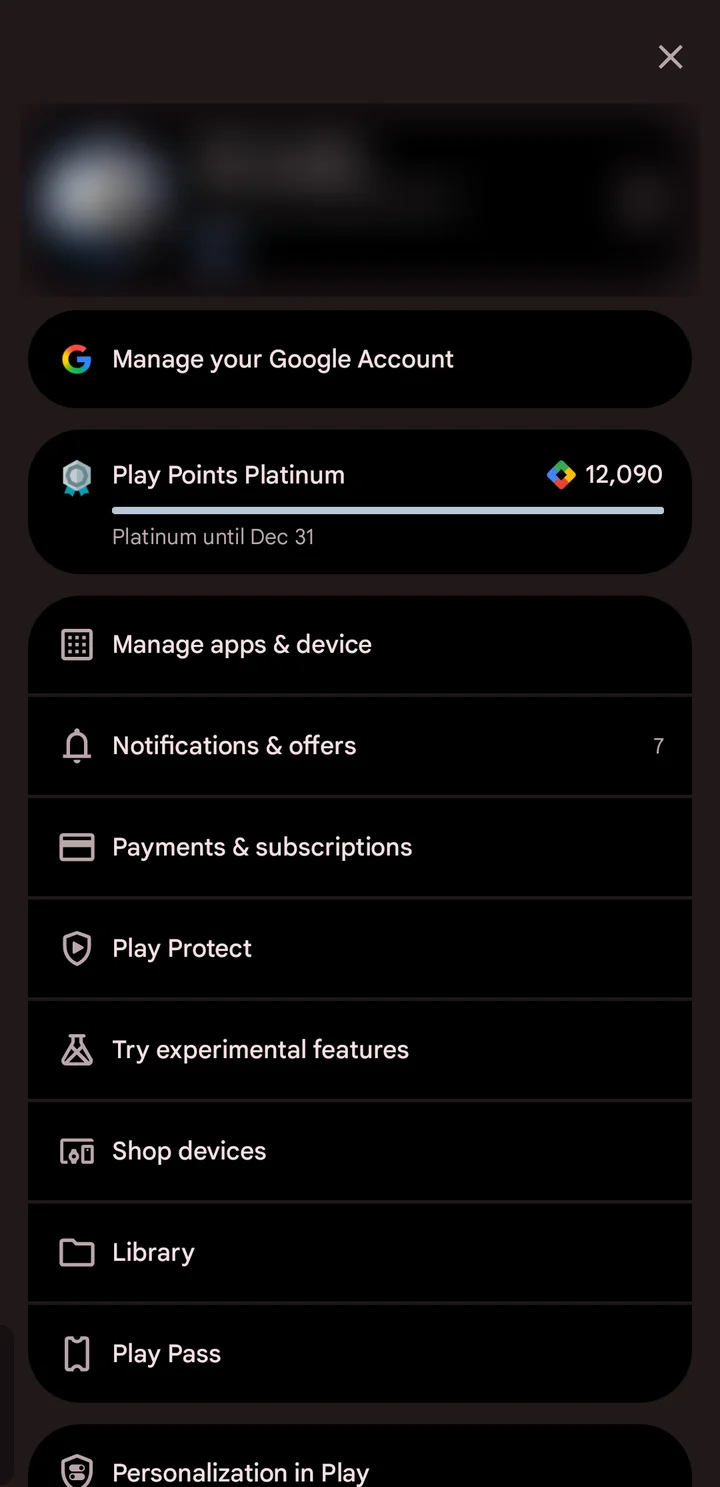
- Tap your profile picture at the top right.
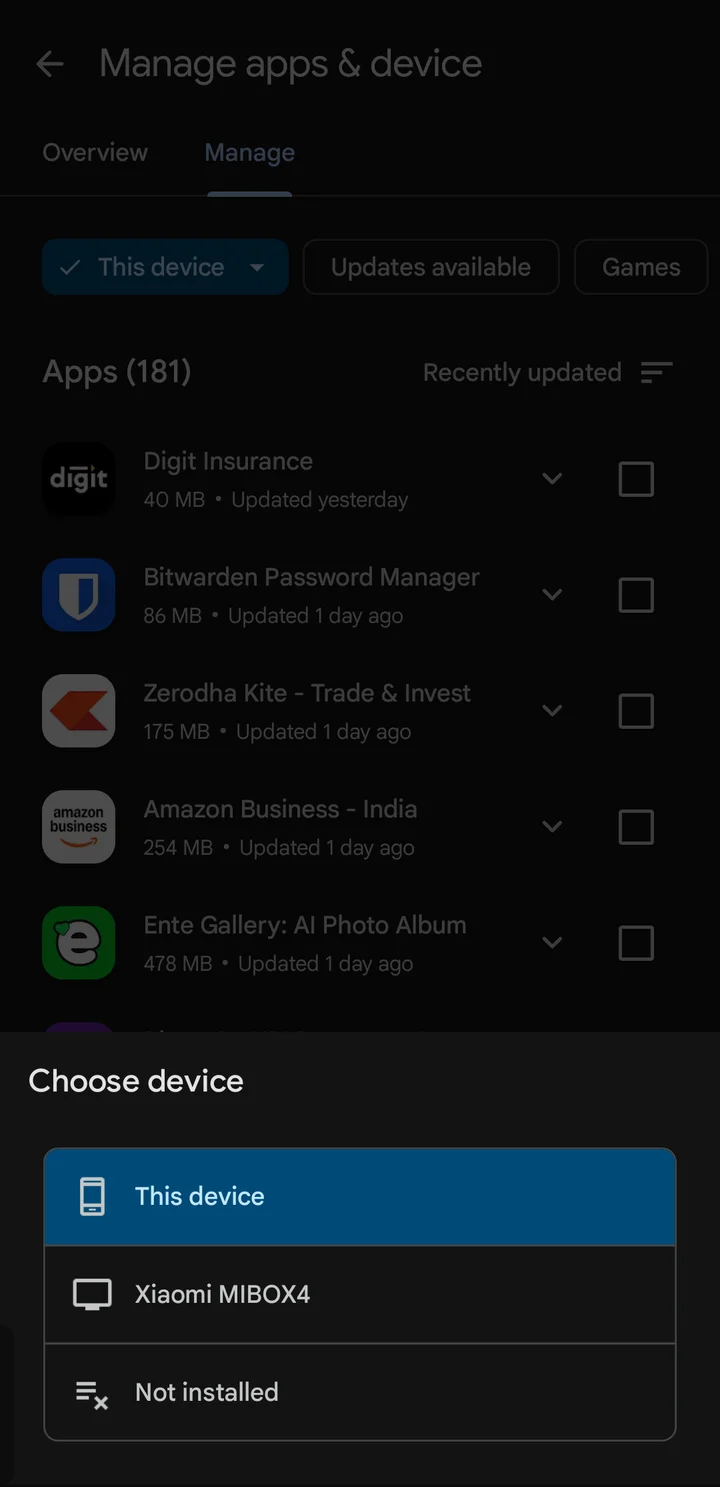
- Tap Manage apps & device, then the Manage tab.
- At the top, tap Installed (it may read This device) and change it to Not installed.
- Tick the apps you want back.
- Tap Install (on newer Play versions, the download icon at the top).
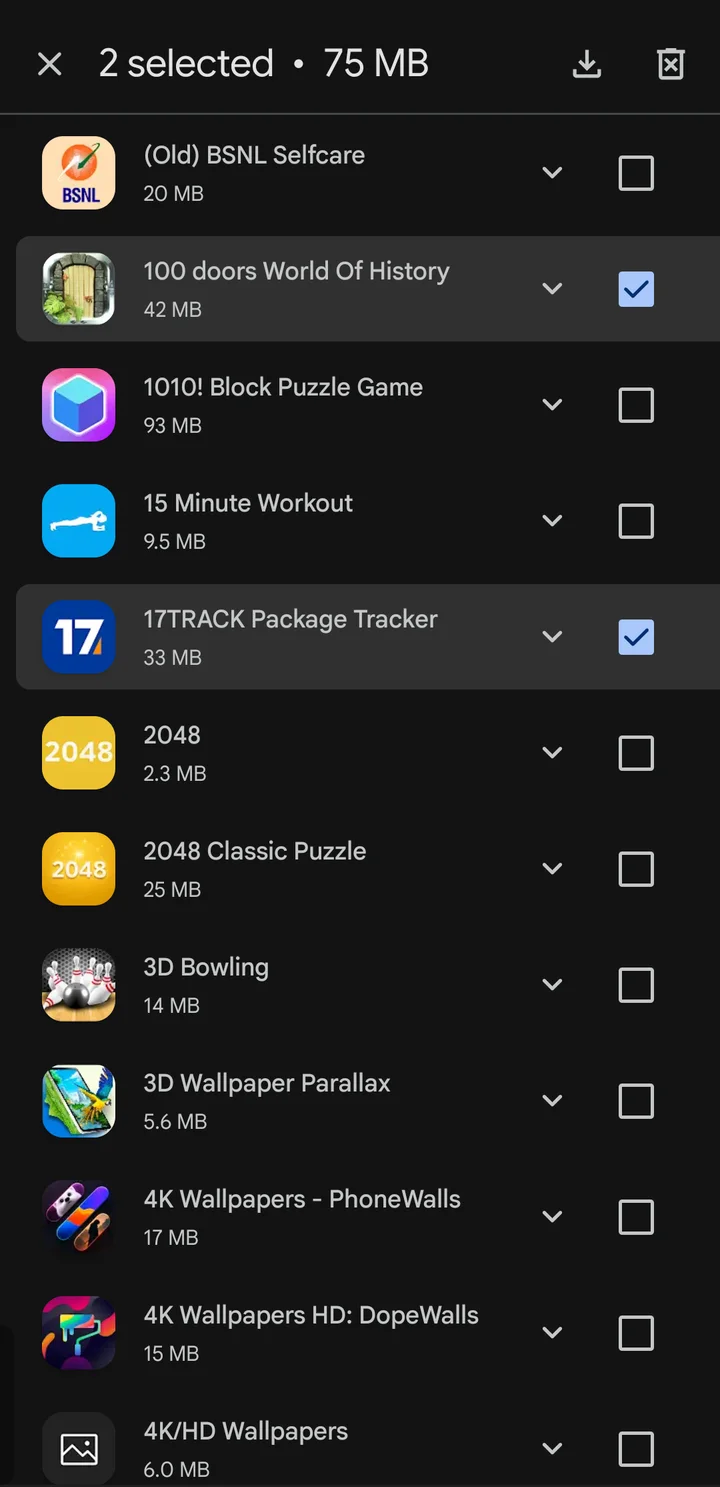
You can tick several apps and install them in one go, which is handy after a factory reset or on a new phone.
Paid apps: you do not pay twice. Google says apps you bought work on any Android device signed in to the same Google account. If the Play Store asks you to pay again, you are almost always on a different account. To confirm which account made a purchase, open the Play Store, tap your profile picture, then Payments & subscriptions > Budget & history.
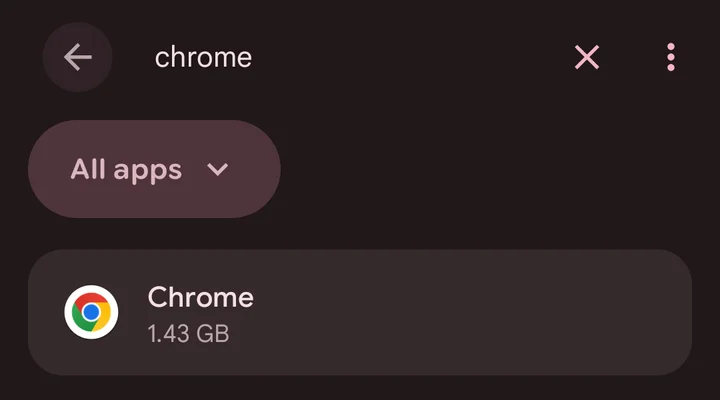
Preinstalled apps you disabled. Apps that came with the phone (Chrome, YouTube, a brand's own apps) often cannot be uninstalled, only disabled, so they disappear from the app drawer. In the same Not installed list, Google shows an Enable button for these instead of Install. You can also open Settings > Apps, tap the app, and tap Enable.
2. Archived apps: tap the dimmed icon
Android 15 and newer
Android 15 added app archiving. When an app is archived, Android removes the app itself, its permissions and temporary files, but keeps its icon and your data. Google's "Archive unused apps on Android" help page describes the icon as dimmed with an archiving badge on top (a small cloud).
Archiving happens two ways:
- By hand: you tapped Archive in Settings > Apps > (app name).
- Automatically: you turned on Automatically archive apps in the Play Store settings, and Play archived apps you had not opened in a while when storage ran low.
People often think these apps were deleted. They were not. To get one back:
- Find the faded icon on your home screen or in the app drawer.
- Tap it. The app downloads again from Google Play and opens with your data in place.
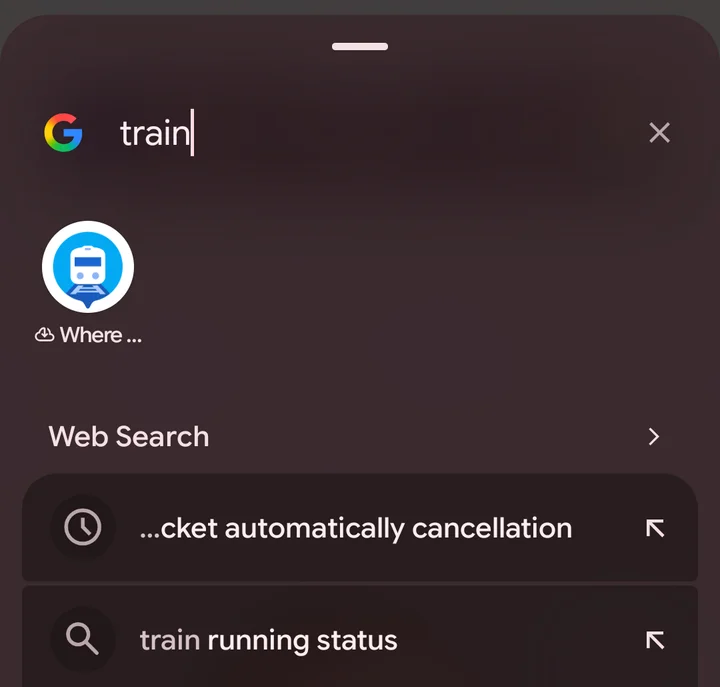
You can also restore it from Settings > Apps > (app name), or from the app's page in the Play Store. Two conditions apply, per Google: the Play Store must still be on the phone, and the app must still be available to download. If storage is too low, Android asks you to free space first. Our guide to freeing up space on Android covers the fastest ways.
4. F-Droid and GitHub apps: re-find them, then track them in Obtainium
Apps from outside Google Play
Google Play only knows about apps it installed. Anything from F-Droid, GitHub, a developer's website or a forwarded APK file leaves no trace in your Play library, and Android itself keeps no public uninstall history.
- F-Droid apps: F-Droid is a store for free and open-source Android apps. Install the F-Droid client again (or a client such as Droid-ify), search for the app by name, and install it. If you no longer remember the name, browse the categories on the F-Droid website; open-source apps rarely change names.
- GitHub apps: many open-source apps ship their APK files on GitHub release pages. Search GitHub for the app name and download the APK for your phone from the latest release.
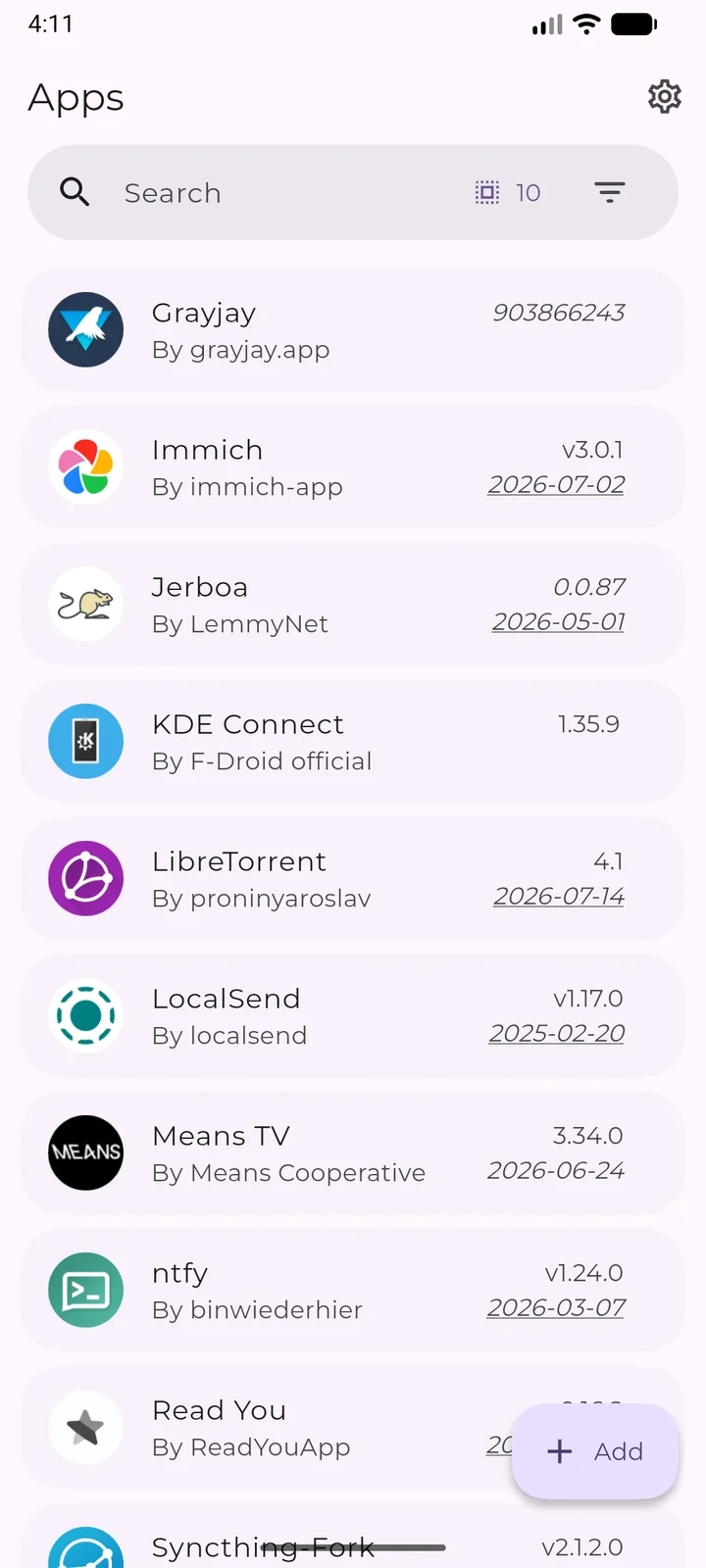
To avoid this hunt next time, use Obtainium. It is a free, open-source app (version 1.7.4, released November 1, 2026) that installs and updates apps straight from their release pages on GitHub, GitLab, Codeberg, F-Droid and more. Obtainium can export your app list to a file, so after a reset you import the list and every source comes back.
- Licence
- GPL-3.0 (Obtainium)
5. AppShelf: keep a list of every app and where it came from
Uninstall history
AppShelf is a small open-source app that lists everything installed on your phone, with where each app came from (Google Play, F-Droid, Galaxy Store, an APK file and others) and when you installed it. You save that list as a file or sync it to your own cloud storage.
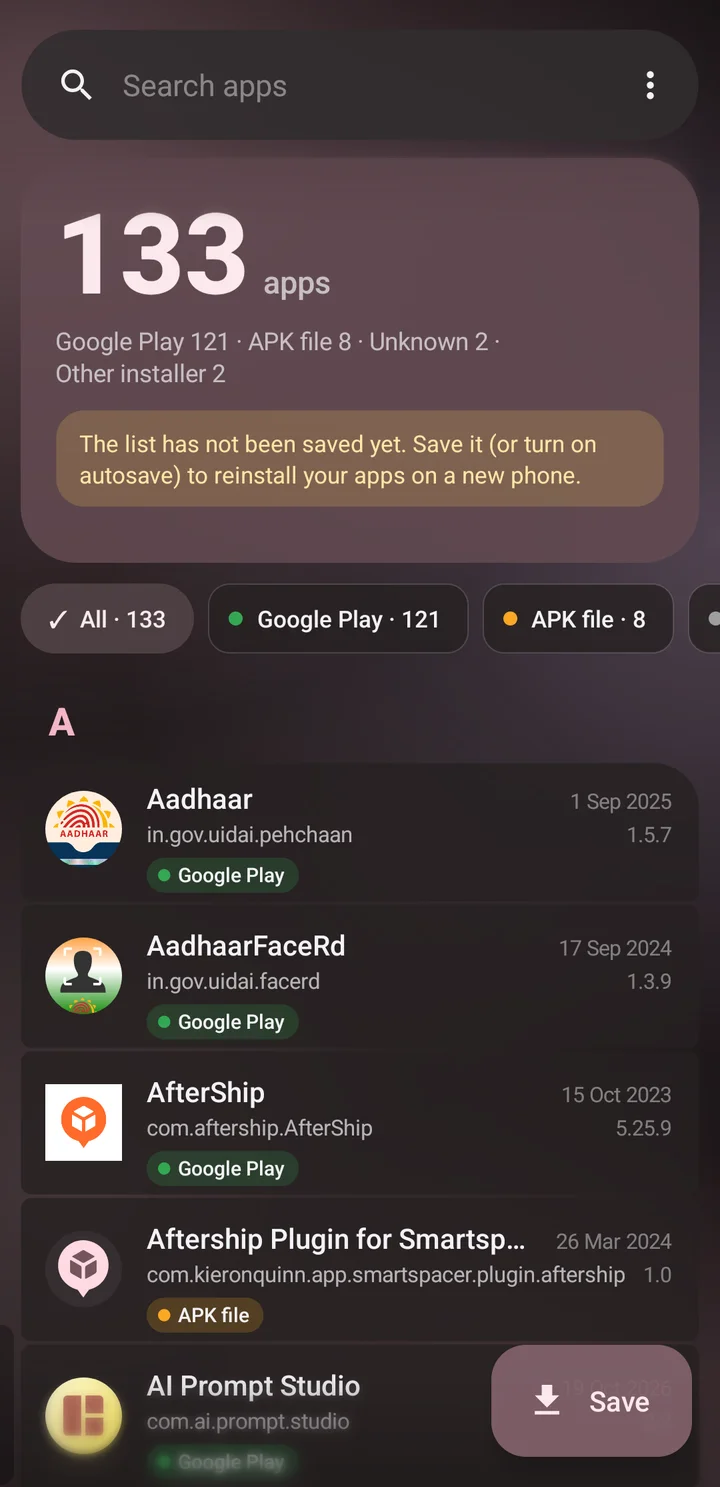
On a new or reset phone you open the list, and AppShelf shows which apps are missing and opens each one in the right store. It also keeps your own download links per app and can log installs and uninstalls over time, which is the closest thing to an uninstall history Android has.
It is a newer project from a single developer with a small user base, and it is only available as an APK from its GitHub releases page. Treat it like any sideloaded app: check the permissions before you install.
- Runs on
- Android 8.0
- Licence
- GPL-3.0
6. From a computer: reinstall through the Play website
Any browser
You can also send an app back to your phone from a laptop. Google's help page for computers describes these steps:
- Go to play.google.com and sign in with the same Google account.
- Search for the app you want.
- Select Install (or Installed or Enable).
- Choose your phone from the device list and select Install.
The app downloads to your phone the next time it is online. Google's computer instructions only cover searching for an app by name: the full list of uninstalled apps is in the Play Store app on your phone (method 1).
7. Samsung Galaxy Store and Xiaomi GetApps
Brand app stores
Samsung Galaxy: most apps on a Galaxy phone come from Google Play, so method 1 applies. For apps you got from Samsung's Galaxy Store, Samsung's support page gives this path:
- Open Galaxy Store and sign in with your Samsung account.
- Tap Menu, then My apps.
- Pick a category (and Watch if you have a paired Galaxy Watch).
- Find the missing app and download it again.
Xiaomi, Redmi and POCO: these phones use Google Play as the main store, so method 1 covers most apps. If an app came from Xiaomi's GetApps store, open GetApps and search for it by name.
8. iPhone: Not on this iPhone in the App Store
iOS
If you also use an iPhone, Apple keeps a similar list. These steps are from Apple's "Redownload apps from Apple" support page:
- Open the App Store.
- Tap your profile picture at the top.
- Tap Apps & Purchase History, then Your Apps.
- Tap Not on this iPhone.
- Tap the download (cloud) button next to the app.
Paid apps download again for free on the same Apple Account. If you use Family Sharing, tap a family member's name to see their apps.
Uninstalled vs archived vs disabled
| Uninstalled | Archived | Disabled | |
|---|---|---|---|
| App icon stays | No | Yes, dimmed | No |
| Your data stays | No (unless backed up) | Yes | Yes |
| Frees storage | All of it | Most of it | Only updates |
| How to get it back | Play Store > Not installed | Tap the icon | Settings > Apps > Enable |
| Available on | All Android versions | Android 15 and newer (some phones) | All Android versions |
Some archiving steps depend on the phone maker's software, so a few brands may label or place the option differently.
Will my app data come back?
It depends on how the app left your phone:
- Archived: yes. Android kept the data on the phone.
- Uninstalled, app supports Android backup: often yes. Android's developer documentation says backed-up data is restored whenever the app is installed again, whether from the Play Store or during new phone setup. The backup lives in your Google account and holds up to 25 MB per app, so it covers settings and small files, not large downloads.
- Uninstalled, app keeps data on its own servers: sign in again and your account data returns (social apps, email, most games linked to a Google Play Games or other account).
- Uninstalled, offline-only app with no backup: the data is gone.
Quick checklist
- Check Play Store > Manage apps & device > Manage > Not installed
- Switch Google accounts if the app is missing
- Look for a dimmed icon (archived app) before reinstalling
- Check Settings > Apps to rule out a hidden app
- Re-find F-Droid and GitHub apps by name, then track them in Obtainium
- Save an app list (AppShelf or Obtainium export) before your next reset
For more Android tips, see Android 17: every feature explained.
FAQs
How can I see recently uninstalled apps on Android?
Open the Play Store, tap your profile picture, then Manage apps & device > Manage, and choose Not installed. It lists every app installed with your Google account that is not on this phone right now. Android has no separate uninstall log for apps installed outside Google Play.
Uninstall app ki history kaise dekhe?
The uninstall history is in the Google Play Store. Tap your profile picture, open Manage apps & device, go to the Manage tab and change Installed to Not installed. Every app you removed from that Google account appears there.
Delete app wapas kaise laye?
Open the Not installed list in the Play Store (profile picture > Manage apps & device > Manage), tick the app and tap Install. If its icon is still on your home screen but faded, the app is archived: just tap the icon to bring it back with your data.
Uninstall kiya hua app kaise dekhe Samsung phone mein?
On a Samsung phone, check the Google Play Store first (Not installed list). For apps from Galaxy Store, open Galaxy Store, tap Menu, then My apps.
Can I reinstall a paid app without paying again?
Yes. Apps bought on Google Play can be reinstalled for free on any Android device signed in to the same Google account. On iPhone, the same applies to the same Apple Account.
What is the difference between archiving and uninstalling an app?
Uninstalling removes the app and its data. Archiving, added in Android 15, removes the app but keeps its icon and data, so a tap reinstalls it right where you left off.
Why can't I find an app in my Play Store library?
The usual reasons: you are signed in to a different Google account, the app came from outside Google Play, or the developer removed it from the store. Apps no longer on Google Play cannot be reinstalled or restored from an archive.

Amit loves new tech and apps that make life easier, he writes about apps, games and useful websites on TheTechBasket.