On this page
- Quick answer by device
- iPhone: use Customize Home Screen
- Google Pixel: pick the screen first
- Samsung Galaxy: untick the screen you do not want
- OnePlus: choose home, lock or both
- Xiaomi, Redmi and POCO: Set as Lock screen or Home screen
- Windows 11: two separate settings pages
- Wallpaper not changing? Quick fixes
- Ideas for a good lock and home screen pair
- FAQs
- Can you have different wallpapers on the lock screen and home screen?
- How do I stop my iPhone from using the same wallpaper on both screens?
- Why does my iPhone home screen wallpaper change by itself?
- How do I set a different wallpaper on the lock screen only on Android?
- Can I use a live wallpaper on only the lock screen?
- Why can't I change my lock screen on Windows 11?
Your lock screen and your home screen do different jobs. The lock screen is what people see when your phone sits on a table, so a photo of your family or a bold image works well there. The home screen sits behind your app icons, so a calm, darker image makes the icons easier to read.
Every major phone lets you split the two, but each one hides the option in a different place. This guide gives you the exact steps for iPhone, Google Pixel, Samsung Galaxy, OnePlus, Xiaomi and Windows 11, using the menu names each company uses on its own support pages. We checked those pages on October 10, 2026.
Quick answer by device
Find your device, then jump to its steps.
| Device | Where the choice is | Go to |
|---|---|---|
| iPhone (iOS 26 and iOS 27) | Customize Home Screen after you add a wallpaper | iPhone |
| Google Pixel | Lock screen or Home screen tab in Wallpaper & style | Google Pixel |
| Samsung Galaxy (One UI) | Lock screen / Home screen check boxes after you pick an image | Samsung Galaxy |
| OnePlus (OxygenOS) | Home screen, lock screen or both when you apply | OnePlus |
| Xiaomi, Redmi, POCO | Set as Lock screen, Set as Home screen or Set both | Xiaomi |
| Windows 11 PC | Two separate pages in Settings > Personalization | Windows 11 |
1. iPhone: use Customize Home Screen
iOS 26 and iOS 27
Since iOS 16, every iPhone wallpaper is a pair: one image for the lock screen and a matching one for the home screen. To use two different images, you tell iOS to customize the home screen half of the pair instead of copying the lock screen.
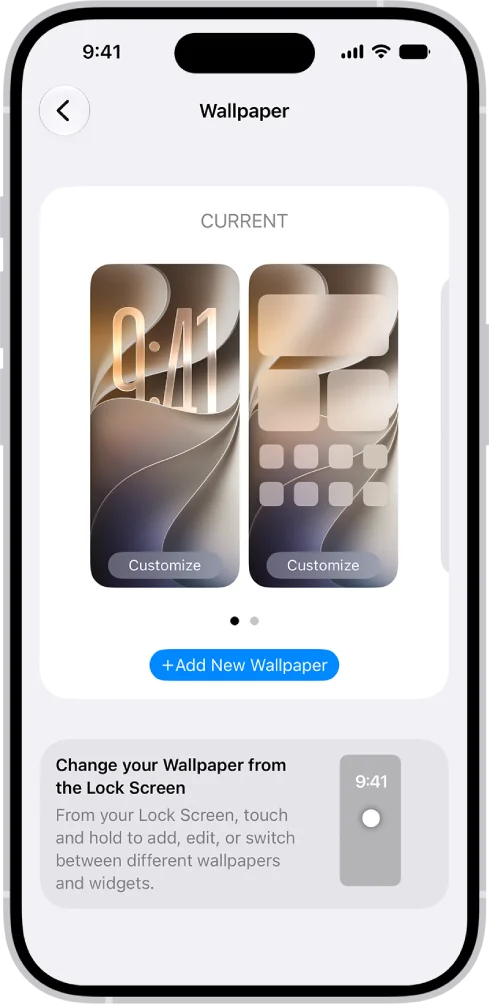
From the Settings app:
- Open Settings and tap Wallpaper.
- Tap Add New Wallpaper.
- Pick the image for your lock screen. Tap Photos to use your own picture, or pick one of Apple's sets.
- Adjust it if you want (move it, change the clock style), then tap Add.
- Tap Customize Home Screen. Do not tap Set as Wallpaper Pair, because that uses the same image on both screens.
- Choose what goes behind your apps: tap a color, tap the photo option to choose a different picture from your library, or select Blur to blur the lock screen image so your apps stand out.
- Tap Done.
From the lock screen:
- Press the side button to wake the iPhone, then unlock it with Face ID or Touch ID but stay on the lock screen.
- Touch and hold the lock screen.
- Tap the + button to make a new lock screen, or swipe to an existing one and tap Customize.
- Edit the lock screen, then tap Add or Done.
- Choose Customize Home Screen and pick a different photo, a color or Blur.
2. Google Pixel: pick the screen first
Pixel phones
On a Pixel, you choose which screen you are editing before you pick the image. Google's support page describes this exact flow.
- On your home screen, touch and hold an empty space.
- Tap Wallpaper & style.
- Tap More wallpapers or Change wallpaper.
- Select Lock screen or Home screen, depending on which one you want to change.
- Tap Choose a photo to use your own image, or tap a category and pick an image.
- If the Pixel asks which screen should show the wallpaper, pick only the screen you selected in step 4.
- Tap Preview, then Apply.
- Repeat the steps for the other screen with a different image.
You can also start from Settings > Wallpaper & style.
Good to know: Pixel's Daily wallpaper option does not work with your own photos or with live wallpapers, per Google's support page. If you want your own photos to rotate, see our guide to using Google Photos as your Android wallpaper.
3. Samsung Galaxy: untick the screen you do not want
One UI
Samsung asks which screen to use after you pick an image. The trick is to select only one.
Set a home screen or lock screen wallpaper:
- Touch and hold an empty space on the home screen.
- Tap Wallpaper and style.
- Tap Change wallpapers, then Gallery.
- Select a picture (or a video) and tap Done.
- Select Lock screen or Home screen. Select only one to keep the two screens different.
- Tap Next, adjust the image if you want, then tap Done.
- Repeat for the other screen with a different picture.
The same menu is at Settings > Wallpaper and style > Change wallpapers.
Change only the lock screen, from the lock screen:
- Wake the phone, then touch and hold the lock screen. Enter your PIN, pattern or password when asked (you need a screen lock set up for this).
- Tap Wallpapers in the top left corner.
- Tap Gallery, pick an image, then tap Done.
Menu names can be slightly different on older Galaxy phones. Samsung's own page notes that the options depend on your One UI version.
4. OnePlus: choose home, lock or both
OxygenOS
OnePlus asks where to apply the wallpaper after you pick it.
- Touch and hold an empty space on the home screen and tap Wallpapers, or go to Settings > Wallpaper & style.
- Pick an image from your photos (Album) or from the built-in static wallpapers.
- When OnePlus asks where to use it, choose home screen only or lock screen only.
- Repeat for the other screen with a different image.
Live wallpapers are the exception. OnePlus's own user manual says a live wallpaper can go on the home screen alone, or on the home and lock screens together, but not on the lock screen alone.
5. Xiaomi, Redmi and POCO: Set as Lock screen or Home screen
HyperOS
Xiaomi gives you three clear choices when you apply a wallpaper.
- Open Settings > Wallpaper, or open the Themes app and tap Wallpapers.
- Choose a wallpaper, or pick one of your own photos.
- Tap Apply.
- Tap Set as Lock screen or Set as Home screen. Avoid Set both if you want them different.
- Repeat for the other screen with a different image.
For a live wallpaper on the lock screen, Xiaomi recommends picking it from the phone's own wallpaper settings. Third-party live wallpaper apps need the right permissions to work there.
6. Windows 11: two separate settings pages
PC
On a Windows 11 PC, the desktop background and the lock screen are already separate settings, so you set each one on its own page.
Desktop background:
- Open Settings > Personalization > Background. You can also right-click the desktop and choose Personalize.
- Under Personalize your background, choose Picture, Solid color, Slideshow or Windows spotlight.
- For your own image, choose Picture, then Browse to pick a file.
Lock screen:
- Open Settings > Personalization > Lock screen.
- Under Personalize your lock screen, choose Windows spotlight, Picture or Slideshow.
- For your own image, choose Picture and browse to the file.
- Optional: turn off Get fun facts, tips, tricks, and more on your lock screen for a clean image, and decide whether to Show the lock screen background picture on the sign-in screen.
Using two monitors? You can also give each screen its own picture. See how to set separate wallpapers on dual monitors.
Wallpaper not changing? Quick fixes
Most problems come from a feature that keeps replacing your image. Work through the list for your device.
- iPhone: home screen keeps matching the lock screen. You probably tapped Set as Wallpaper Pair. Touch and hold the lock screen, tap Customize, tap Done, then choose Customize Home Screen and pick a different photo.
- iPhone: wallpaper changes on its own. A Focus may be linked to a different lock screen. Open the lock screen editor and check which Focus each lock screen uses.
- Samsung: lock screen picture disappears. Turn off Dynamic Lock screen, then set your picture again.
- Pixel: your own photos will not rotate. Daily wallpaper does not support personal photos or live wallpapers. Use a wallpaper app instead (see below).
- OnePlus: live wallpaper missing on the lock screen. Live wallpapers cannot go on the lock screen alone. Apply it to both screens.
- Windows: lock screen options are greyed out. On a work or school PC, your organization may control the lock screen. Ask your IT team; you cannot change it yourself.
- Image looks blurry or cropped. Use an image at least as large as your screen resolution, and in the same portrait shape. Check the wallpaper sizes guide.
Want a new wallpaper every day without doing it by hand? Our automatic wallpaper changer guide covers apps for Android, Windows and Linux.
Ideas for a good lock and home screen pair
A split setup works best when the two images do different jobs.
| Lock screen | Home screen | Why it works |
|---|---|---|
| A family or pet photo | A dark solid color or gradient | Personal on the outside, clean behind the icons |
| A bright stock wallpaper | The same wallpaper with Blur (iPhone) | Matches, but apps stay readable |
| A detailed landscape | A minimal or abstract image | The lock screen shows off the detail, icons stay clear |
| A live wallpaper (Android) | A static image | Motion where you glance, a still image where you work |
For fresh images, browse our official stock sets such as the iPhone 18 Pro wallpapers and Pixel 11 wallpapers.
FAQs
Can you have different wallpapers on the lock screen and home screen?
Yes. iPhone, Google Pixel, Samsung Galaxy, OnePlus and Xiaomi phones all let you use a different image on each screen, and Windows 11 keeps the desktop and lock screen backgrounds separate by default.
How do I stop my iPhone from using the same wallpaper on both screens?
When you add a wallpaper, tap Customize Home Screen instead of Set as Wallpaper Pair. Then pick a different photo, a color, or Blur for the home screen.
Why does my iPhone home screen wallpaper change by itself?
Each lock screen on an iPhone has its own home screen wallpaper. If you switch lock screens, or a Focus switches it for you, the home screen changes too.
How do I set a different wallpaper on the lock screen only on Android?
On a Pixel, open Wallpaper & style and select Lock screen before you choose the image. On a Samsung Galaxy, select only Lock screen after you pick the image. On Xiaomi, tap Set as Lock screen.
Can I use a live wallpaper on only the lock screen?
It depends on the phone. OnePlus does not allow a live wallpaper on the lock screen alone. On Samsung, you can set a video from your Gallery as the lock screen wallpaper.
Why can't I change my lock screen on Windows 11?
If the options are greyed out, your organization likely manages the PC. On a home PC, open Settings > Personalization > Lock screen and choose Picture instead of Windows spotlight to use your own image.

Sumit
ContributorHi, I'm Sumit, Being an introvert I have always been obsessed with technology-computers and reading dozens of posts to learn, find answers out of my curiosity. I love to write as I explore more.