On this page
- Match your symptom to the fix
- Just updated? Let macOS finish its housekeeping
- Remove login items and background activity
- Start up in safe mode once
- Free up space on the startup disk
- Run Disk Utility First Aid
- Find the culprit in Activity Monitor
- Let Spotlight finish indexing, or rebuild the index
- Intel Macs only: reset NVRAM and the SMC
- Update macOS and your apps
- Reinstall macOS (keeps your files)
- How long should a Mac take to start up?
- FAQs
- Why is my Mac so slow all of a sudden?
- Why is my Mac slow to boot after an update?
- Does safe mode fix a slow Mac?
- Do I need to reset the SMC or NVRAM on an M1, M2, M3 or newer Mac?
- Will reinstalling macOS delete my files?
- How much free space should a Mac have?
- Do Mac cleaner apps make it faster?
You press the power button, see the Apple logo, and then wait. And wait. When the desktop finally shows up, the spinning beach ball follows you around for another few minutes. A Mac that used to start in seconds now takes a coffee break to get going.
The good news: a slow startup is almost never a hardware fault. It is usually too many things launching at login, a nearly full disk, or macOS still busy with housekeeping after an update. All of those are fixable in a few minutes with tools already on your Mac.
The fixes below are in order, quickest and most likely first. Every step is checked against Apple's own support documents for the current release, macOS 27 Golden Gate (released September 14, 2026), and notes where Intel Macs and older versions differ.
Match your symptom to the fix
| What you see | Most likely cause | Go to |
|---|---|---|
| Slow startup only since a macOS update | Post-update indexing and cache rebuild | Fix 1 |
| Long wait after you log in, apps pop open | Too many login items | Fix 2 |
| Slow everywhere, beach ball often | Low disk space or memory pressure | Fix 4, Fix 6 |
| Fans loud, Mac warm while idle | An app or process stuck at high CPU | Fix 6 |
| Search is slow or misses files | Spotlight index still building or broken | Fix 7 |
| Wrong startup disk, odd power or fan behaviour (Intel) | NVRAM or SMC settings | Fix 8 |
| Still slow after everything else | Damaged system files | Fix 10 |
1. Just updated? Let macOS finish its housekeeping
Wait a day
After a major update (for example, moving to macOS 27 Golden Gate), your Mac does a lot of work in the background: it rebuilds caches, re-optimises apps, and re-indexes your files for Spotlight search. The first few startups and the first day of use can feel sluggish while that runs.
What to do:
- Leave the Mac plugged in and awake for a few hours, ideally overnight, with the lid open.
- Restart it once the next day.
If it is still slow after a day or two of normal use, move on to the next fix. You can see whether indexing is still running in Fix 7.
2. Remove login items and background activity
5 minutes
Login items are apps that open automatically every time you log in. Each one adds a few seconds to startup, and many installers add themselves without asking: chat apps, cloud sync tools, updaters, launchers.
In macOS 27 Golden Gate (and recent releases), Apple puts them all in one place:
- Choose Apple menu > System Settings.
- Click General in the sidebar, then Login Items & Extensions (scroll down if you need to).
- Under Open at Login, select any app you do not need right at startup and click the Remove (minus) button.
- Below that, look at App Background Activity. These items run helpers even when the app is closed, for things like update checks and syncing. Turn off the ones you do not use.
Removing a login item does not uninstall the app. It just stops it opening by itself. A yellow warning triangle next to an item means the app was moved or deleted, so it is safe to remove.
Also check the shutdown dialog: when you choose Apple menu > Restart or Shut Down, untick Reopen windows when logging back in if you do not want every app and window restored at startup.
3. Start up in safe mode once
10 minutes
Safe mode is a stripped-down startup that tells you whether the slowness comes from macOS itself or from something you installed. According to Apple, it does three things:
- Prevents login items, extensions that macOS does not need, and fonts you installed from loading.
- Runs a basic check of the startup disk, similar to Disk Utility First Aid.
- Clears some system caches, including font caches and the kernel cache. They are rebuilt automatically.
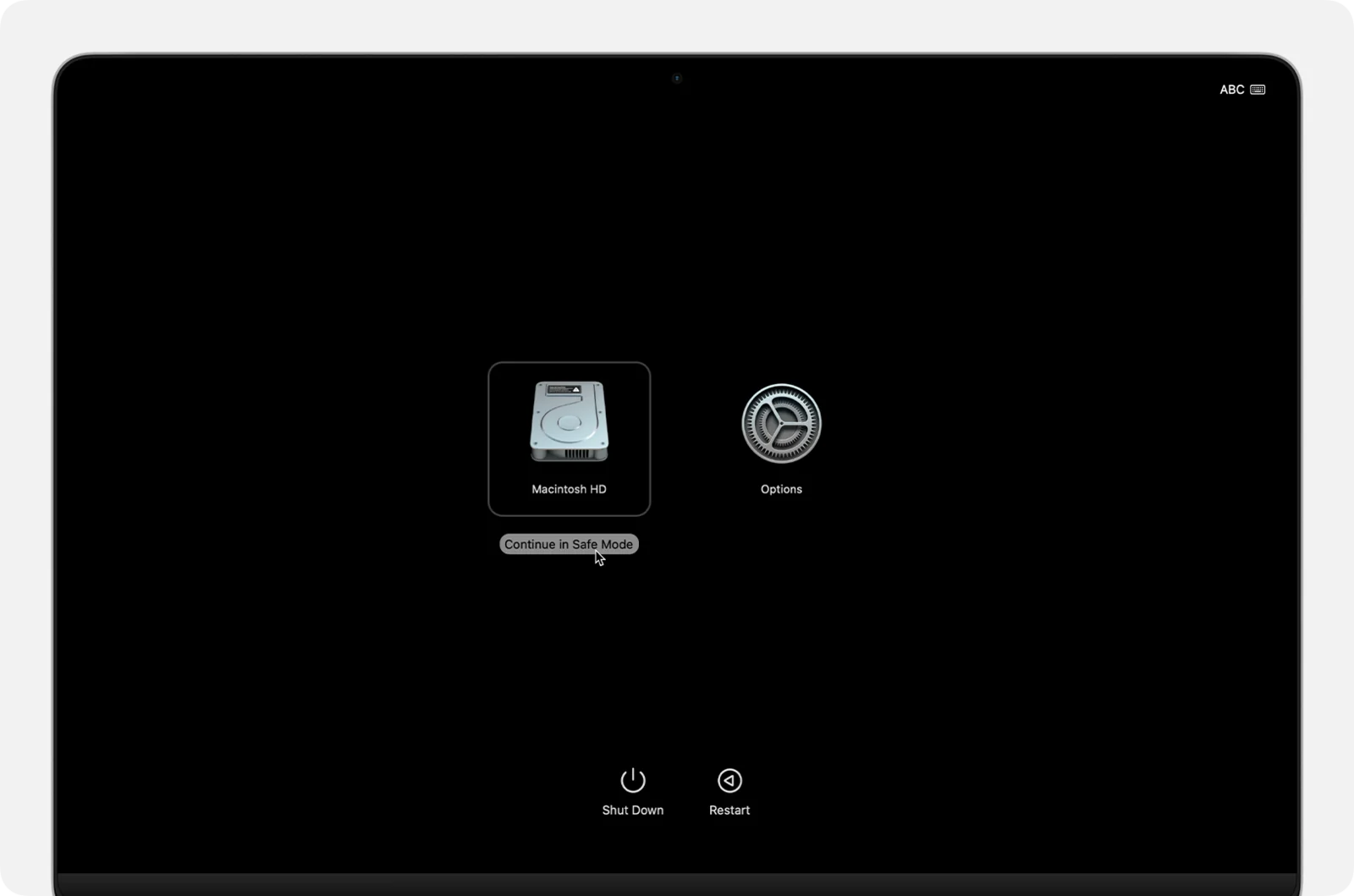
On a Mac with Apple silicon:
- Shut down the Mac. If it will not shut down, hold the power button for up to 10 seconds.
- Press and hold the power button until Loading startup options appears.
- Select your startup disk (usually Macintosh HD).
- Hold Shift and click Continue in Safe Mode.
- Log in. You may be asked to log in twice.
On an Intel Mac:
- Turn on or restart the Mac and immediately press and hold Shift.
- Release it when the login window appears, then log in.
You will see Safe Boot in red in the top-right corner of the login window. The first safe startup takes longer than normal, which is expected.

Use the Mac for a few minutes, then restart normally. If it is fast in safe mode but slow again in a normal startup, a login item, extension or font is the cause. Go back to Fix 2 and remove items one at a time until you find it.
4. Free up space on the startup disk
15 minutes
macOS needs free space to work: for virtual memory when RAM runs short, for caches, and for downloading updates. When the startup disk is close to full, everything slows down, startup included. Apple lists low disk space as the first thing to check when a Mac runs slowly.
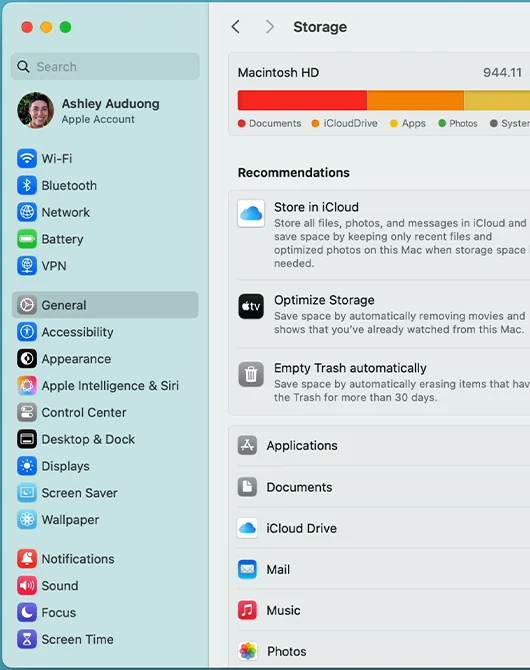
- Choose Apple menu > System Settings > General > Storage.
- Wait for the bar to finish calculating. It shows what is using space (Apps, Documents, Photos, System Data and so on).
- Work through the Recommendations: Store in iCloud, Optimise Storage, and Empty Bin Automatically.
- Click the info button next to a category, such as Documents or Applications, to find large files and apps you no longer use, and delete them.
Apple does not publish a minimum free-space number. As a rule of thumb, try to keep at least 15 to 20 percent of the disk free, and more before a big macOS update.
Moving your photo library, videos or old projects to an external drive frees space fast. Empty the Bin when you are done, or the space is not actually freed.
5. Run Disk Utility First Aid
15 minutes
First Aid checks the disk for file system errors and repairs them. A damaged directory can make startup crawl. Back up with Time Machine first, in case First Aid finds damage it cannot fix.
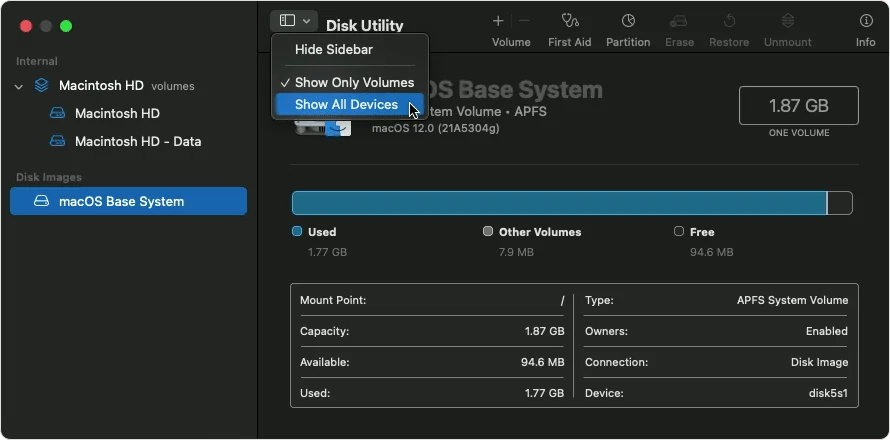
- Open Disk Utility (Applications > Utilities, or search for it with Spotlight).
- Choose View > Show All Devices.
- In the sidebar, select the last volume listed under your startup disk, click First Aid, then Run.
- Work upward: repeat for each volume, then the container, then the disk itself at the top. Skip any item where the First Aid button is greyed out.
- Quit Disk Utility and restart.
If First Aid reports errors it cannot repair on the startup disk, run it again from macOS Recovery. On Apple silicon, shut down, hold the power button until Loading startup options appears, click Options > Continue, then pick Disk Utility. On an Intel Mac, hold Command-R while it starts.
6. Find the culprit in Activity Monitor
5 minutes
If the Mac is slow after it has started, Activity Monitor shows you exactly what is eating CPU and memory. Open it from Applications > Utilities, or press Command-Space and type "Activity Monitor".
- CPU tab: click the % CPU column to sort. An app sitting near the top at a high percentage while you are not using it is a likely cause. Select it and click the stop (X) button to quit it. If an app keeps doing this, update it or remove it.
- Memory tab: look at the Memory Pressure graph at the bottom. Green means your Mac has memory to spare. Yellow or red means it is running short and swapping to disk, which makes it feel slow. Quit apps and browser tabs you are not using.
- Common heavy hitters: browsers with dozens of tabs, cloud sync clients during a first sync, and
mds_storesormdworker(Spotlight indexing, see the next fix).
Apple's own advice for a slow Mac is the same: check memory use in Activity Monitor, quit apps you are not using, and quit any app that is not compatible with your Mac.
7. Let Spotlight finish indexing, or rebuild the index
1 to a few hours
Spotlight keeps a private search index of your files. After an update, a migration, or connecting a big external drive, it re-indexes in the background. You will see mds, mds_stores and mdworker processes busy in Activity Monitor, and Spotlight search may show an indexing progress bar.
Normally you should just let it finish. If indexing never seems to end, or searches are slow and incomplete, rebuild the index as Apple describes:
- Open System Settings and click Spotlight in the sidebar (on some versions it is Siri & Spotlight).
- Scroll down and click Search Privacy (or Spotlight Privacy).
- Click the add (+) button and choose Macintosh HD, or drag the disk into the list.
- Wait a few seconds, select it in the list, and click the remove (–) button.
- Click Done. Spotlight starts indexing the disk again from scratch.
Expect the Mac to be busier than usual for an hour or more while the new index builds.
8. Intel Macs only: reset NVRAM and the SMC
5 minutes
These two resets come up in almost every slow-Mac guide, but they only help with specific problems, and neither applies to Apple silicon Macs.
NVRAM stores small settings like startup disk selection, display resolution and speaker volume. Resetting it can help if an Intel Mac pauses at startup looking for the wrong startup disk.
- Shut down the Mac.
- Turn it on and immediately press and hold Option-Command-P-R.
- Release the keys after about 20 seconds. The Mac may appear to restart during that time.
Afterwards, recheck your startup disk in System Settings > General > Startup Disk, plus volume and display settings.
The SMC (System Management Controller) handles power, battery, fans and sleep on Intel Macs. Steps depend on the model:
- Intel laptop with the T2 chip (most 2018 to 2020 models): shut down, hold left Control, left Option and right Shift for 7 seconds, then also hold the power button for another 7 seconds. Release, wait a few seconds, and turn it on.
- Older Intel laptop without T2: shut down, hold left Shift, left Control and left Option, add the power button, and hold all four for 10 seconds. Release and turn it on.
- Intel desktop (iMac, Mac mini, Mac Pro): shut down, unplug the power cord, wait 15 seconds, plug it back in, wait 5 seconds, then press the power button.
On Apple silicon there is nothing to reset by hand. Apple says the SMC functions reset automatically when you restart or shut down with the Mac plugged in, and the NVRAM steps are not needed.
9. Update macOS and your apps
20 minutes
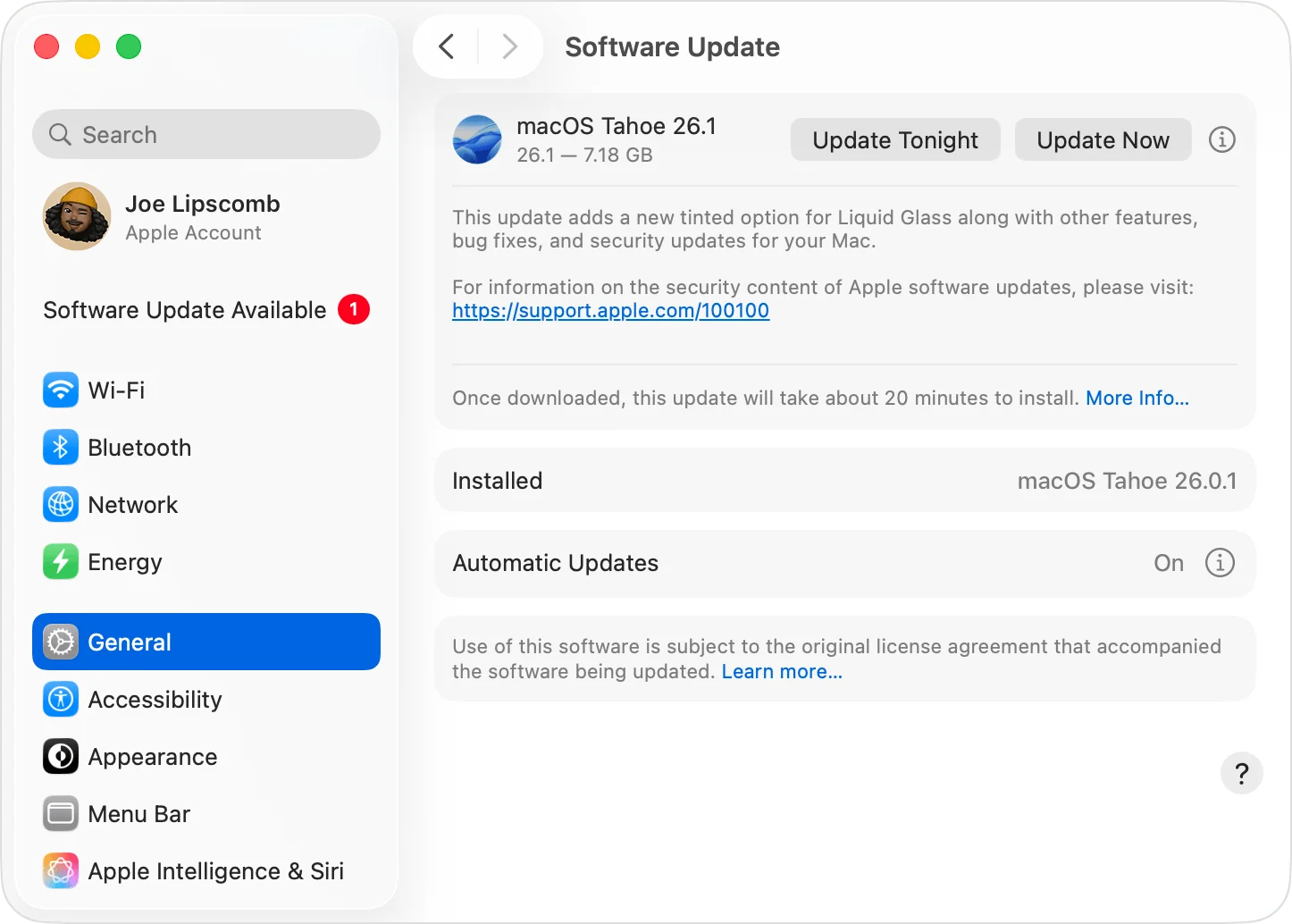
Point releases (x.1, x.2 and so on) often fix performance bugs from the first release of a new macOS version. Outdated apps, especially ones with old background helpers or kernel extensions, can also slow startup.
- Choose Apple menu > System Settings > General > Software Update and install what is offered.
- Update apps from the App Store (open it and click Updates) and from each developer for apps installed outside it.
- Unplug accessories you do not need at startup, such as external drives, hubs and docks, and see if the Mac boots faster without them. A slow or failing external drive can hold up startup.
10. Reinstall macOS (keeps your files)
1 hour
If you have worked through everything above and the Mac is still painfully slow, reinstall macOS from Recovery. Apple is clear that reinstalling macOS does not remove your apps or personal data, but back up with Time Machine first anyway.
On Apple silicon:
- Shut down. Press and hold the power button until Loading startup options appears.
- Click Options > Continue, and log in if asked.
- Choose Reinstall macOS and follow the prompts.
On an Intel Mac: turn it on and hold Command-R to start macOS Recovery, then choose Reinstall macOS.
You need a working internet connection (Wi-Fi or Ethernet). Leave the lid open and the Mac plugged in until it finishes.
If a clean reinstall still does not help, that points to hardware: a failing internal drive, or simply an older Mac that cannot keep up with today's apps. Run Apple Diagnostics (on Apple silicon, hold the power button until startup options appear, then press Command-D; on Intel, hold D at startup) and contact Apple Support if it reports a problem.
How long should a Mac take to start up?
There is no official number, and it depends on how many login items you have. As a rough guide, a recent Apple silicon Mac with a fast SSD usually reaches the login screen within about 15 to 30 seconds, and the desktop is usable soon after you log in. Older Intel Macs, especially ones with a spinning hard drive, take longer.
If yours used to be quicker and has slowed down over time, that points to software (login items, a full disk, a stuck process) rather than the hardware wearing out. For more ways to keep things quick once it is running, see our guide on how to speed up your MacBook.
FAQs
Why is my Mac so slow all of a sudden?
The most common causes are a recent macOS update that is still indexing in the background, a new app that added itself as a login item or background helper, or a startup disk that has nearly filled up. Check Activity Monitor for a process using lots of CPU, then check Storage in System Settings.
Why is my Mac slow to boot after an update?
After a major update, macOS rebuilds caches and re-indexes your files for Spotlight search. The first few startups and the first day of use can be slower. Leave it plugged in and awake for a few hours, restart, and it should settle down.
Does safe mode fix a slow Mac?
Safe mode can help. It runs a basic disk check and clears some system caches, and it tells you whether something you installed is causing the slowdown. If the Mac is fast in safe mode, remove login items and extensions one at a time until you find the cause.
Do I need to reset the SMC or NVRAM on an M1, M2, M3 or newer Mac?
No. Those manual resets only apply to Intel Macs. On a Mac with Apple silicon, restarting with the Mac plugged in takes care of the SMC functions, and the NVRAM reset steps do not apply.
Will reinstalling macOS delete my files?
No. Reinstalling macOS from Recovery keeps your apps and personal data. Apple still recommends a backup first. Erasing the disk is a separate step that does delete everything, so do not choose Erase unless you mean to.
How much free space should a Mac have?
Apple does not publish an exact figure. Keeping 15 to 20 percent of the startup disk free is a safe rule of thumb, and macOS updates need extra room to download and install.
Do Mac cleaner apps make it faster?
Usually not. macOS manages its own caches and memory. Cleaner apps often run their own background processes and can slow things down. If you are worried about malware rather than speed, read our guide on whether Macs need antivirus.
Looking for more Mac tips? Our list of hidden Mac features covers settings worth changing, and the MacBook buying guide helps if it really is time for new hardware.

Sumit
ContributorHi, I'm Sumit, Being an introvert I have always been obsessed with technology-computers and reading dozens of posts to learn, find answers out of my curiosity. I love to write as I explore more.