On this page
- Which method should you use?
- Update drivers through Windows Update
- Update a single driver with Device Manager
- How to update video card drivers
- NVIDIA graphics cards: the NVIDIA App
- AMD Radeon graphics: AMD Software: Adrenalin Edition
- Intel graphics (and other Intel drivers): Intel Driver & Support Assistant
- How to update network drivers (Wi-Fi and Ethernet)
- Update a network driver without internet
- Roll back a driver that broke something
- FAQs
- How do I update my video drivers on Windows 11?
- How do I know if my drivers need updating?
- Is it safe to install optional driver updates from Windows Update?
- Should I use Windows Update or the NVIDIA, AMD or Intel tool for graphics?
- How do I update my Wi-Fi driver if the internet does not work?
- What should I do if a driver update causes problems?
- Are free driver updater programs safe?
- Do I need to restart after updating drivers?
A driver is the small piece of software that lets Windows talk to a piece of hardware: your graphics card, Wi-Fi adapter, audio chip or printer. When a game stutters, the screen flickers, or Wi-Fi keeps dropping, an outdated or broken driver is one of the first things worth checking.
The good news: you do not need a paid "driver updater" app. Windows Update and Device Manager handle most drivers, and NVIDIA, AMD and Intel each give you a free official tool for graphics drivers. This guide covers all of them on Windows 11 and Windows 10, plus how to fix a network driver when you have no internet, and how to undo an update that made things worse.
Which method should you use?
Pick the row that matches what you are trying to update.
| What you want to update | Best method | Go to |
|---|---|---|
| Everything, no fuss | Windows Update (automatic and optional driver updates) | Windows Update |
| One specific device that is acting up | Device Manager | Device Manager |
| Video card for gaming or creative apps | NVIDIA App, AMD Adrenalin or Intel DSA | Graphics drivers |
| Wi-Fi or Ethernet | Laptop maker or chip maker download, installed through Device Manager | Network drivers |
| Undo a bad update | Roll Back Driver | Roll back |
1. Update drivers through Windows Update
5 minutes
Microsoft's own advice is that Windows Update is the best way to get driver updates, and it is the method least likely to break anything. Windows installs important drivers automatically along with regular updates. Other drivers wait in a separate Optional updates list until you choose to install them.
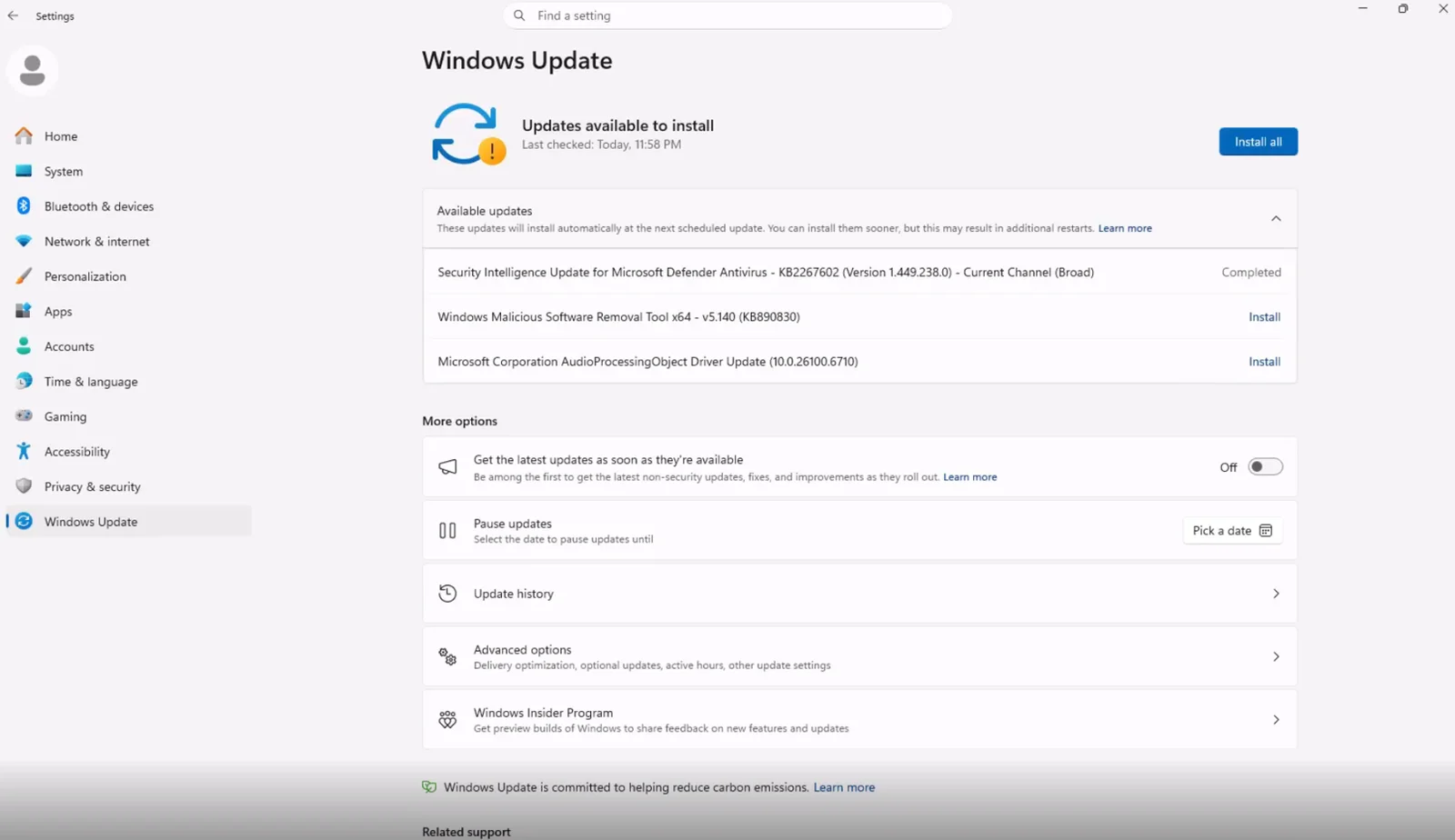
On Windows 11:
- Open Settings (press Windows + I) and select Windows Update.
- Select Check for updates and install anything waiting.
- Select Advanced options, then under Additional options select Optional updates.
- Expand Driver updates, tick the drivers you want, then select Download and install.
- Restart if Windows asks.
On Windows 10:
- Open Settings > Update & Security > Windows Update.
- Select Check for updates.
- Select View optional updates, open Driver updates, tick the ones you want and select Download and install.
Only install an optional driver when it matches a device that is giving you trouble. Optional drivers are optional for a reason: if your hardware works fine, there is little to gain. Windows 10 also reached end of support on October 14, 2025, so if you are still on it, the steps work, but the long-term fix is an upgrade (our guide on how to download the Windows 11 ISO covers that).
2. Update a single driver with Device Manager
5 minutes
Device Manager lists every piece of hardware Windows knows about. Use it when one device is misbehaving, or when you have downloaded a driver yourself and need to point Windows at it.
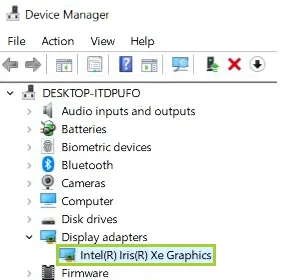
- Right-click the Start button and select Device Manager.
- Expand the category for your device, for example Display adapters for a graphics card or Network adapters for Wi-Fi.
- Right-click the device and select Update driver.
- Choose one of the two options:
- Search automatically for drivers: Windows checks the drivers already on your PC. If it says the best driver is installed, select Search for updated drivers on Windows Update to check online too.
- Browse my computer for drivers: use this when you downloaded a driver from the manufacturer. Select Browse, pick the folder you extracted the driver into, and select Next.
- Select Close when it finishes, and restart if asked.
A device with a yellow warning triangle has a driver problem. A device listed under Other devices or called Unknown device has no driver at all. Both are worth fixing first.
Driver came as an .exe file? Just run it. Most graphics, audio and Wi-Fi drivers from manufacturers ship as an installer, and you only need the Browse my computer route when the download is a folder of driver files (look for .inf files inside).
How to update video card drivers
Graphics drivers are the ones worth keeping current, because new games and creative app updates often need them. Windows Update does deliver graphics drivers, but it usually trails the versions NVIDIA, AMD and Intel publish themselves.
First, find out which graphics card you have. Press Ctrl + Shift + Esc to open Task Manager, select Performance, then GPU. The name is in the top-right corner. You can also expand Display adapters in Device Manager. Many laptops have two GPUs (an Intel or AMD chip built into the processor, plus an NVIDIA or AMD card). Update both.
3. NVIDIA graphics cards: the NVIDIA App
10 minutes
The NVIDIA App is NVIDIA's current tool for GeForce and RTX cards. It replaces both GeForce Experience and the old NVIDIA Control Panel in one app.
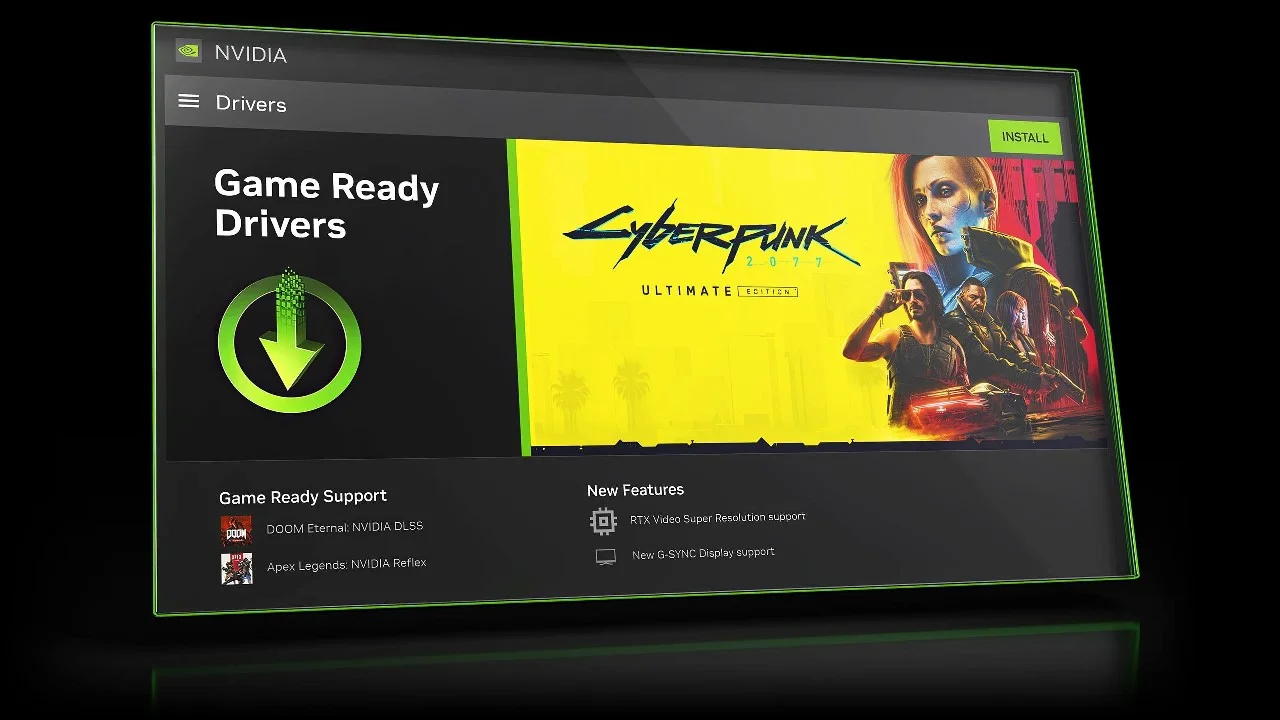
- Download and install the NVIDIA App.
- Open it and select Drivers in the left menu.
- Select Check for updates. If a new driver is listed, select Download, then install it.
- Choose Express for a normal update. Choose Custom if you want the clean install option, which resets the driver to defaults and is worth trying when you are fixing a problem rather than just updating.
You will see two driver types. Game Ready drivers are tuned for new game releases, and Studio drivers are aimed at stability in creative apps like Premiere Pro, Blender and DaVinci Resolve. Gamers should pick Game Ready. If you mostly edit video or render 3D, pick Studio. You can switch between them later.
4. AMD Radeon graphics: AMD Software: Adrenalin Edition
10 minutes
AMD bundles its Radeon drivers with an app called AMD Software: Adrenalin Edition. If you already have it (right-click the desktop and look for AMD Software: Adrenalin Edition), open it, go to the System tab and select Manage Updates to check for a newer driver.
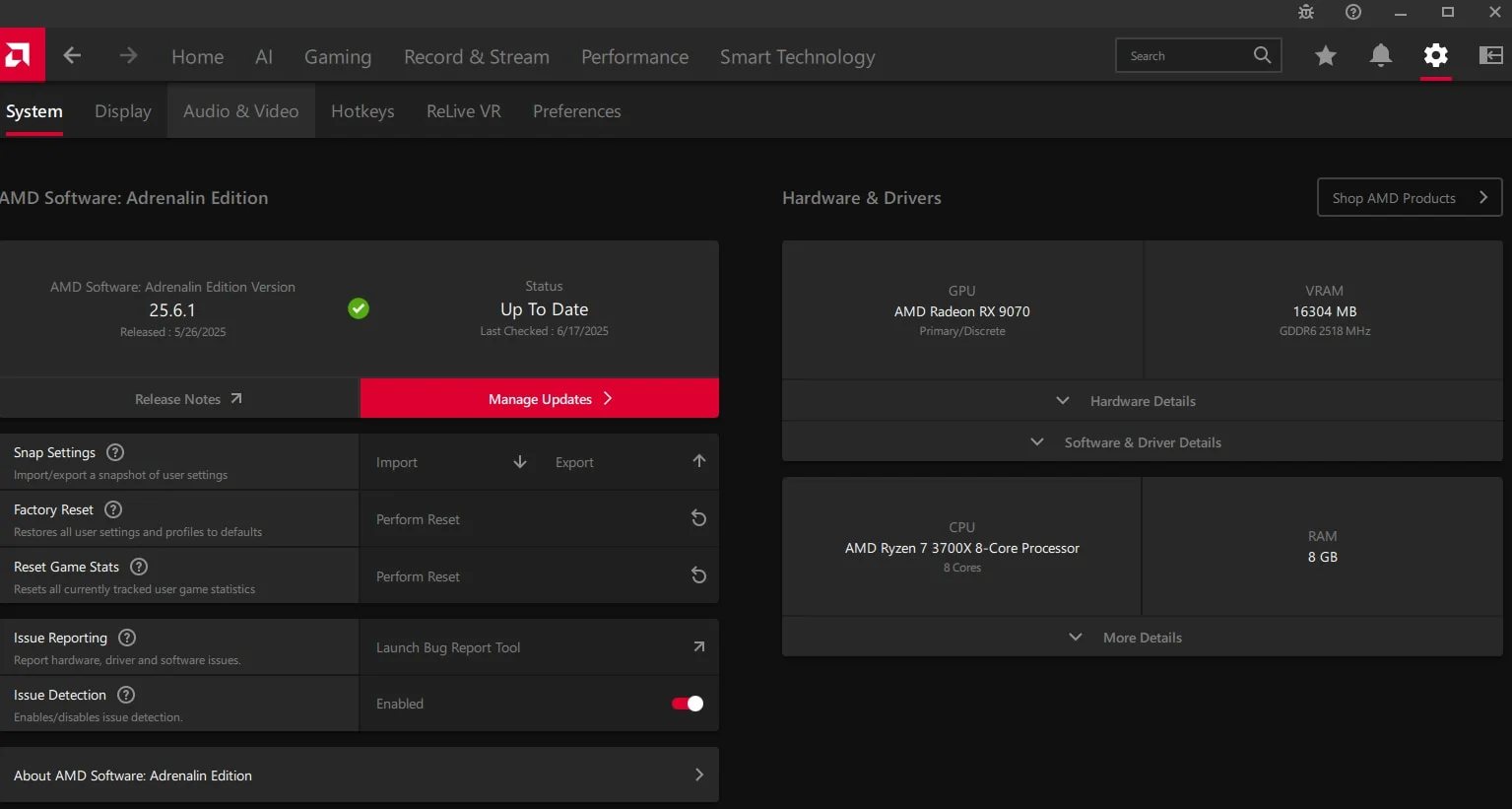
Do not have it yet? Go to AMD's drivers and support page. You can either search for your exact card or processor model, or download AMD's Auto-Detect and Install tool, which identifies your Radeon graphics and Ryzen chipset and fetches the right drivers for you.
AMD's installer also has a Factory Reset option. It removes the existing AMD driver and settings before installing, which is the AMD equivalent of a clean install. Use it when you are fixing crashes or a black screen, not for a routine update.
5. Intel graphics (and other Intel drivers): Intel Driver & Support Assistant
10 minutes
Most laptops and many desktops use Intel graphics built into the processor, and Intel Arc cards are a separate option on desktops. Intel's free tool for both is Intel Driver & Support Assistant (Intel DSA).
- Go to Intel's Driver & Support Assistant page and download it.
- Install and open it. It scans your PC and shows a list of available updates for Intel hardware: graphics, Wi-Fi, Bluetooth and chipset.
- Select Download all or pick individual updates, then install them.
On laptops, Intel DSA sometimes tells you the graphics driver is customised by your laptop maker and points you there instead. That is normal: install the laptop maker's version, because it may include tweaks for that model's display or battery.
How to update network drivers (Wi-Fi and Ethernet)
Network drivers are tricky for one obvious reason: if the driver is broken, you may have no internet to download a new one. Start with the easy route, then use the offline method if you need it.
If you still have a connection (even a slow or unstable one), use Windows Update first, then Device Manager: expand Network adapters, right-click your Wi-Fi adapter (the name usually includes "Wi-Fi", "Wireless" or "802.11") or your Ethernet adapter (often "Ethernet" or "GbE"), and choose Update driver. Intel DSA also updates Intel Wi-Fi and Bluetooth drivers, which covers a lot of laptops.
Find out who made your network chip. The brand on the laptop is not always the brand of the Wi-Fi chip. In Device Manager, right-click the adapter > Properties > Details tab > choose Hardware Ids from the drop-down. The four characters after VEN_ tell you the maker:
| Code after VEN_ | Chip maker |
|---|---|
| 8086 | Intel |
| 10EC | Realtek |
| 14C3 | MediaTek |
| 17CB | Qualcomm |
| 14E4 | Broadcom |
6. Update a network driver without internet
15 minutes
If Wi-Fi and Ethernet both refuse to work, you need to get the driver onto the PC another way.
- Try a phone first. Connect your Android phone with a USB cable and turn on USB tethering in its hotspot settings. Windows usually recognises it without any extra driver, which gives you internet to run Windows Update. iPhones can do the same through Personal Hotspot over USB if iTunes or the Apple Devices app is installed.
- No phone option? Use another computer. On a working PC, go to your laptop or motherboard maker's support page, enter your model, and download the Wi-Fi or LAN (Ethernet) driver for your Windows version. Laptop makers' pages are the safest source because they list the exact chip used in your model.
- Copy the file to a USB drive and plug it into the PC with no internet.
- If it is an
.exeinstaller, run it. If it is a.zip, extract it first, then follow the Device Manager steps and choose Browse my computer for drivers, pointing it at the extracted folder. - Restart the PC.
If the adapter has vanished from Device Manager entirely, open the View menu and select Show hidden devices, or select Action > Scan for hardware changes. Windows 11 also has a Network reset button (Settings > Network & internet > Advanced network settings > Network reset) that removes and reinstalls every network adapter and puts networking settings back to defaults. Note your Wi-Fi password first, and expect to set up any VPN again.
Roll back a driver that broke something
New drivers occasionally introduce bugs: a game crashes, sleep stops working, the touchpad goes jumpy, or Wi-Fi drops every few minutes. Windows keeps the previous driver so you can go back.
- Open Device Manager and expand the device's category.
- Right-click the device and select Properties.
- Open the Driver tab and select Roll Back Driver.
- Pick a reason, select Yes, and restart when asked.
If Roll Back Driver is greyed out, Windows does not have an older version stored. You have three options:
- Reinstall it clean. In Device Manager, right-click the device > Uninstall device. Tick Attempt to remove the driver for this device if you see it, then restart. Windows reinstalls a basic driver on the next boot, and you can then install the version you want.
- Install an older version by hand. NVIDIA, AMD, Intel and laptop makers all keep previous driver versions on their download pages.
- Use System Restore. Search the Start menu for Create a restore point, select System Restore, and pick a restore point from before the update. Your files are not touched.
Windows Update may try to reinstall the same problem driver. To stop that while you wait for a fix, go to Settings > Windows Update and choose a Pause updates period.
If the PC will not boot properly after a driver update, hold Shift while you select Restart from the Start menu power button, then go to Troubleshoot > Advanced options > Startup Settings > Restart and press 4 for Safe Mode. Safe Mode loads only basic drivers, so you can roll back from there. If nothing works, a factory reset is the last resort.
If you like having a set of trusted tools for Windows maintenance, our list of Windows utilities worth using sticks to apps that do one job well. And if you prefer the command line, driverquery in Command Prompt lists every installed driver with its date (more in our roundup of useful CMD commands).
FAQs
How do I update my video drivers on Windows 11?
Find your graphics card in Task Manager (Performance > GPU), then use the matching official tool: the NVIDIA App for NVIDIA cards, AMD Software: Adrenalin Edition for Radeon, or Intel Driver & Support Assistant for Intel graphics. Windows Update also delivers graphics drivers, but usually later than the GPU makers do.
How do I know if my drivers need updating?
Signs include a yellow warning triangle in Device Manager, an Unknown device entry, crashes in new games, display flicker, Wi-Fi that keeps dropping, or a device that stopped working after a Windows update. If everything works, most drivers do not need updating. Graphics drivers are the exception for gamers.
Is it safe to install optional driver updates from Windows Update?
Yes, they come from Microsoft and the hardware makers, and they are tested for Windows. They are optional because your PC does not strictly need them. Install one when it matches a device that has a problem, and skip the rest.
Should I use Windows Update or the NVIDIA, AMD or Intel tool for graphics?
For gaming or creative work, use the GPU maker's tool, because it gets new drivers first. For everyday use on a laptop, Windows Update or your laptop maker's driver is fine and less likely to cause surprises.
How do I update my Wi-Fi driver if the internet does not work?
Use USB tethering from a phone, or download the Wi-Fi driver from your laptop maker's support page on another device, copy it over on a USB drive, and install it through Device Manager with Browse my computer for drivers.
What should I do if a driver update causes problems?
Open Device Manager, right-click the device, select Properties > Driver > Roll Back Driver, and restart. If that option is greyed out, uninstall the device and install an older driver from the manufacturer, or use System Restore.
Are free driver updater programs safe?
Most are not worth the risk. They can install drivers meant for a different model, push paid upgrades, and bundle unwanted software. Everything they claim to do is already covered by Windows Update, Device Manager and the free official tools from NVIDIA, AMD and Intel.
Do I need to restart after updating drivers?
Often, yes. Graphics drivers usually work right away, but chipset, network and storage drivers commonly need a restart. Restart whenever the installer or Windows asks, and before you judge whether the update fixed your problem.

Sumit
ContributorHi, I'm Sumit, Being an introvert I have always been obsessed with technology-computers and reading dozens of posts to learn, find answers out of my curiosity. I love to write as I explore more.