On this page
- Quick fixes to try first
- Check requirements: phone, car, and app
- Wired: cable and USB port problems
- Wireless Android Auto problems
- Clear Android Auto cache and data
- Update Android Auto, Google Play Services, and your phone
- Permissions, battery optimization, and developer settings
- Car-side fixes: reset the head unit connection
- Samsung, Pixel, and OnePlus specific fixes
- Samsung: disable Game Optimizing Service
- Pixel: set USB mode to File Transfer
- OnePlus: turn off RAM and battery optimisation for Android Auto
- Android Auto error messages, decoded
- When to use a wireless adapter or a new head unit
- FAQs
Android Auto stops working for dozens of different reasons: a bad cable, a stale app version, a Wi-Fi band mismatch, a car head unit that needs a reset. The fix that works depends on whether you are using a wired or wireless connection, and which phone you have.
This guide walks through 12 fixes in order from quickest to most involved. Start at the top, test after each step, and stop when Auto connects.
Quick fixes to try first
Run through this checklist before anything else. These five steps fix the majority of Android Auto issues in under two minutes.
- Restart your phone and your car (full engine off, wait 30 seconds, restart)
- Swap the USB cable for a different one that you know transfers files, not just charges
- Plug into a different USB port on the head unit if your car has more than one
- Open the Play Store and update Android Auto
- Check that Android Auto is set as a default in your car's own settings menu
If none of those clear it, keep reading.
Check requirements: phone, car, and app
Android Auto has a short list of hard requirements. If any one is missing, it will not work at all.
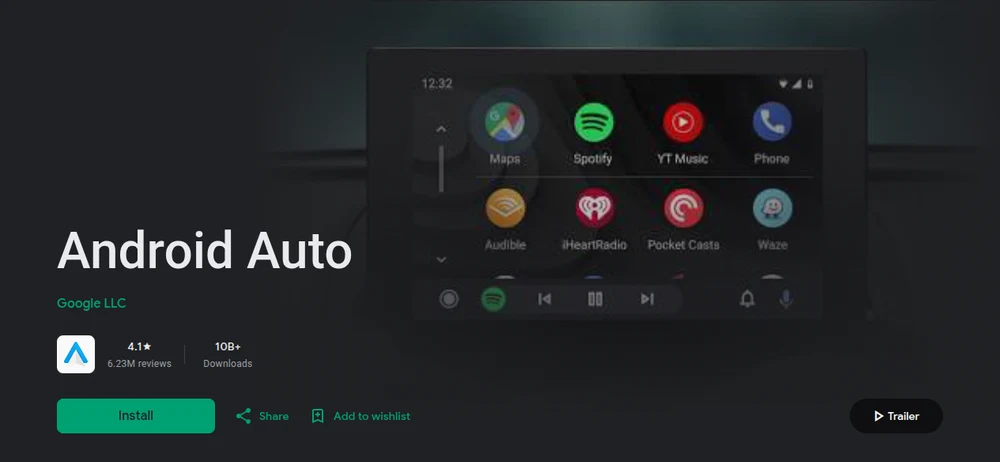
Phone requirements:
- Android 9 or later for wired Auto; Android 11 or later for wireless Auto
- Android Auto installed and up to date (built into many phones on Android 10 and later; on older phones install the Android Auto app from the Play Store)
- Google Play Services up to date
Car requirements:
- A head unit with built-in Android Auto support, or a third-party display that supports it
- Android Auto is not the same as Bluetooth audio. Your car must list Android Auto as a supported feature, not just media streaming.
Wireless-only requirements:
- The car or aftermarket display must support wireless Android Auto (many budget units only support wired)
- Your phone must support 5 GHz Wi-Fi (many newer phones do; check with your phone maker if you are unsure)
Wired: cable and USB port problems
A bad cable is the single most common cause of wired Android Auto failure. The phone will charge but Auto will not launch, because the cable is charge-only and carries no data signal.
How to tell if your cable is the problem:
- Plug the cable into your laptop or PC and open a file manager.
- If your phone does not appear as a storage device, the cable is charge-only. Replace it.
What to look for in a replacement cable:
- USB-A to USB-C (or USB-C to USB-C, matching your car's port)
- Listed as a data transfer cable, not a charging cable
- Short cables (under 1 metre) are more reliable for Android Auto than long ones
USB port on the car:
Try every USB port on the head unit. Many cars have one data port and one power-only port. The data port is usually labelled with a phone or music note icon.
Wireless Android Auto problems
Wireless Android Auto uses Bluetooth for initial pairing and Wi-Fi for the data connection. If either breaks, Auto will not launch.
Step 1: Check Bluetooth is on and paired
- On your phone, open Settings > Connected devices.
- Confirm your car is listed and shows as connected.
- If not, pair it again: put your car's Bluetooth into pairing mode, then tap Pair new device on your phone.
Step 2: Forget and re-pair
If Bluetooth is connected but Auto still fails:
- On your phone, go to Settings > Connected devices > Connection preferences > Android Auto > Previously connected cars, then tap Forget all cars.
- On the car head unit, go into Bluetooth settings and delete your phone.
- Re-pair from scratch.
Step 3: Check the Wi-Fi band
Wireless Android Auto requires 5 GHz Wi-Fi. Some head units drop to 2.4 GHz, which Android Auto refuses. There is no setting you can change on the phone; the head unit must support 5 GHz. Check your head unit's spec sheet or the manufacturer's site.
Step 4: Wireless adapters
If your car only supports wired Android Auto but you want to go wireless, a dedicated adapter plugs into the USB port and handles the 5 GHz Wi-Fi connection. Look at options in our roundup of Android Auto apps and accessories.
Clear Android Auto cache and data
App cache builds up over time and can corrupt the session state. Clearing it does not delete your settings.
Clear cache (safe, no data loss):
- Open Settings on your phone.
- Tap Apps (or Application Manager on some phones).
- Find Android Auto and tap it.
- Tap Storage, then tap Clear cache.
- Reconnect your phone to the car.
Clear storage (resets all preferences):
If clearing cache did not help, tap Clear storage (or Clear data) on the same screen. This resets all Android Auto settings, including which apps appear on the car screen. You will need to set them up again.
Also clear Google Play Services cache:
- Go to Settings > Apps.
- Find Google Play Services (you may need to tap the three-dot menu and select Show system apps).
- Tap Storage > Clear cache.
Update Android Auto, Google Play Services, and your phone
An outdated app or system component is a frequent cause of Android Auto failures, especially after a car firmware update changes the connection protocol.
Update Android Auto:
- Open the Play Store.
- Search for Android Auto.
- Tap Update if available. If it shows Open, it is already current.
Update Google Play Services:
- Open the Play Store.
- Tap your profile icon, then Manage apps and device.
- Look for Google Play Services in the list of apps with updates and tap Update if shown.
Update your Android version:
- Go to Settings > System > Software update (path varies by phone).
- Install any pending system updates.
Beta opt-out:
If you enrolled in the Android Auto beta, a broken beta build could be causing your issue. To opt out: open the Play Store, scroll to the bottom of the Android Auto page, and tap Leave under the beta section. Uninstall updates, then reinstall the stable version.
Permissions, battery optimization, and developer settings
Android's battery saver and permission system can silently block Android Auto from running in the background or maintaining a connection.
Unrestricted battery:
- Go to Settings > Apps > Android Auto.
- Tap Battery.
- Set it to Unrestricted (not "Optimized" or "Restricted").
Notification access:
Android Auto needs permission to read and speak your notifications aloud. To check it:
- Go to Settings > Apps > Android Auto.
- Tap Permissions.
- Enable all permissions listed, especially Phone, Contacts, and Notifications.
Reset Developer settings:
Some Android Auto features, including wireless, require a specific USB mode set in Developer options. If you have been changing developer settings:
- Go to Settings > Developer options.
- Tap Revoke USB debugging authorisations.
- Scroll down and tap Reset to default (if present) or toggle Developer options off and back on.
Car-side fixes: reset the head unit connection
If the phone-side fixes have not worked, the problem may be stored in the car's head unit.
Remove your phone from the car:
- On the head unit, go into Android Auto settings or Bluetooth settings.
- Find your phone in the paired devices list and delete it.
- Also delete it from the phone's Bluetooth list (see the wireless section above).
- Re-pair from scratch.
Factory reset the head unit:
Most aftermarket head units have a settings reset option. Consult your head unit's manual. OEM head units (factory-fitted) usually have a reset option under Settings. A head unit reset wipes Bluetooth pairings, so you will need to reconnect everything.
Firmware update:
Check the head unit manufacturer's site for firmware updates. Older firmware can lose compatibility when Google updates the Android Auto protocol. Ford, Toyota, and Hyundai issue periodic updates for their infotainment systems.
Dealer visit:
If the head unit firmware is current and nothing else works, a dealer can run diagnostics on the infotainment system. This is rare but sometimes necessary for persistent OEM head unit failures.
Samsung, Pixel, and OnePlus specific fixes
Some phones have manufacturer-specific features that block Android Auto.
Samsung: disable Game Optimizing Service
Samsung's Game Optimizing Service (GOS) can throttle CPU/GPU performance in ways that disrupt Android Auto. To disable it:
- Open Settings > Apps.
- Tap the three-dot menu and enable Show system apps.
- Find Game Optimizing Service and tap Force stop.
- Alternatively, open the Game Booster app and turn off optimizations for Android Auto if it appears in the games list.
Samsung's Battery protection mode and Adaptive battery can also restrict Auto. Check Settings > Battery and device care > Battery and set Android Auto to unrestricted.
Pixel: set USB mode to File Transfer
Google Pixel phones sometimes default the USB connection to Charging Only when plugged into a car. Android Auto needs File Transfer mode.
- Plug in your phone.
- Pull down the notification shade.
- Tap the USB charging this device notification.
- Select File Transfer (also called MTP).
This selection may reset each time you unplug. If it keeps reverting, go to Settings > Developer options > Default USB configuration and set it to File Transfer.
OnePlus: turn off RAM and battery optimisation for Android Auto
- Go to Settings > Battery > Battery optimization.
- Find Android Auto and set it to Don't optimize.
- Also check Settings > Apps > Android Auto > Battery > Unrestricted.
Android Auto error messages, decoded
Most ranking pages skip this. Here are the messages users see most often and what to do.
| Error message | Likely cause | Fix |
|---|---|---|
| "Android Auto is not supported on this phone" | Android version below 9, or Play Protect issue | Update Android; check Play Protect is enabled in Play Store settings |
| "Update Android Auto to use it with this car" | App is out of date | Update from Play Store |
| "Connect your phone using a USB cable" | Wireless Auto not supported by the head unit | Use a wired connection or a wireless adapter |
| "Could not communicate with your car" | USB connection dropped or wrong USB mode | Swap cable; set USB mode to File Transfer |
| "Android Auto is not working" (generic) | Session crash, often from stale cache | Clear Android Auto cache; reconnect |
| "No Android Auto icon on screen" | App is installed but not launched; head unit needs restart | Remove and re-insert USB cable; restart head unit |
| "Bluetooth pairing failed" | Head unit has a stored conflicting pairing | Delete phone from head unit and re-pair |
| "Your phone screen can't be shown" | Screen mirroring restrictions; not a supported Auto feature | This is expected: Auto runs its own UI, not a mirror of your phone |
When to use a wireless adapter or a new head unit
If your car supports only wired Android Auto and the cable connection is unreliable, a wireless adapter converts the wired connection to wireless so you can leave your phone in your bag.
If your head unit does not support Android Auto at all, an aftermarket screen that clips to your dash or replaces the factory unit is the only option short of a new car.
Before spending money, check whether your car's head unit can be updated to add Android Auto support. Some manufacturers added it to existing hardware through firmware updates.
For app recommendations to get the most out of Android Auto once it is connected, see our guide to the best Android Auto apps.
You can also improve your overall Android experience by adjusting a few Android settings that help with battery life, since Android Auto is a significant battery drain on longer journeys.
FAQs
How do I reset Android Auto?
Why is my phone suddenly not connecting to my car?
Why is Android Auto not showing on my car screen?
How do I get Android Auto to work again?
Does Android Auto need a data cable?

Amit loves new tech and apps that make life easier, he writes about apps, games and useful websites on TheTechBasket.