On this page
AirPods pair with any Android phone over standard Bluetooth. You lose the Apple-specific extras, but the core audio works fine. The pairing itself takes under a minute.
This guide covers every AirPods model, a full feature comparison, battery apps, firmware without an iPhone, and fixes for the most common connection problems.
Quick pairing steps
Follow these four steps on any Android phone:
- Put both AirPods in the case and close the lid for five seconds.
- Open the lid and hold it open.
- Put them in pairing mode. On AirPods 1 to 3 and Pro 1 and 2, press and hold the setup button on the back of the case for about 5 seconds. On AirPods 4, AirPods 5 and AirPods Pro 3 there is no button: double-tap the front of the case. On AirPods Max, hold the noise control button for about 5 seconds. Release when the status light flashes white.
- On your Android phone, open Settings > Connected devices > Pair new device (exact label varies by brand). Tap AirPods when they appear in the list.
After pairing, the AirPods connect automatically whenever Bluetooth is on and the case is open near your phone. If they do not reconnect automatically, open the case lid. Android does not support the automatic switching that iPhones have.
Pair AirPods, AirPods Pro, and AirPods Max, model by model
The pairing method differs by model. Apple lists the steps on its pairing with a non-Apple device page.
| Model | Pairing method | Status light location | Pairing mode light |
|---|---|---|---|
| AirPods (1st, 2nd, 3rd gen) | Setup button on back of case, hold about 5 seconds | Inside or front of case | Blinks white |
| AirPods 4 and 5 | No button: double-tap the front of the case | Front of case | Blinks white |
| AirPods Pro (1st and 2nd gen) | Setup button on back of case, hold about 5 seconds | Front of case | Blinks white |
| AirPods Pro 3 | No button: double-tap the front of the case | Front of case | Blinks white |
| AirPods Max (Lightning / USB-C) | Noise control button, hold about 5 seconds | Beside the charging port | Blinks white |
Light colour meanings:
- Blinking white: pairing mode, ready to connect
- Blinking amber: the AirPods need a reset
- Amber: not fully charged
- Green: fully charged
Check Apple's status light guide for your exact model, since the light rules differ between cases.
What works and what does not on Android
Most of what makes AirPods special on iPhone is handled by the Apple chip (W1, H1 or H2, depending on the model) talking to Apple software. Android only sees a standard Bluetooth audio device.
| Feature | Works on Android? |
|---|---|
| Audio playback (music, podcasts, video) | Yes |
| Phone calls and microphone | Yes |
| Volume control on phone | Yes |
| Touch controls (tap to play/pause/skip) | Yes |
| On-ear detection (auto-pause when removed) | Only with CAPod |
| Siri | No |
| Spatial audio / head tracking | No |
| Automatic device switching | No |
| Battery popup on unlock | No |
| Firmware updates over-the-air | No (needs iPhone) |
| Find My (Apple) | No |
| Noise cancellation toggle from phone | No |
| Conversation Awareness | No |
Add battery level and controls with a free app
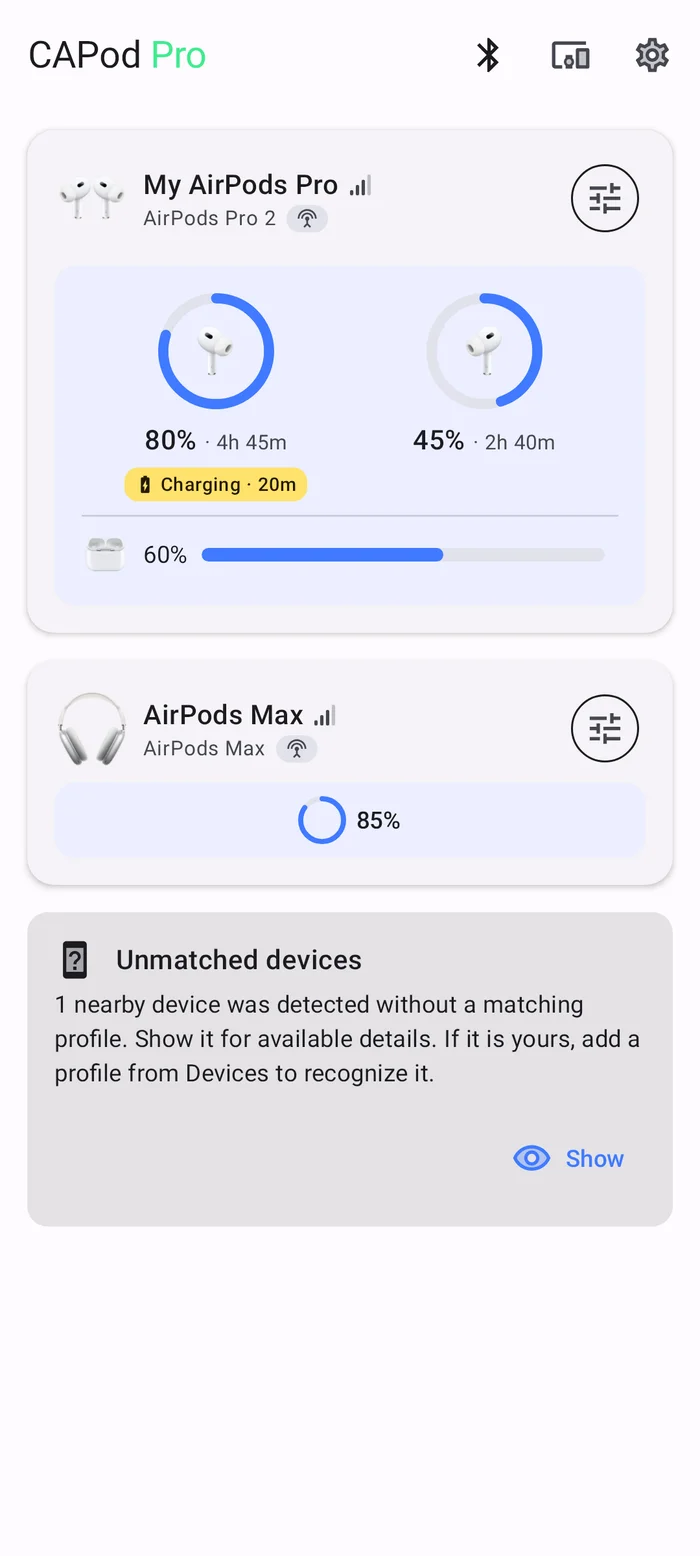
CAPod (Control AirPods) is a free, open-source app for Android, with an optional paid Pro upgrade. It shows the battery level for the left bud, right bud, and case in a notification and as a widget. It also offers ear detection with automatic play and pause, and case-open notifications. Get it from GitHub, F-Droid or Google Play.
How to set it up:
- Install CAPod from your preferred source.
- Grant it Bluetooth and Notification access when prompted.
- Open your AirPods case near your phone. CAPod reads the battery advertisement packet that AirPods broadcast and displays the levels within a few seconds.
CAPod does not require root. Permissions it asks for: Bluetooth (to read device data), Notifications (to show the battery bar). It does not access your microphone or contacts.
Update AirPods firmware without an iPhone
There is no way to trigger a firmware update directly from Android. Firmware updates require an iPhone or iPad running a recent version of iOS. This is a hardware limitation: the update is delivered through Apple's proximity protocol, which needs an Apple device nearby.
The only reliable workaround: borrow an iPhone for a few minutes.
- Connect your AirPods to the iPhone.
- Plug the iPhone into power.
- Put the AirPods back in the case with the lid closed, near the iPhone.
- Leave them there. Apple does not publish a set time, so give it a while. iOS delivers the update in the background.
To check the current firmware version, connect the AirPods to an iPhone, go to Settings > Bluetooth, tap the i next to AirPods, and scroll to Firmware Version. The latest version number changes with each Apple release.
AirPods not connecting or not showing up
If your AirPods do not appear in the Bluetooth scan or drop connection repeatedly, work through these steps in order.
1. Reset the AirPods
Put the AirPods in the case, close the lid and wait 30 seconds. On AirPods 1 to 3 and Pro 1 and 2, open the lid, then press and hold the setup button on the back for about 15 seconds until the light flashes amber, then white. On AirPods 4, open the lid and double-tap the front of the case three times. Apple lists each model on its reset page. They are now in factory reset mode and will show up as a new device on your Android phone.
2. Forget the device and re-pair
On Android, go to Settings > Connected devices > Previously connected devices, tap the gear icon next to AirPods, then Forget. Re-pair from scratch using the steps above.
3. Clear the Bluetooth cache
Android stores Bluetooth connection data that can corrupt over time. Go to Settings > Apps > See all apps, tap the three-dot menu, and enable Show system apps. Find Bluetooth (or Bluetooth Share on some builds), tap Storage, then Clear cache. Restart your phone.
4. Check for 2.4 GHz Wi-Fi interference
Bluetooth and 2.4 GHz Wi-Fi share the same radio band. If you are in a crowded apartment building or near a microwave, try switching your phone's Wi-Fi to a 5 GHz network (if your router supports it) and test again.
5. One device at a time
AirPods remember the last paired iPhone and will try to switch back to it if that phone is nearby with Bluetooth on. Keep the iPhone's Bluetooth off when using AirPods with Android, or go to Settings > Bluetooth on the iPhone and tap Forget This Device.
AirPods vs Android earbuds worth switching to
AirPods are excellent earbuds, but Android phones pair most naturally with earbuds built around Android's audio stack. If you are considering an upgrade or replacement, these articles are worth reading:
FAQs
How do I put AirPods in pairing mode?
Why are my AirPods not connecting to my Android phone?
Why aren't my AirPods showing up in Bluetooth?
Can you use AirPods with Samsung?
Do AirPods work with Android for calls and mic?

Amit loves new tech and apps that make life easier, he writes about apps, games and useful websites on TheTechBasket.