On this page
- Why extensions slow Chrome down
- Step 1: List what you have installed
- Step 2: Measure with Chrome's Task Manager
- Find the cost hidden inside your tabs
- Step 3: Find the culprit fast with the halving trick
- Step 4: Remove, disable, or restrict
- Remove it
- Disable it
- Restrict where it runs
- Keep it as it is
- Step 5: Replace heavy extensions with lighter options
- Keep it clean: a 5 minute monthly habit
- FAQs
Most people install a Chrome extension for one job, use it twice, and forget it exists. A year later there are 25 of them, Chrome feels sluggish, and the fan spins up every time a few tabs are open. The fix is not a new laptop. It is a 15 minute audit: measure what each extension actually costs, cut the ones you do not use, and replace the heavy ones with something lighter, often a feature Chrome already has built in.
This guide uses the current desktop Chrome (version 153, September 2026) on Windows, Mac, Linux and ChromeOS. Every tool here ships with Chrome, so you do not need another extension to audit your extensions.
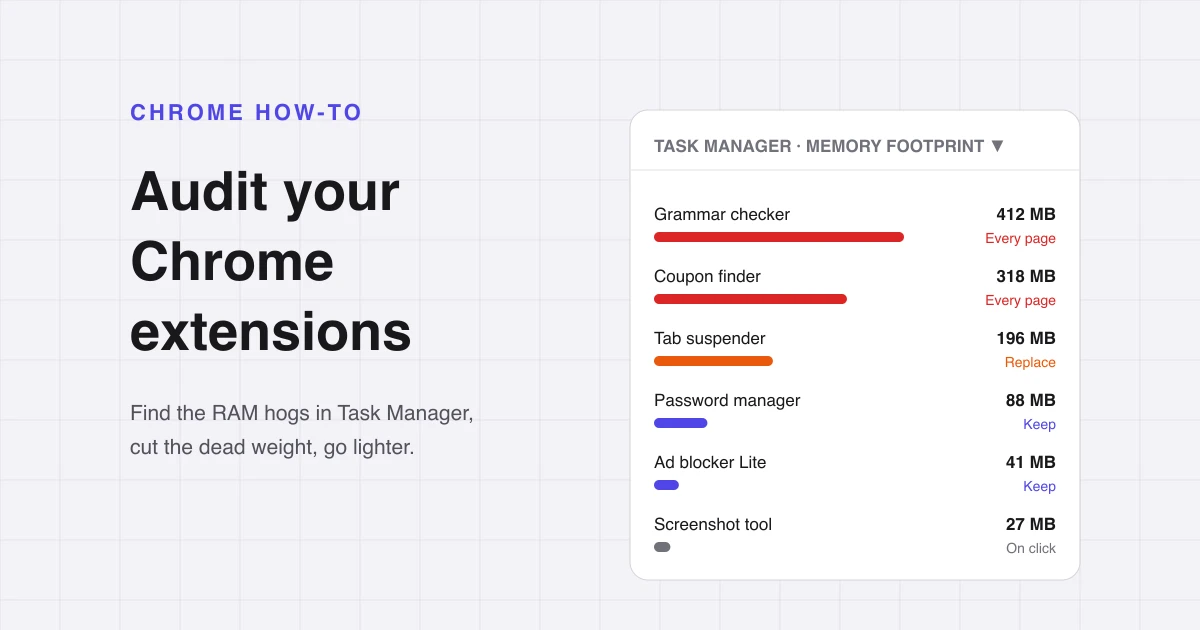
- Open Chrome's Task Manager (Shift+Esc on Windows, Linux and ChromeOS; Menu, More tools, Task manager on Mac) and sort by Memory footprint.
- Extensions show up as rows named Extension: followed by the name. An extension that runs on every page also adds weight to every tab, so check CPU while you browse, not just idle memory.
- Remove anything you have not used in a month. Disable, do not delete, anything you are unsure about.
- Set the rest to run only On click or on specific sites, so they stop loading into every page.
- Replace tab suspenders, translators, reader modes and tab managers with Chrome's own Memory Saver, Translate, Reading mode and tab groups.
Why extensions slow Chrome down
An extension can cost you resources in two places, and only one of them is easy to see.
- Its own process. Most extensions have a background part that handles events. Modern (Manifest V3) extensions use a service worker that Chrome shuts down after 30 seconds of inactivity, so a well-built one costs almost nothing while idle. Extensions that keep themselves awake, or open hidden pages, stay in memory all the time.
- Inside every tab. Many extensions inject a content script, a small piece of code that runs inside the web pages you open. Grammar checkers, dark mode tools, coupon finders, and page translators all work this way. That code runs in each matching tab, so an extension that looks light in isolation gets multiplied by 30 open tabs.
The second kind is the one people miss. A grammar checker that reads every text box on every site is doing work on pages where you never type a word.
Manifest V3 is the extension format Chrome uses now. Older Manifest V2 extensions have been switched off in Chrome, so if an old favourite vanished recently, that is the likely reason, not your audit.
Step 1: List what you have installed
Open chrome://extensions in the address bar (or Menu, Extensions, Manage Extensions). Every card shows the name, an on/off switch, and Details and Remove buttons.
Before measuring anything, go down the list and ask one question per card: when did I last use this? You will likely find a few you do not recognise at all. Those go first.
While you are on this page, check the top for a Safety check notice. Chrome flags extensions that were removed from the Chrome Web Store, were unpublished by their developer, or were marked as malware. You can reach the same review from Settings, Privacy and security, Safety check. Anything Chrome flags there should be removed, no audit needed.
Step 2: Measure with Chrome's Task Manager
Chrome has its own Task Manager, separate from the one in Windows or Activity Monitor on Mac. It shows every tab, extension, and internal Chrome process with live numbers.
| Platform | How to open it |
|---|---|
| Windows | Shift+Esc, or Menu, More tools, Task manager |
| Linux | Shift+Esc, or Menu, More tools, Task manager |
| ChromeOS | Search+Esc, or Menu, More tools, Task manager |
| Mac | Menu, More tools, Task manager (Mac has no default shortcut) |
Once it is open:
- Click the Memory footprint column header to sort from heaviest to lightest.
- Look for rows that start with Extension:. Those are your extensions' own processes.
- Right click any column header to add more columns. CPU and Network are the useful ones for this job.
- Leave the window open and browse normally for a few minutes. Watch which rows spike when you load a page or type.
To test an extension's impact directly, select its row and click End process. The extension stops until you restart Chrome or reload it from chrome://extensions, which makes this a safe way to see whether things feel faster without it.
There is no official limit, but as a rule of thumb:
- An extension holding 100 MB or more of memory while you are not using it deserves a closer look.
- An extension showing CPU above zero while you are just reading a page is doing work in the background.
- A Network figure on an extension you are not using means it is phoning home or syncing.
Compare like with like. A password manager or ad blocker that you use on every page will always show some activity. A screenshot tool that shows the same activity is a problem.
Find the cost hidden inside your tabs
Content script cost is counted inside each tab's row, not the extension's, so the Task Manager alone does not show it. The quickest way to find it:
- Open a heavy page you use every day (email, a news site, a work dashboard) and note its memory footprint in Task Manager.
- Turn off one extension in
chrome://extensions. - Reload the page and check the number again.
If a tab drops noticeably with one extension off, that extension is heavy on every page it touches. You can also see a tab's memory without opening Task Manager: go to Settings, Appearance, and turn on memory usage in the tab hover preview card. Hover any tab to see what it is using.
Step 3: Find the culprit fast with the halving trick
If Chrome is slow and nothing jumps out in Task Manager, test your extensions in batches instead of one by one.
- In
chrome://extensions, turn off half of them. - Restart Chrome and use it normally for a while.
- If the slowness is gone, the problem is in the half you turned off. If not, it is in the half still on.
- Repeat with the guilty half until you are down to one extension.
With 24 extensions this takes about five rounds instead of 24. To see what Chrome feels like with no extensions at all, open a Guest window from your profile menu. Guest mode runs without any of your extensions, so it is a clean baseline for comparison.
Step 4: Remove, disable, or restrict
Each extension on your list ends up in one of four buckets.
Remove it
You have not used it in a month, you do not recognise it, or Safety check flagged it. Click Remove on its card in chrome://extensions. You can always reinstall it from the Chrome Web Store later.
Disable it
You need it a few times a year: a coupon finder at holiday time, a web developer tool for one project. Flip the switch off. It stays installed but uses no memory or CPU until you turn it back on.
Restrict where it runs
You use it, but only on certain sites. This is the most underused setting in Chrome. Right click the extension's icon, choose This can read and change site data, then pick one of:
- When you click the extension: it only runs on a page after you click its icon.
- On specific sites: it runs only on the sites you list.
- On all sites: the default for many extensions, and the one that costs you on every tab.
You can set the same thing from the extension's Details page under Site access. A grammar checker that only runs on your email and your docs tool does its job and leaves the rest of the web alone. This also cuts how much of your browsing the extension can see, which is a privacy win on top of the speed.
Keep it as it is
Your password manager and one ad blocker earn their place on every page. Keep them, but keep only one of each. Two password managers or three ad blockers do the same work several times over and can conflict with each other.
- Removed every extension I have not used in a month
- Removed anything flagged by Safety check
- Disabled seasonal and one-project extensions
- Set remaining extensions to On click or specific sites where possible
- Kept only one password manager and one ad blocker
Step 5: Replace heavy extensions with lighter options
A lot of popular extensions do something Chrome now does on its own. The built-in version runs as part of Chrome, adds no extra process, and gets security fixes with every Chrome update.
| If you use an extension for | Try this instead | Where to find it |
|---|---|---|
| Suspending inactive tabs | Memory Saver | Settings, Performance, Memory Saver |
| Translating pages | Google Translate, built in | Translate icon in the address bar, or right click, Translate to |
| Clutter-free reading | Reading mode | Right click a page, Open in reading mode |
| Managing lots of tabs | Tab groups and tab search | Right click a tab, Add tab to new group; the tab search button on the tab strip |
| Saving tab sets for later | Saved tab groups | Right click a group name; saved groups reopen from the bookmarks bar |
| Full-page screenshots | DevTools screenshot | Ctrl+Shift+P (Cmd+Shift+P on Mac) in DevTools, type "screenshot" |
| Forcing dark mode on sites | Auto Dark Mode flag | chrome://flags, search "Auto Dark Mode for Web Contents" |
| Spelling and basic grammar | Enhanced spell check | Settings, Languages, Spell check |
| Several ad blockers at once | One lightweight blocker | Keep a single blocker; uBlock Origin Lite filters with Chrome's built-in rules engine instead of running code on every page |
The tab suspender swap is the big one. Tab suspender extensions were a staple for years, and one of the most popular, The Great Suspender, was removed from the Chrome Web Store in 2021 after it was found to contain malware. Memory Saver does the same job without the risk.
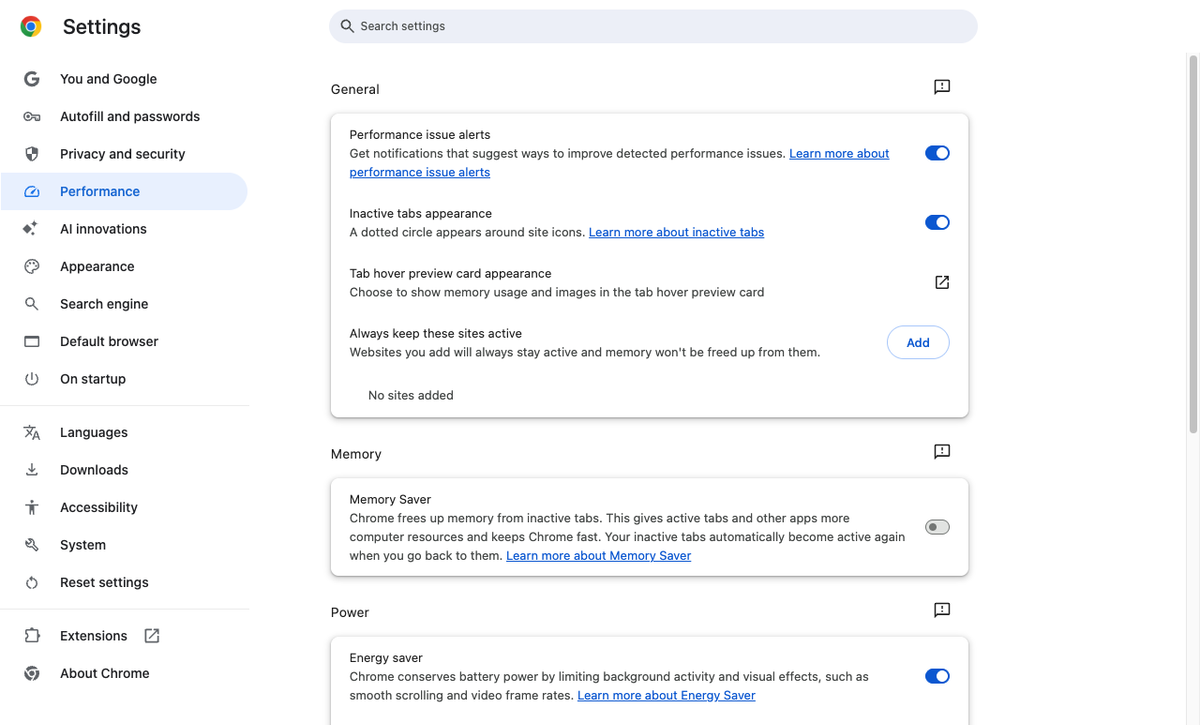
Turn Memory Saver on and pick a level:
- Moderate: tabs go inactive after a longer time.
- Balanced: Chrome's recommended default.
- Maximum: tabs go inactive soonest, for the most memory saved.
An inactive tab keeps its place and reloads when you click it. Add sites that must stay live, like a web chat or a music player, under Always keep these sites active on the same page. Leave Performance issue alerts on too: Chrome will suggest freeing up tabs when it detects the browser slowing down.
The Auto Dark Mode flag is an experimental Chrome feature, so it can make some sites look odd. Our guide to the most useful Chrome flags explains how flags work and how to turn one back off.
Keep it clean: a 5 minute monthly habit
An audit only helps if the list stays short. Once a month:
- Open
chrome://extensionsand remove anything you did not use since last time. - Glance at Task Manager sorted by memory footprint for any new heavy hitter.
- Before installing a new extension, check whether Chrome already does it, and set it to On click straight after installing.
If you use Chrome for very different things, like work tools and personal browsing, separate Chrome profiles help too. Each profile has its own extensions, so your work extensions never load while you are watching videos at night. For more habits like this, see our productive Chrome tips. And when you do want to add something, our list of the best Chrome extensions is a good place to start picking carefully.
FAQs
How do I see how much memory each Chrome extension uses?
Does disabling a Chrome extension free up memory?
How many Chrome extensions is too many?
Why does an extension look light in Task Manager but still slow Chrome down?
Is Chrome's Memory Saver better than a tab suspender extension?
Can I test Chrome without any extensions?

Sumit
ContributorHi, I'm Sumit, Being an introvert I have always been obsessed with technology-computers and reading dozens of posts to learn, find answers out of my curiosity. I love to write as I explore more.