On this page
- Display orientation options explained
- How to flip the screen in Windows 11
- How to rotate the display in Windows 10
- Keyboard shortcut to flip the screen: Ctrl + Alt + arrow keys
- Rotate the screen from the Intel, NVIDIA or AMD control panel
- Intel Graphics Command Center
- NVIDIA Control Panel
- AMD Software: Adrenalin Edition
- How to fix an upside-down screen in Windows
- Press Ctrl + Alt + Up arrow
- Reset the orientation using only the keyboard
- Use the mouse, slowly
- Stop it happening again
- Rotation lock on tablets and 2-in-1 laptops
- Tips for using a portrait monitor
- FAQs
- What is the shortcut to flip the screen on Windows?
- Why is Ctrl + Alt + arrow not rotating my screen?
- How do I flip my screen back to normal?
- Why is display orientation greyed out in Windows?
- Can I rotate just one monitor in a dual-monitor setup?
- Does rotating the screen affect performance or games?
Maybe you just mounted a monitor sideways for reading code or long documents. Maybe a cat walked across the keyboard and now your whole desktop is upside down. Either way, the fix is the same: change the display orientation.
The quickest reliable way on any Windows 11 or Windows 10 PC: right-click the desktop > Display settings > Display orientation, pick Landscape, Portrait, Landscape (flipped) or Portrait (flipped), then click Keep changes.
- Settings > System > Display > Display orientation works on every Windows 11 and 10 PC.
- Ctrl + Alt + arrow keys only work when your graphics driver turns them on (some Intel and AMD setups), not on every PC.
- Screen upside down? Try Ctrl + Alt + Up first, then set Display orientation back to Landscape.
- On tablets and 2-in-1s, Rotation lock controls auto-rotate. Windows key + O toggles it.
Display orientation options explained
Windows gives you four orientations. Here is what each one does to the picture on your screen:
| Orientation | Rotation | When to use it |
|---|---|---|
| Landscape | 0 degrees (normal) | Standard monitors and laptops |
| Portrait | 90 degrees | A monitor turned on its side for code, documents or social feeds |
| Landscape (flipped) | 180 degrees, upside down | A monitor or projector mounted upside down |
| Portrait (flipped) | 270 degrees | A sideways monitor rotated the other way |
Rotating the picture does not rotate the monitor. If you pick Portrait, you also need to turn the physical screen 90 degrees, or everything will look sideways.
How to flip the screen in Windows 11
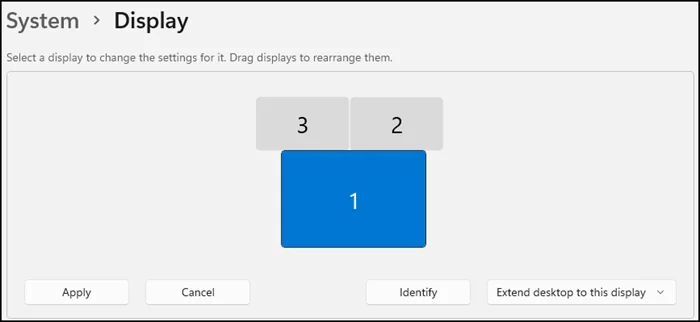
- Right-click an empty part of the desktop and choose Display settings. You can also open Start > Settings > System > Display.
- If you have more than one monitor, click the one you want to rotate in the diagram at the top. Click Identify if you are not sure which number is which.
- Scroll to the Scale & layout section and open the drop-down next to Display orientation.
- Choose Landscape, Portrait, Landscape (flipped) or Portrait (flipped).
- Windows rotates the screen and asks whether to keep the new layout. Click Keep changes. If you do nothing, it reverts on its own after about 15 seconds.
Press Esc while the "Keep these display settings?" prompt is showing. Windows rolls back to the previous orientation straight away.
How to rotate the display in Windows 10
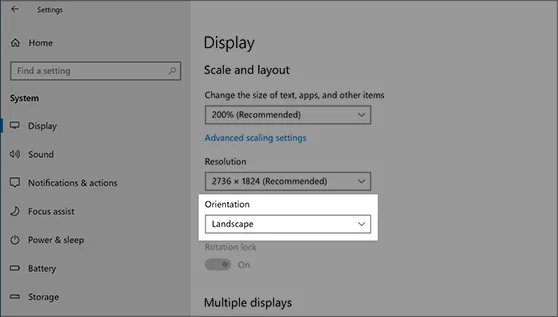
The steps are almost identical in Windows 10:
- Right-click the desktop and select Display settings, or go to Start > Settings > System > Display.
- Select the monitor you want to change if you use more than one.
- Under Scale and layout, open the Display orientation drop-down (older builds label it just Orientation).
- Pick the orientation you want and click Keep changes within about 15 seconds.
This is the method Microsoft documents for both versions of Windows, and it works no matter which graphics card your PC has.
Keyboard shortcut to flip the screen: Ctrl + Alt + arrow keys
Plenty of guides say Ctrl + Alt + an arrow key rotates the screen in Windows. That is only half true. These hotkeys are not a Windows feature at all. Microsoft's official list of Windows keyboard shortcuts does not include them. They come from your graphics driver, and only some drivers turn them on.
| Shortcut | Result |
|---|---|
| Ctrl + Alt + Up arrow | Landscape (normal) |
| Ctrl + Alt + Down arrow | Landscape (flipped, upside down) |
| Ctrl + Alt + Left arrow | Portrait |
| Ctrl + Alt + Right arrow | Portrait (flipped) |
Where they work and where they do not:
- Intel graphics: Intel removed rotation hotkeys from its old Graphics Control Panel starting with 6th Generation chips. On newer PCs you can switch them back on in Intel Graphics Command Center > System > Hotkeys. Intel also notes they only rotate the display set as your main display.
- AMD graphics: AMD Software: Adrenalin Edition supports the same four shortcuts, but only after you enable Display Hotkeys (type "Hotkeys" into the search box in AMD Software). AMD says they work on the main display only, and not during gameplay or with Eyefinity turned on.
- NVIDIA graphics: the NVIDIA Control Panel has no built-in Ctrl + Alt + arrow rotation shortcut. Use Windows Settings or the control panel instead.
If the shortcut does nothing on your PC, that is normal. Use the Settings method above.
Rotate the screen from the Intel, NVIDIA or AMD control panel
Windows Settings covers almost everyone, but your graphics software can rotate the screen too. This is handy if Settings shows the option greyed out or you already live in the GPU app.
Intel Graphics Command Center
- Open Intel Graphics Command Center from the Start menu. If it is missing, install it free from the Microsoft Store.
- Go to Display and select the monitor.
- Under General, change Rotation to 0, 90, 180 or 270 degrees. Intel removed this option from newer versions of the app, so if you do not see it, use Windows Settings or the hotkeys instead.
- To use hotkeys, open System > Hotkeys and turn on Enable System Hotkeys.
NVIDIA Control Panel
- Right-click the desktop and choose NVIDIA Control Panel (on Windows 11, click Show more options first).
- In the left pane, under Display, click Rotate display.
- Select the monitor, then pick Landscape, Portrait, Landscape (folded) or Portrait (folded). NVIDIA uses "folded" where Windows says "flipped".
- Click Apply and confirm.
AMD Software: Adrenalin Edition
AMD's app does not have its own rotation drop-down. It relies on Windows Display settings for that, and adds the optional Display Hotkeys described above. If you want shortcuts on an AMD PC, search "Hotkeys" in AMD Software, open Display Hotkeys and switch it on.
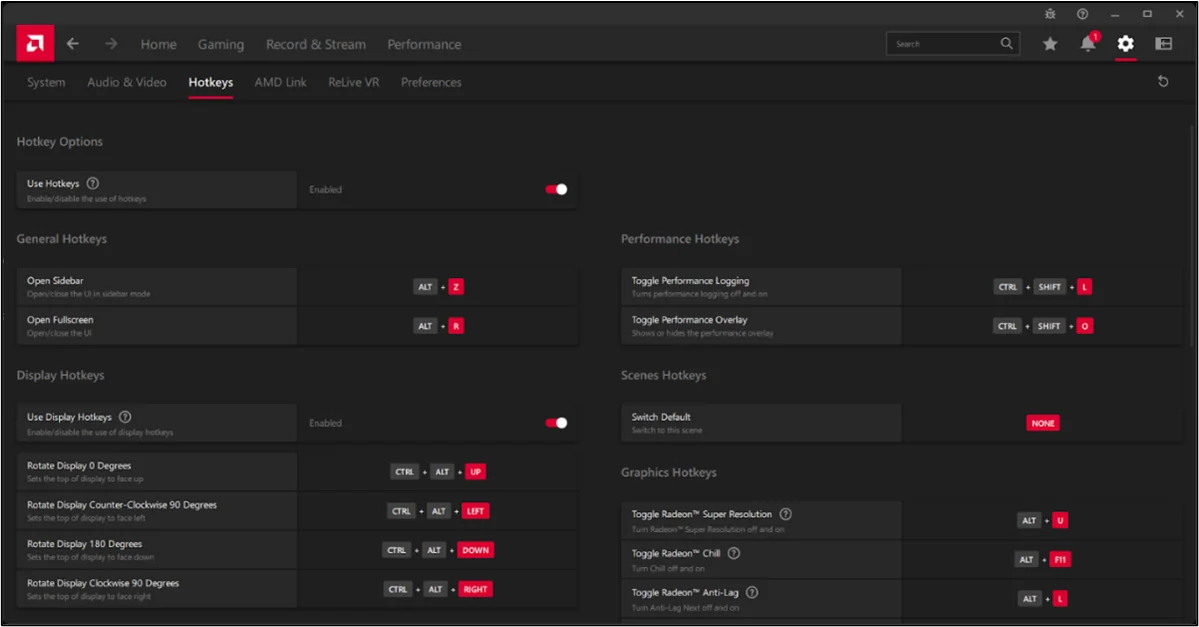
If none of these options appear, your graphics driver may be missing or very old. Grab the latest driver from Intel, NVIDIA or AMD, or see our guide to driver updaters for Windows.
How to fix an upside-down screen in Windows
An upside-down or sideways screen is almost always a stray hotkey press, not a hardware fault. Your mouse moves the wrong way, which makes clicking through Settings awkward, so start with the keyboard.
Press Ctrl + Alt + Up arrow
If a driver hotkey caused the flip, the same hotkey family undoes it. Ctrl + Alt + Up returns the main display to normal Landscape. Nothing happens? Move to the next step.
Reset the orientation using only the keyboard
- Press the Windows key, type display settings and press Enter.
- Press Tab until the Display orientation drop-down is highlighted (the focus outline shows where you are).
- Press Alt + Down arrow to open the list, choose Landscape with the arrow keys and press Enter.
- When the confirmation appears, press Tab to reach Keep changes and press Enter.
Use the mouse, slowly
Right-click the desktop, select Display settings and set Display orientation to Landscape. The mouse moves in reverse on a flipped screen, so go slowly. It gets easier after a few seconds.
Stop it happening again
If you keep flipping the screen by accident, turn the hotkeys off. Go to Intel Graphics Command Center > System > Hotkeys and switch off Enable System Hotkeys, or turn off Display Hotkeys in AMD Software. Other apps that use Ctrl + Alt + arrow shortcuts will work normally again too.
Rotation lock on tablets and 2-in-1 laptops
Devices with a motion sensor, like a Surface Pro or a 2-in-1 laptop, rotate the screen automatically when you turn them. Rotation lock stops that.
- Quick Settings: press Windows key + A (or click the network and volume icons on the taskbar) and tap the Rotation lock tile.
- Settings: go to Settings > System > Display and switch Rotation lock on or off. It sits just below Display orientation.
- Keyboard: press Windows key + O to lock the device orientation.
A few things that trip people up:
- Display orientation is greyed out: on auto-rotating devices, Windows controls orientation while rotation lock is off. Turn rotation lock on, then pick an orientation.
- Rotation lock is missing: on many 2-in-1s it only shows up in tablet posture. Fold the keyboard fully behind the screen, wait a few seconds, then check Settings again.
- Regular laptops and desktops have no motion sensor, so you will never see Rotation lock there. That is expected.
Tips for using a portrait monitor
- Put the portrait monitor next to your main screen and drag the screens in Settings > System > Display so their positions match your desk. Otherwise the mouse jumps to the wrong edge.
- Portrait works best for code editors, PDFs, long web pages, chat apps and social feeds. Games and video still belong on a landscape screen.
- Check that your monitor stand actually pivots. Many basic stands only tilt, so you may need a VESA arm.
- Want to see your phone on a PC screen instead? See how to mirror your Android screen to a PC.
For more Windows tweaks, browse our Windows guides, including how to turn off Copilot in Windows 11.
FAQs
What is the shortcut to flip the screen on Windows?
Ctrl + Alt + arrow keys flip the screen on PCs whose graphics driver enables rotation hotkeys (some Intel and AMD setups). Ctrl + Alt + Up restores the normal view and Ctrl + Alt + Down turns it upside down. Windows itself has no built-in rotation shortcut, so on many PCs the keys do nothing.
Why is Ctrl + Alt + arrow not rotating my screen?
Your graphics driver has the hotkeys turned off or does not support them. Newer Intel drivers dropped them by default, and AMD needs Display Hotkeys switched on. Use Settings > System > Display > Display orientation instead, which works on every PC.
How do I flip my screen back to normal?
Press Ctrl + Alt + Up arrow. If that does not work, open Settings > System > Display, set Display orientation to Landscape, and click Keep changes.
Why is display orientation greyed out in Windows?
On tablets and 2-in-1s, Windows manages orientation automatically while rotation lock is off. Turn on Rotation lock in Quick Settings or Settings > System > Display, and the Display orientation drop-down becomes available.
Can I rotate just one monitor in a dual-monitor setup?
Yes. In Settings > System > Display, click the monitor you want in the diagram at the top, then change its Display orientation. The other monitor keeps its own setting.
Does rotating the screen affect performance or games?
No. Rotation is handled by the graphics driver and has no real performance cost. Most games expect a landscape screen, though, so play them on a monitor set to Landscape.

Sumit
ContributorHi, I'm Sumit, Being an introvert I have always been obsessed with technology-computers and reading dozens of posts to learn, find answers out of my curiosity. I love to write as I explore more.