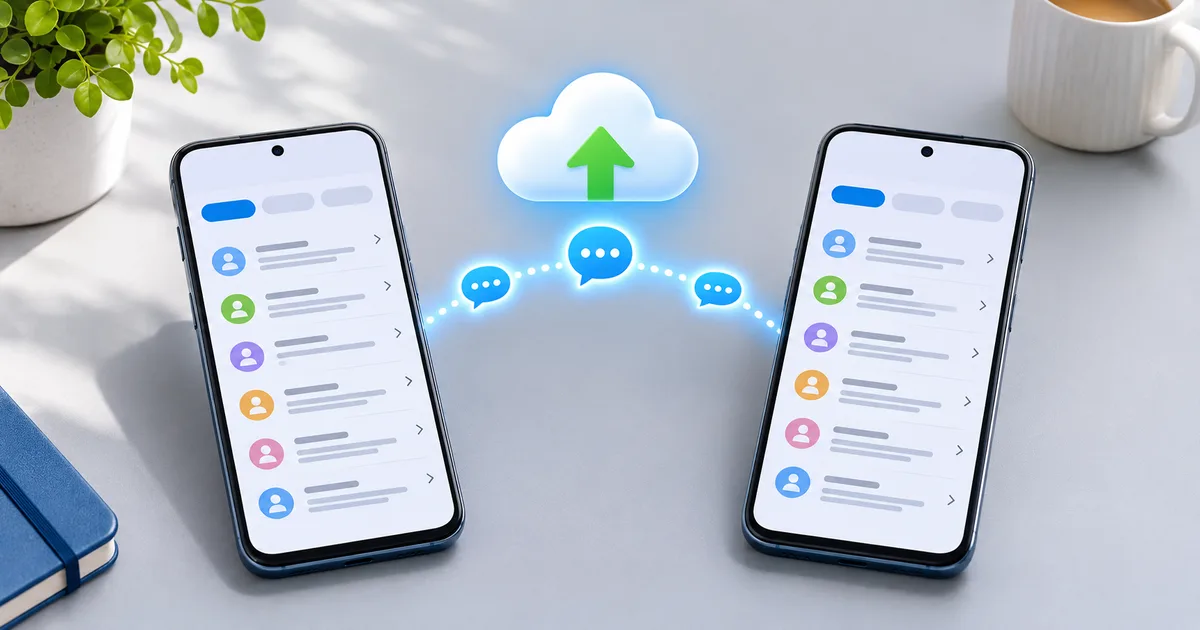
To back up SMS Organizer, run its built-in Google Drive backup, then export your SMS to a file with a backup app such as SMS Backup & Restore, and check that your Google account backup is on. After that, set any other SMS app as your default: your full message history shows up there, because Android stores SMS in a shared system store and not inside SMS Organizer.
Microsoft is retiring SMS Organizer. Since May 2026 the app shows a sunset notice asking users to move to another app, and Microsoft has not given a shutdown date. This guide covers the backup, the switch and what does not carry over.
Do you need to back up at all?
Your SMS are not lost when you change apps. Android keeps every SMS and MMS in one system database that any default SMS app can read. Google's Android documentation says only the default SMS app can write to that store, but the messages themselves stay put when you switch.
Back up anyway, for three reasons:
- The extras live only in SMS Organizer. The expense passbook, bill and travel reminders and your starred messages are SMS Organizer features, not part of the system store.
- Phone changes and resets. If you factory reset or move to a new phone, only a backup brings your SMS along.
- Mistakes happen. Some cleanup tools and new SMS apps offer to delete old messages. A file backup protects you from one wrong tap.
Method 1: SMS Organizer's built-in Google Drive backup
SMS Organizer's Play listing says it can back up your messages to Google Drive and restore them when you reinstall the app. Use it now, while the app is still on the Play Store and still working.
- Open SMS Organizer.
- Open the menu and go to the app's settings.
- Find the backup option, choose your Google account and start a backup.
- Wait for it to finish while connected to Wi-Fi.
Method 2: Export your SMS to a file with SMS Backup & Restore
SMS Backup & Restore by SyncTech is the most widely used SMS backup app on Android, with more than 10 crore (100 million) downloads on Google Play. It saves your SMS, MMS and call logs as an XML file that works on any Android version. Its listing says files are never sent to the developer.
- Install SMS Backup & Restore from Google Play.
- Open it, tap Set up a backup and choose Messages. Add call logs if you want them too.
- Pick where to save: on the phone, or upload to Google Drive, Dropbox or OneDrive.
- Tap Back up now and wait for it to finish.
- Copy the file off the phone (cloud upload or email). A backup that stays only on the phone does not survive a reset.
You can also schedule automatic backups and view the file on a computer with SyncTech's online backup viewer. To move messages to a new phone, install the app there and restore the same file.
Method 3: Check your Google account backup
Android's built-in Google backup covers SMS and MMS, plus RCS chats if you use Google Messages. It counts against your free 15 GB of Google storage, and you do not need a Google One plan.
- Open Settings and go to Google > Backup. On some phones, it sits under System > Backup.
- Make sure Backup by Google One (or Back up to Google Drive) is on.
- Tap Back up now.
Google restores this backup only when you set up a new phone or reset your phone. You cannot open it and browse your messages, which is why the file in Method 2 is worth having.
How to switch to a new SMS app
- Pick a replacement. Google Messages suits most people. If spam is your main problem, see our list of SMS Organizer alternatives with each app's sorting, spam and backup features.
- Install it from the Play Store, if it is not on your phone already.
- Make it the default SMS app. Open the app and accept its prompt, or go to Settings > Apps > Default apps > SMS app. Menu names differ a little by phone brand.
- Check your history. Scroll back through a few old bank or OTP threads to confirm everything is there.
- Turn on spam protection in the new app.
- Uninstall SMS Organizer only after your file backup is safe off the phone.
What does not carry over
| SMS Organizer feature | After you switch | What to use instead |
|---|---|---|
| SMS history | Carries over | Nothing to do |
| Passbook of bank and wallet balances | Lost | Your bank's app or a budget app that reads transaction SMS |
| Bill, flight and train reminders | Lost | Google Calendar, or your airline, rail and bank apps |
| Starred messages | Lost | Star them again in the new app |
| Blocked senders | May not carry over | Check the block list in the new app |
| Promotions and Transactional tabs | Lost | Spam filters in Google Messages or Truecaller |
Google Play allows approved money-management and UPI apps to read transaction SMS without being your default SMS app, so a budget app can rebuild most of the passbook from your bank alerts.
Related guides
- SMS Organizer alternatives: seven apps compared on sorting, spam blocking and backup.
- Truecaller alternatives: caller ID and spam blocking without Truecaller.
- How to block spam emails: the same cleanup for your inbox.
Will I lose my SMS when SMS Organizer shuts down?
How do I export messages from SMS Organizer?
How do I change my default SMS app?
Does Google back up my text messages?
Will OTPs stop working after I switch apps?

Amit loves new tech and apps that make life easier, he writes about apps, games and useful websites on TheTechBasket.