Android keeps apps alive in the background so they can deliver notifications, sync data, and resume instantly when you open them. Most of the time that is the right call. But some apps abuse this privilege, draining your battery and hogging RAM long after you last touched them.
The good news is that Android gives you several targeted controls, and knowing which one to use matters. Force stopping an app is different from restricting it, and restricting it is different from uninstalling it. This guide covers all of them, including a clear breakdown of the trade-offs, so you pick the right tool for the situation.
See Which Apps Are Running in the Background
Before restricting anything, check where your battery is actually going.
Battery usage (the right place to start):
- Open Settings > Battery > Battery usage.
- Look at the app list. Each entry shows foreground and background time.
- Any app with high background time relative to how much you actually open it is a candidate for restriction.
Running services (Developer options):
If you have Developer options enabled, go to Settings > System > Developer options > Running services. This shows every process currently active in memory, how much RAM each is using, and how long it has been running. It is more technical but gives you a clearer picture of what is actually executing right now.
Digital Wellbeing:
Settings > Digital Wellbeing shows how long you have spent in each app that day. If an app shows zero screen time but is appearing in battery usage, it is spending all its time in the background.
Restrict Background Activity Per App
This is the main control you want. Restricting an app tells Android to block it from waking up your phone in the background entirely.
On Pixel and most stock Android devices:
- Open Settings > Apps.
- Tap the app you want to restrict.
- Tap App battery usage.
- Select Restricted.
The three options are:
- Allow background usage (Unrestricted): the app runs freely in the background (the default for many apps).
- Optimized: Android manages the app automatically, restricting it when battery is low. This is the default for most apps.
- Restricted: the app cannot run in the background at all. Notifications may be delayed, but the app cannot wake the processor on its own.
On Samsung (One UI):
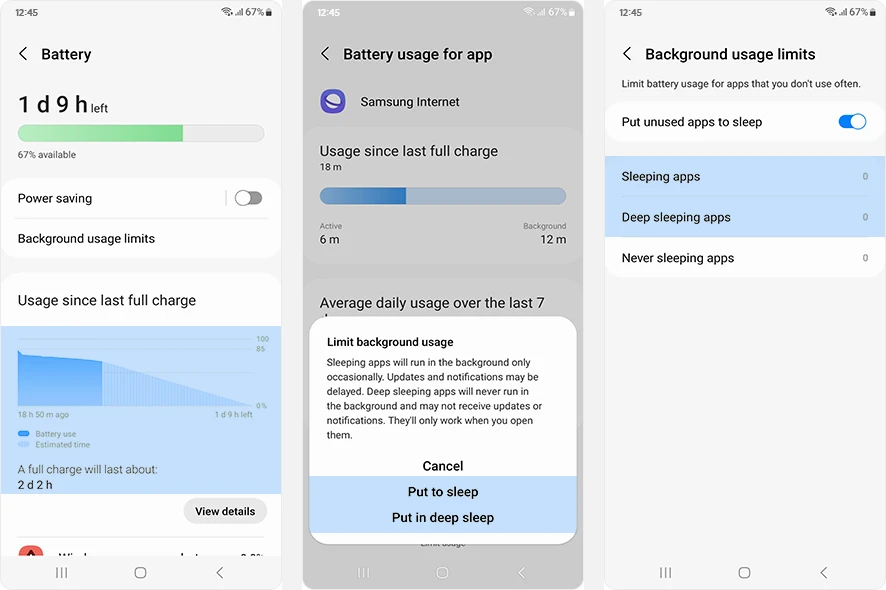
Samsung uses a different system called sleeping apps.
- Go to Settings > Battery and device care > Battery > Background usage limits.
- Tap Sleeping apps to add apps manually.
- Or enable Put unused apps to sleep to let Android do it automatically for apps you have not opened in a few days.
Samsung also has a Deep sleeping apps category. These apps get even stricter treatment and notifications may be delayed. Use this only for apps you want to keep installed but rarely need to hear from.
On OnePlus and Xiaomi: See the vendor section below.
Force Stop vs Restrict vs Uninstall
These three options do very different things. Here is a side-by-side comparison:
| Action | What it does | How long it lasts | Notifications |
|---|---|---|---|
| Force stop | Kills the app process right now | Until the app relaunches (often on reboot or next open) | Stops until relaunch |
| Restrict (App battery usage > Restricted) | Blocks background wakeups permanently | Permanent (until you change it) | May be delayed |
| Uninstall | Removes the app entirely | Permanent | None |
Force stop is useful for a misbehaving app. If an app is frozen or spinning in the background right now, force stop it. But it is not a long-term solution: the app can start itself again after a reboot, or when another app sends it a broadcast.
To force stop an app: Settings > Apps > [App] > Force stop.
Restrict is the lasting fix. It prevents the app from waking your phone in the background without removing it. This is the setting most guides skip but it is the one that actually changes your battery usage day to day.
Uninstall is the cleanest option for apps you no longer need. If you have not opened an app in six months and you only keep it "just in case," uninstall it. Android's Adaptive Battery cannot fully compensate for an app that is determined to stay awake.
Battery Saver and Adaptive Battery
These two features do a lot of the heavy lifting automatically, and most people leave them on their default settings without knowing what they actually do.
Adaptive Battery (Settings > Battery > Adaptive preferences > Adaptive Battery) uses on-device machine learning to study how often you open each app. Apps you use regularly get full background access. Apps you have not opened in days get quietly restricted. It improves over time as it learns your habits.
Battery Saver (Settings > Battery > Battery Saver) is the aggressive mode. Enable it manually when you are running low, or set it to turn on automatically at a percentage (20% is a good threshold). Battery Saver limits background syncing, reduces visual effects, and may drop refresh rate to 60 Hz.
For a full walkthrough of every battery-related setting, including location permissions, refresh rate, and charging optimization, see our guide on Android settings to improve battery life.
Developer Options: Background Process Limit
Developer options include a setting called Background process limit that lets you cap how many apps can run in the background at once (0, 1, 2, 3, or 4 processes, or no limit).
Go to Settings > System > Developer options > Background process limit.
Honest assessment: leave this alone for most people. Setting it to a low number forces Android to kill background processes aggressively, which sounds like a win. In practice, it breaks notification delivery for messaging apps, causes apps to reload from scratch instead of resuming, and can interfere with services like Google Pay, health trackers, and VPN clients.
The Restrict option per app is a more surgical approach. Background process limit is a blunt instrument that tends to cause more problems than it solves unless you specifically know what you are doing with it.
Apps You Should Not Restrict
Not every app is safe to restrict. Some apps need background access to work correctly.
| App category | Why you should not restrict |
|---|---|
| Messaging apps (WhatsApp, Telegram, Signal) | Messages arrive through background push services. Restrict them and messages may not appear until you open the app manually. |
| Alarm clocks | The alarm process must be running to fire at the right time. |
| Health and fitness trackers | Step counters, heart rate, sleep tracking all require continuous background access. |
| Smartwatch companion apps (Galaxy Wearable, Pixel Watch app) | Sync and notifications between your phone and watch depend on a persistent background connection. |
| VPN clients | A VPN tunnel must stay active in the background. Restricting it drops your connection. |
| Google Play Services | Do not touch this. It underpins push notifications, location, and authentication across the entire OS. |
A good rule of thumb: if an app needs to tell you something while you are not looking at it, do not restrict it.
Samsung, OnePlus, and Xiaomi Extra Settings
These three vendors have their own background-killing systems on top of Android's defaults, and they are significantly more aggressive than stock Android.
Samsung (One UI):
Samsung's auto-launch manager and background monitoring are more restrictive than standard Android. If a third-party app (especially a messaging or home automation app) is not delivering notifications reliably on a Samsung device, check:
- Settings > Apps > [App] > Battery: make sure it is set to Unrestricted, not Optimized.
- Settings > Battery and device care > Battery > Background usage limits: remove the app from the sleeping or deep sleeping list if it appears there.
- Settings > Battery and device care > Battery > Background usage limits > Adaptive battery: Samsung's Adaptive battery can silently add apps to the sleeping list after a few days of inactivity.
OnePlus (OxygenOS): (menu names vary by software version)
- Settings > Battery > Battery optimization > [App]: set to "Don't optimize" for critical apps.
- OnePlus also has a Startup manager (Settings > Apps > Startup manager) that controls which apps are allowed to auto-start. If a service is not running when you expect it to, check here.
Xiaomi / Redmi (MIUI / HyperOS): (menu names vary by software version)
Xiaomi's background restriction is some of the most aggressive in the Android ecosystem. For critical apps:
- Settings > Apps > Manage apps > [App] > Battery saver: set to No restrictions.
- Settings > Apps > Manage apps > [App]: enable Autostart.
- Go to Settings > Battery > App battery saver and confirm the app is not on a restricted list.
For related device management tips, see how to free up space on Android or how to hide apps on Android if you want to remove clutter without uninstalling.
FAQs
How do I see which apps are running in the background?
How do I keep an app running in the background?
How do I force stop an app?
Why does Android keep apps running in the background?
Does stopping background apps save battery?

Amit loves new tech and apps that make life easier, he writes about apps, games and useful websites on TheTechBasket.